The Microsoft Precision Mouse, while not the newest on the market, remains a robust and highly capable peripheral for Windows productivity in 2026. Its ergonomic design, multi-device capabilities, and extensive customization options make it a strong contender for users prioritizing comfort and efficiency, despite its micro-USB charging port.
Introduction
In the evolving landscape of 2026, where hybrid work and multi-device setups are the norm, a reliable and ergonomic mouse is essential for maintaining peak productivity. This review dives deep into the Microsoft Precision Mouse, evaluating its features, performance, and overall value for the modern Windows user.
What is the Microsoft Precision Mouse and Who is it For in 2026?
The Microsoft Precision Mouse, initially launched in 2017, carved out a niche for itself as a premium, ergonomic input device designed specifically with Windows users in mind. Fast forward to 2026, and its core design philosophy—comfort, precision, and multi-device versatility—still holds significant appeal. It’s built for professionals who spend long hours navigating spreadsheets, documents, and creative applications, demanding accuracy without sacrificing comfort. If your workflow involves seamlessly switching between multiple Windows PCs or even across different operating systems, the Precision Mouse offers compelling features that remain relevant today.
Microsoft engineered this mouse to be a productivity workhorse, not a gaming peripheral. Its weighted, substantial feel and contoured shape are tailored for palm grips and extended use, reducing strain over an eight-hour workday. The focus is on steady, precise movements rather than lightning-fast reflexes. For the discerning user who values build quality and a cohesive Microsoft ecosystem experience, the Precision Mouse continues to be a noteworthy option.
Which Features Matter Most for 2026 Productivity?
Ergonomics and Comfort: A Lasting Design
|
Our Picks for the Best Computer mouse in 2026
As an Amazon Associate I earn from qualifying purchases.
|
||
| Num | Product | Action |
|---|---|---|
| 1 | Amazon Basics 3-Button USB Wired Mouse with Responsive Tracking, Plug & Play, Compatible with Windows and Mac, Black |

|
| 2 | Logitech M185 Wireless Mouse, 2.4GHz with USB Mini Receiver, 12-Month Battery Life, 1000 DPI Optical Tracking, Ambidextrous PC/Mac/Laptop - Swift Grey |
|
| 3 | Logitech B100 Wired Mouse for Computer and Laptop, USB Corded Mouse, Right or Left Hand Use - Black |
|
| 4 | Redragon M997 Magnesium Alloy Wireless Gaming Mouse, Tri-Mode BT & 2.4GHz, Ultra Lightweight Ergonomic Mouse, 1000Hz, Rechargeable for PC Laptop, Starlight Black |
|
| 5 | Wireless Bluetooth Mouse, Rechargeable, LED, Silent, Ultra-thin Design (Bluetooth 5.2 and 2.4GHz USB Receiver) | Portable Computer Mouse for Laptops, iPads, MacBooks and Apple Devices (Black) |
|
| 6 | TECKNET Ergonomic Mouse, Wireless Vertical Mouse, 4800 DPI, Rechargeable Bluetooth Mice for Carpal Tunnel Right Hand, 3-Device Connectivity for Laptop, PC, MacBook, Black |
|
| 7 | Logitech MX Master 4, Ergonomic Wireless Mouse with Advanced Performance Haptic Feedback, Ultra-Fast Scrolling, USB-C Charging, Bluetooth, Windows, MacOS - Graphite |
|
| 8 | Logitech M510 Wireless Mouse, 2.4 GHz with USB Unifying Receiver, 1000 DPI Laser-Grade Tracking, 7-Buttons, 24-Months Battery Life, PC/Mac/Laptop - Graphite |
|
| 9 | acer Wireless Mouse for Laptop, 2.4GHz Computer Mouse 3 Adjustable DPI Office Cordless USB Mice with USBA Receiver, 6 Buttons, 1600 DPI, Medium to Large Sized Hands Compatible with PC, Laptop, Desktop |
|
| 10 | Amazon Basics 2.4 Ghz Wireless Optical Computer Mouse with USB Nano Receiver, Black |
|
The ergonomic design of the Microsoft Precision Mouse is arguably its strongest suit, maintaining its relevance even in 2026. Its sculpted form factor fits naturally into the right hand, providing full palm support and reducing pressure points that often lead to discomfort during prolonged use. The mouse features a solid, reassuring weight (approximately 135g), which contributes to stability and precise cursor control. The thumb rest is well-placed, and the soft-touch finish ensures a comfortable grip. For professionals who spend countless hours at their desks, this focus on comfort translates directly into sustained productivity and reduced fatigue.
Precision and Tracking: Reliable Performance
Equipped with a robust optical sensor, the Precision Mouse offers excellent tracking on a variety of surfaces, from typical desk pads to glass. Its DPI (Dots Per Inch) is adjustable up to 3200, allowing users to fine-tune sensitivity to match their workflow and display resolution. This level of precision is more than adequate for most productivity tasks, including detailed design work in CAD or image editing. The scroll wheel offers both standard notched scrolling and a smooth, speed-adaptive mode for rapid document navigation. This dual functionality is a significant advantage for efficiency, allowing quick jumps through long documents or precise line-by-line control.
Connectivity and Multi-Device Support: Microsoft Flow’s Advantage
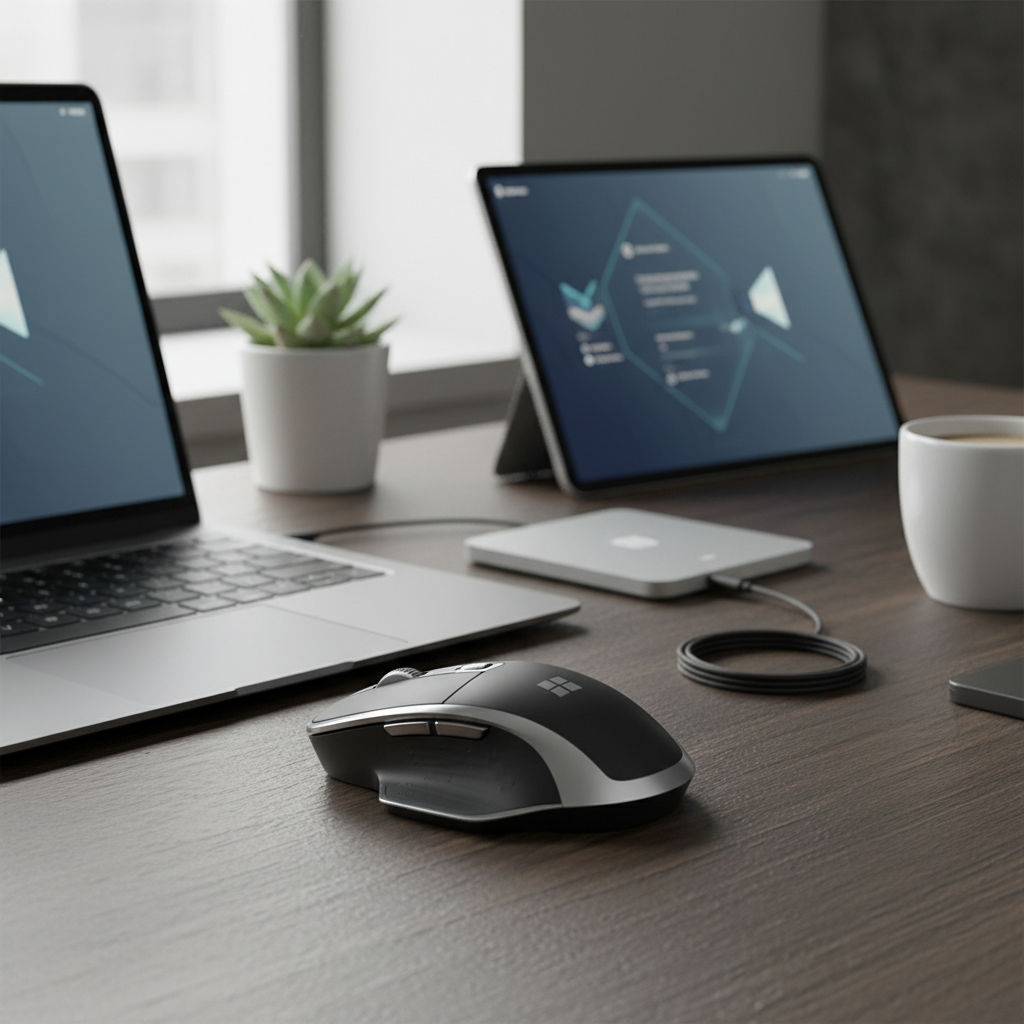
The Precision Mouse connects via Bluetooth 4.0/4.1 or a wired USB connection (using its charging cable). While Bluetooth 4.0 is not the latest standard in 2026, it offers stable and reliable connectivity. Its standout feature, however, is Microsoft’s proprietary “Flow” technology. This allows the mouse to seamlessly control up to three different devices simultaneously, even across different operating systems, by simply moving the cursor to the edge of the screen. This functionality remains a game-changer for multi-monitor, multi-PC setups, eliminating the need for multiple mice or KVM switches. Swift Pair support also enables quick, hassle-free pairing with Windows 10/11 devices.
Programmable Buttons and Customization: Tailored to Your Workflow
Beyond the standard left/right clicks and scroll wheel, the Precision Mouse boasts three customizable thumb buttons. These buttons, along with other mouse functions, can be extensively remapped using the Microsoft Mouse and Keyboard Center software. Users can assign macros, launch applications, execute specific Windows commands, or perform media controls. This level of customization allows you to tailor the mouse precisely to your unique workflow, shaving off valuable seconds from repetitive tasks and boosting overall efficiency.
Battery Life and Charging: A Minor 2026 Drawback
The Microsoft Precision Mouse features a built-in rechargeable battery, offering up to three months of use on a single charge. This exceptional battery life means infrequent charging, reducing downtime. However, one notable aspect in 2026 is its reliance on a micro-USB port for charging. While functional, micro-USB is largely superseded by USB-C in modern peripherals, which offers reversible connectivity and faster charging. This is a minor but noticeable inconvenience in an otherwise forward-thinking device.
How Does the Microsoft Precision Mouse Stack Up Against Competitors in 2026?
In 2026, the productivity mouse market is competitive, with strong contenders from various manufacturers. The Microsoft Precision Mouse holds its own, especially with its Flow technology, but it faces stiff competition from newer models. Here’s a comparison against two leading alternatives:
| Feature | Microsoft Precision Mouse | Logitech MX Master 3S | Dell Premier Rechargeable Mouse MS7421W |
|---|---|---|---|
| Target User | Windows Productivity, Multi-Device | Advanced Productivity, Creators | Business Productivity, Dell Ecosystem |
| Connectivity | Bluetooth 4.0/4.1, Wired USB | Bluetooth LE, Logi Bolt USB Receiver | Bluetooth 5.0, Dell Universal Receiver |
| Multi-Device | Microsoft Flow (3 devices) | Logi Flow (3 devices) | Dell Peripheral Manager (3 devices) |
| DPI Range | Up to 3200 | 200-8000 (Darkfield sensor) | Up to 4000 |
| Programmable Buttons | 3 thumb buttons, scroll wheel click/tilt | 7 buttons (thumb wheel, gesture button) | 5 buttons |
| Charging Port | Micro-USB | USB-C | USB-C |
| Battery Life | Up to 3 months | Up to 70 days | Up to 6 months |
| Scroll Wheel | Standard/Speed-adaptive | MagSpeed Electromagnetic (Quiet click) | Standard |
The Precision Mouse excels in ergonomics and its seamless Microsoft Flow integration. However, the Logitech MX Master 3S offers a superior sensor with higher DPI, a more advanced MagSpeed scroll wheel, and the convenience of USB-C charging. The Dell MS7421W provides excellent battery life and modern Bluetooth 5.0 connectivity, making it a strong contender for Dell users. While the Precision Mouse’s micro-USB port is a dated aspect, its comfort and robust build quality ensure it remains competitive for its original price point and feature set.
Is the Microsoft Precision Mouse Worth It for Windows Productivity in 2026?
Considering its age, the Microsoft Precision Mouse still offers significant value for Windows productivity in 2026. Its strengths lie in its exceptional ergonomics and integrated multi-device capabilities. However, potential buyers must weigh these against its few dated features.
Pros:
- Exceptional Ergonomics: Designed for long-term comfort, reducing strain during extended use.
- Seamless Multi-Device Control: Microsoft Flow allows effortless switching between up to three devices.
- High Customizability: Three programmable buttons and scroll wheel options adapt to diverse workflows.
- Reliable Precision: 3200 DPI sensor offers accurate tracking on various surfaces.
- Long Battery Life: Up to three months on a single charge minimizes interruptions.
- Solid Build Quality: Durable construction with a premium feel.
- Windows Integration: Optimized for the Microsoft ecosystem, including Swift Pair.
Cons:
- Micro-USB Charging: Uses a micro-USB port, which is outdated compared to modern USB-C.
- Bluetooth 4.0: While stable, it’s an older Bluetooth standard.
- No Hyper-Fast Scroll Wheel: Lacks the advanced electromagnetic scrolling found in some competitors.
- Right-Handed Only: Not suitable for left-handed users.
- Weight: At 135g, it might feel heavy for some users who prefer lighter mice.
- Limited DPI Range: Max 3200 DPI might be insufficient for ultra-high-resolution multi-monitor setups for some power users.
The Microsoft Precision Mouse is an excellent choice for individuals prioritizing ergonomic comfort and efficient multi-device management within a Windows environment. If you frequently switch between multiple computers and value a mouse that feels substantial and comfortable, it’s a worthwhile investment. However, if cutting-edge features like USB-C, ultra-high DPI, or advanced scroll wheels are paramount, newer alternatives might be more appealing.
Integrating the Precision Mouse into Your 2026 Workflow
To maximize your productivity with the Microsoft Precision Mouse in 2026, start by fully leveraging the Microsoft Mouse and Keyboard Center software. Customize the three thumb buttons to perform your most frequent actions, whether it’s launching specific applications, copying/pasting, or navigating browser tabs. Experiment with the scroll wheel’s speed-adaptive mode; its ability to switch between precise and hyper-fast scrolling is invaluable for long documents and spreadsheets. For multi-PC users, configure Microsoft Flow to seamlessly transition your cursor and even clipboard content between up to three devices. This eliminates friction and saves considerable time throughout your workday, making your digital environment feel truly integrated and responsive.
Frequently Asked Questions
Is the Microsoft Precision Mouse compatible with Mac or Linux?
Yes, the Microsoft Precision Mouse can connect to Mac and Linux systems via Bluetooth. Basic functionality (left/right click, scrolling) will work. However, advanced features like programmable buttons and Microsoft Flow require the Microsoft Mouse and Keyboard Center software, which is only available for Windows.
Can I use the Microsoft Precision Mouse while it’s charging?
Yes, you can use the Microsoft Precision Mouse as a wired mouse by connecting it via its micro-USB cable to your computer. This allows you to continue working even when the battery is low or charging.
How do I customize the buttons on the Microsoft Precision Mouse?
Button customization is managed through the Microsoft Mouse and Keyboard Center software, which can be downloaded from the Microsoft website. This intuitive application allows you to reassign functions to the three thumb buttons, adjust scroll wheel behavior, and fine-tune DPI settings.
What is Microsoft Flow and how does it work?
Microsoft Flow is a feature that allows the Precision Mouse to control up to three different computers simultaneously. Once configured through the Microsoft Mouse and Keyboard Center, you can move your cursor seamlessly from one screen to another across different devices, just as if they were a single extended desktop. It also supports copying and pasting text and files between these connected computers.
Is the Microsoft Precision Mouse loud or quiet?
The Microsoft Precision Mouse features standard click buttons and a notched scroll wheel, so it produces audible clicks and scroll sounds. It is not specifically designed as a “silent” mouse, though its sound profile is generally considered moderate and not overly distracting in an office environment.
Conclusion
The Microsoft Precision Mouse, despite its 2017 origins, remains a highly relevant and capable tool for Windows productivity in 2026. Its enduring strengths—superior ergonomics, robust build quality, and the transformative multi-device capabilities of Microsoft Flow—outweigh the minor inconvenience of its micro-USB charging port. For professionals seeking a comfortable, customizable, and efficient mouse to navigate complex, multi-PC workflows, the Precision Mouse continues to deliver substantial value and remains a strong recommendation.