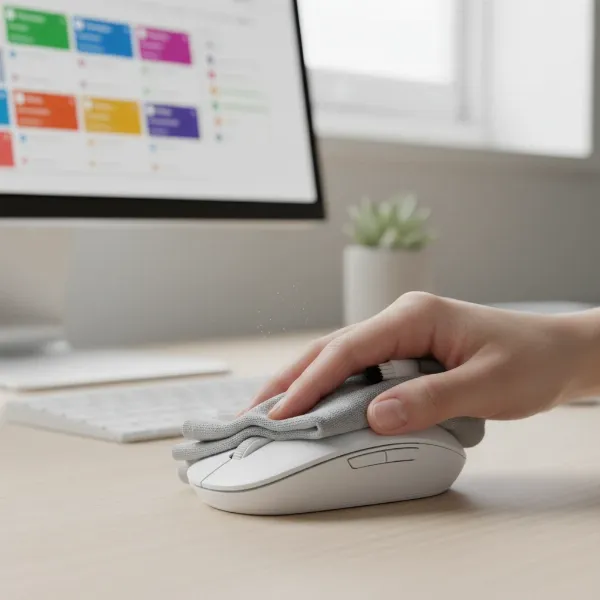
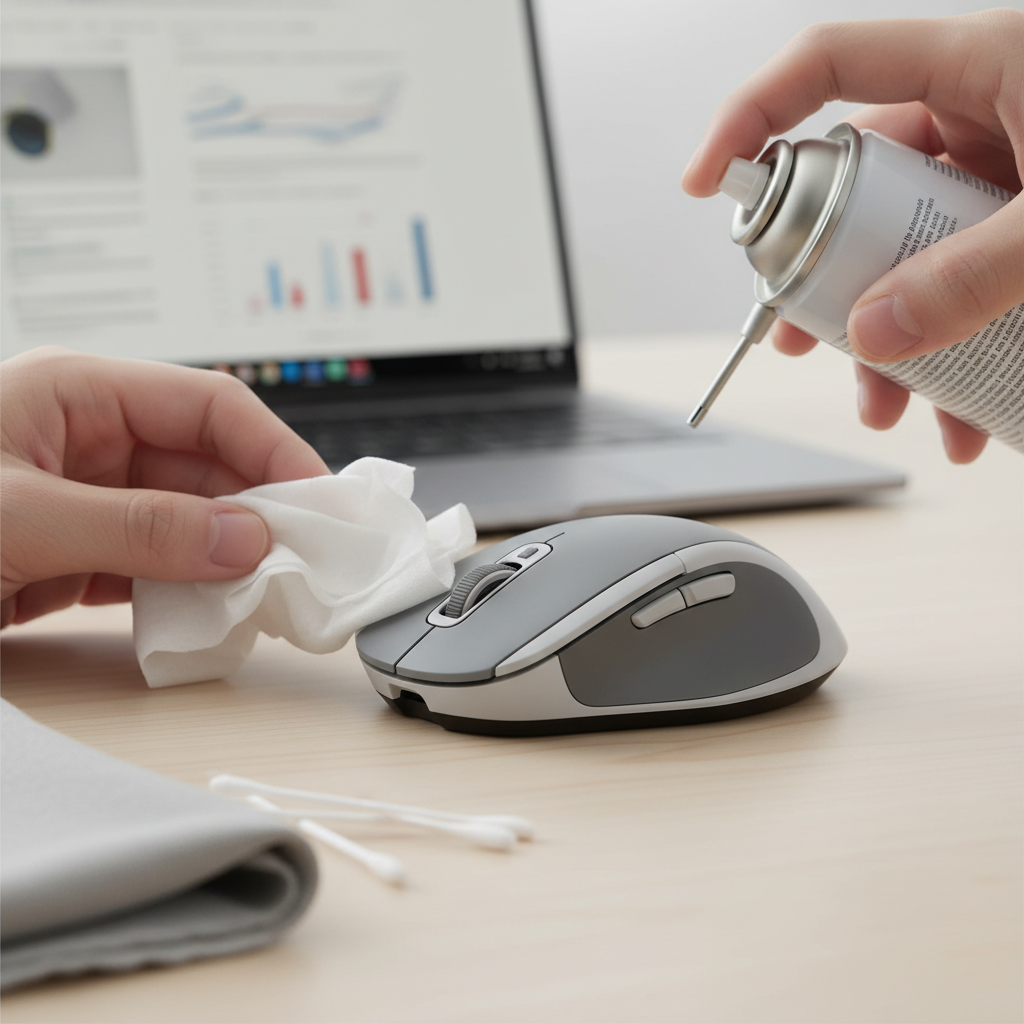
Cleaning your computer mouse regularly is crucial for hygiene and performance. Power off and disconnect the mouse, then use a 70% isopropyl alcohol wipe or a microfiber cloth lightly dampened with IPA to clean surfaces. Use compressed air for crevices and the optical sensor, and cotton swabs for tight spots, ensuring no liquid enters internal components.
Introduction: Why Mouse Hygiene Matters More Than Ever in 2026
Your computer mouse is a daily companion, an extension of your hand in the digital realm. Yet, it often accumulates more grime, bacteria, and skin oils than you might imagine. In 2026, with increasing awareness of personal hygiene and shared workspaces, maintaining a clean mouse isn’t just about aesthetics; it’s essential for health, precision, and extending your device’s lifespan.
Why Should You Clean Your Computer Mouse Regularly?
Neglecting mouse hygiene has tangible consequences beyond mere appearance. A dirty mouse can harbor significant bacterial colonies, impede sensor accuracy, and even accelerate wear on mechanical components. Regular cleaning prevents these issues, ensuring a healthier and more productive computing experience.
Protect Your Health: A Hub for Germs
|
Our Picks for the Best Computer mouse in 2026
As an Amazon Associate I earn from qualifying purchases.
|
||
| Num | Product | Action |
|---|---|---|
| 1 | Amazon Basics 2.4 Ghz Wireless Optical Computer Mouse with USB Nano Receiver, Black |

|
| 2 | acer Wireless Mouse for Laptop, 2.4GHz Computer Mouse 3 Adjustable DPI Office Cordless USB Mice with USBA Receiver, 6 Buttons, 1600 DPI, Medium to Large Sized Hands Compatible with PC, Laptop, Desktop |
|
| 3 | Redragon M997 Magnesium Alloy Wireless Gaming Mouse, Tri-Mode BT & 2.4GHz, Ultra Lightweight Ergonomic Mouse, 1000Hz, Rechargeable for PC Laptop, Starlight Black |
|
| 4 | Logitech MX Master 4, Ergonomic Wireless Mouse with Advanced Performance Haptic Feedback, Ultra-Fast Scrolling, USB-C Charging, Bluetooth, Windows, MacOS - Graphite |
|
| 5 | Wireless Bluetooth Mouse, Rechargeable, LED, Silent, Ultra-thin Design (Bluetooth 5.2 and 2.4GHz USB Receiver) | Portable Computer Mouse for Laptops, iPads, MacBooks and Apple Devices (Black) |
|
| 6 | TECKNET Ergonomic Mouse, Wireless Vertical Mouse, 4800 DPI, Rechargeable Bluetooth Mice for Carpal Tunnel Right Hand, 3-Device Connectivity for Laptop, PC, MacBook, Black |
|
| 7 | Amazon Basics 3-Button USB Wired Mouse with Responsive Tracking, Plug & Play, Compatible with Windows and Mac, Black |
|
| 8 | Logitech B100 Wired Mouse for Computer and Laptop, USB Corded Mouse, Right or Left Hand Use - Black |
|
| 9 | Logitech M185 Wireless Mouse, 2.4GHz with USB Mini Receiver, 12-Month Battery Life, 1000 DPI Optical Tracking, Ambidextrous PC/Mac/Laptop - Swift Grey |
|
| 10 | Logitech M510 Wireless Mouse, 2.4 GHz with USB Unifying Receiver, 1000 DPI Laser-Grade Tracking, 7-Buttons, 24-Months Battery Life, PC/Mac/Laptop - Graphite |
|
Studies consistently show computer mice are breeding grounds for bacteria, including Staphylococcus and E. coli, especially in shared environments. Sweat, skin cells, and residue from food transfer directly to your mouse. A clean mouse significantly reduces your exposure to these pathogens, promoting better personal health.
Maintain Optimal Performance: Precision and Responsiveness
Dirt, dust, and debris can interfere with your mouse’s optical or laser sensor, leading to erratic cursor movement, skipped tracking, or reduced responsiveness. For gamers using high-DPI mice like the Razer DeathAdder V3 Pro or professionals relying on precision devices like the Logitech MX Master 3S, compromised sensor performance is unacceptable. Cleanliness ensures your mouse operates at its peak, delivering consistent accuracy.
Extend Device Lifespan: Prevent Wear and Tear
Accumulated grime can clog scroll wheels, jam buttons, and degrade rubberized grips. Dust and debris entering internal mechanisms can cause premature wear. Regular cleaning prevents these issues, protecting your investment and extending the operational life of premium mice such as the SteelSeries Aerox 9 Wireless or the Microsoft Arc Mouse.
What Essential Cleaning Supplies Do You Need for Your Mouse?
Effective mouse cleaning requires a few readily available, safe supplies. Avoid harsh chemicals that can damage plastics and coatings. Focus on gentle, yet powerful, disinfectants and tools designed for electronics.
- 70% Isopropyl Alcohol (IPA): This is your primary disinfectant. It evaporates quickly, minimizing moisture risk, and effectively kills most bacteria and viruses. Wipes pre-saturated with 70% IPA are convenient.
- Microfiber Cloths: Soft, lint-free microfiber cloths are ideal for wiping surfaces without scratching or leaving residue. Use separate cloths for cleaning and drying.
- Compressed Air Duster: Essential for blowing dust and debris out of crevices, under buttons, and off optical sensors without direct contact. Brands like Falcon Dust-Off are reliable.
- Cotton Swabs (Q-tips): Perfect for reaching into tight spaces around buttons, scroll wheels, and seams. Lightly dampen with IPA for targeted cleaning.
- Soft-bristled Brush (e.g., old toothbrush): Useful for dislodging stubborn dirt from textured surfaces or in grooves. Ensure it’s clean and dry.
- Toothpicks (optional): Carefully use a toothpick for gently dislodging caked-on grime from extremely tight seams, but use with extreme caution to avoid scratching.
How Often Should You Clean Your Computer Mouse for Optimal Hygiene?
The frequency of cleaning depends on usage, environment, and personal habits. However, a multi-tiered approach ensures consistent hygiene and performance.
Daily: A quick wipe-down of primary contact surfaces with a dry or lightly dampened microfiber cloth. This removes fresh oils and dust before they build up. For high-traffic or shared mice, a quick IPA wipe is recommended daily.
Weekly: A more thorough surface cleaning with 70% IPA wipes or a damp microfiber cloth. Use compressed air on the sensor and scroll wheel. This prevents significant grime accumulation.
Monthly: A deep clean. Disconnect the mouse, carefully clean all surfaces, use compressed air extensively, and target all crevices with cotton swabs. For trackball mice, this includes removing and cleaning the trackball and its internal sensors.
As Needed: Immediately clean after spills, if performance degrades, or if the mouse is used by multiple individuals.
Step-by-Step Guide: How to Clean Different Types of Computer Mice
Regardless of your mouse type, always begin by powering off and disconnecting it. This prevents accidental inputs and electrical hazards. For wireless mice, remove batteries if accessible.
General Cleaning Steps for All Mice (Wired, Wireless, Optical, Laser)
- Power Off and Disconnect: Unplug wired mice. For wireless mice, switch the power off and remove batteries if possible.
- Initial Dust Removal: Use a can of compressed air. Hold it upright and use short bursts to blow dust and debris from under buttons, around the scroll wheel, and out of any seams or crevices. Pay special attention to the underside glide pads.
- Surface Disinfection: Lightly dampen a clean microfiber cloth with 70% isopropyl alcohol. Alternatively, use a pre-saturated IPA wipe. Gently wipe down all external surfaces of the mouse, including the top, sides, buttons, and the scroll wheel. Avoid saturating the mouse or allowing liquid to seep into openings.
- Targeted Crevice Cleaning: Wrap a cotton swab around a toothpick or use a standard cotton swab lightly dampened with IPA. Carefully clean around the edges of buttons, the scroll wheel, and any textured grips. For stubborn grime, a dry, soft-bristled brush can help dislodge particles before wiping.
- Sensor Cleaning (Optical/Laser): Use a short burst of compressed air directly over the optical/laser sensor on the underside of the mouse. Do NOT touch the sensor directly with cloths or swabs, as this can scratch or damage it. Ensure no dust obstructs the sensor’s path.
- Drying: Allow the mouse to air dry completely for several minutes. Isopropyl alcohol evaporates quickly, but ensure no moisture remains, especially in crevices, before reconnecting or powering on.
Specific Considerations for Trackball Mice (e.g., Logitech ERGO M575)
Trackball mice require additional steps due to their unique design.
- Remove the Trackball: Most trackball mice allow for easy removal of the ball. Gently push it from the underside opening or use a designated eject button.
- Clean the Trackball: Wipe the trackball thoroughly with an IPA-dampened microfiber cloth until it’s clean and smooth.
- Clean Internal Sensors and Rollers: Inside the trackball cavity, you’ll find small optical sensors and often three tiny bearing rollers. Use a dry cotton swab or a toothpick to carefully scrape off any accumulated grime from these rollers. Then, use compressed air to clear any dust from the sensors. Do NOT use liquid directly on the internal sensors.
- Reassemble: Once everything is clean and dry, reinsert the trackball, ensuring it moves smoothly.
Specific Considerations for Gaming Mice (e.g., Razer Viper Ultimate)
Gaming mice often feature textured grips, more buttons, and specialized coatings.
- Textured Grips: Rubberized or textured grips can accumulate skin oils and dead skin cells. Use a soft-bristled brush with a small amount of IPA on a cotton swab to gently scrub and clean these areas, then wipe with a microfiber cloth.
- Multiple Buttons: Pay extra attention to the seams around additional macro buttons. Compressed air and thin cotton swabs are vital here.
- Cable Management (Wired Gaming Mice): For wired mice, wipe the cable with an IPA-dampened cloth to remove grime that can accumulate from dragging across surfaces.
What Common Mouse Cleaning Mistakes Should You Avoid?
Improper cleaning can cause more harm than good. Steer clear of these common pitfalls to protect your device.
- Using Excessive Liquid: Never spray cleaners directly onto the mouse or use heavily saturated cloths. Liquid ingress is a primary cause of electronic failure.
- Harsh Chemicals: Avoid ammonia-based cleaners (like window cleaner), bleach, abrasive cleaners, or strong solvents. These can damage plastic finishes, rubberized coatings, and printed legends.
- Abrasive Materials: Do not use paper towels, rough sponges, or anything that can scratch the mouse’s surface or sensor lens. Stick to microfiber cloths and cotton swabs.
- Ignoring Power-Off: Always disconnect and power off the mouse before cleaning. This prevents accidental clicks, short circuits, and potential electrical shock.
- Touching the Sensor Directly: The optical or laser sensor is delicate. Avoid touching it with fingers, cloths, or cotton swabs, as this can scratch the lens or leave residue, impairing performance. Use only compressed air.
- Incomplete Drying: Never reconnect or power on a mouse that is still damp. Ensure all components are completely dry to prevent electrical damage.
Which Advanced Cleaning Methods Are Recommended for 2026?
As hygiene awareness evolves, so do cleaning technologies. For 2026, consider these advanced methods for enhanced sanitation.
| Method/Tool | Description | Pros | Cons | Recommended Use |
|---|---|---|---|---|
| UV-C Sanitizer Box | Enclosed box emitting UV-C light to kill germs. Brands like PhoneSoap offer larger versions. | Sterilizes 99.9% of bacteria/viruses in minutes without liquids; automated. | Higher initial cost; doesn’t remove physical grime; limited to mouse size. | Daily quick sanitization, especially for shared mice. |
| Antimicrobial Wipes | Wipes specifically formulated with antimicrobial agents (e.g., quaternary ammonium compounds) safe for electronics. | Effective against a broad spectrum of pathogens; convenient. | Can be more expensive than IPA wipes; some may leave residue if not designed for electronics. | Regular disinfection, especially in high-traffic environments. |
| Specialized Cleaning Gels/Putty | Viscous, non-toxic gels that conform to crevices and lift dirt without residue (e.g., Cyber Clean). | Excellent for deep cleaning textured surfaces and hard-to-reach crevices; doesn’t use liquid. | Not a disinfectant; can leave slight residue if quality is poor; requires replacement. | Monthly deep cleaning for textured grips and button gaps. |
| Ultrasonic Cleaner (for parts) | Uses high-frequency sound waves in a liquid bath to dislodge dirt (NOT for entire mouse). | Extremely thorough cleaning for small, non-electronic parts (e.g., trackball, removable buttons). | Requires disassembly; absolutely NOT for the main mouse body; specialized equipment. | Only for specific, non-electronic components after full disassembly by an expert. |
Maintaining Mouse Hygiene: 5 Tips for a Cleaner Workspace
- Wash Your Hands Regularly: Clean hands are the first line of defense against transferring germs and oils to your mouse.
- Avoid Eating at Your Desk: Food crumbs and sticky residues are major contributors to mouse grime. If you must eat, clean your hands thoroughly afterward.
- Use a Mouse Pad: A clean mouse pad provides a consistent surface for optical tracking and prevents debris from accumulating on the mouse’s underside. Regularly clean your mouse pad too.
- Keep Your Workspace Tidy: A dust-free desk means less dust available to settle on and enter your mouse. Wipe down your desk surfaces regularly.
- Consider a “Hygiene” Mouse: Some mice, like specific medical-grade models, feature sealed surfaces and antimicrobial coatings for easier and more effective disinfection. While not common for consumer use, their design principles highlight the importance of material choice.
Frequently Asked Questions
Can I use rubbing alcohol to clean my mouse?
Yes, 70% isopropyl alcohol (often called rubbing alcohol) is highly recommended. It’s effective at disinfecting and evaporates quickly, minimizing moisture risk. Avoid higher concentrations like 90% or 99% as they evaporate too fast to effectively disinfect and can be harsher on plastics over time.
Is it safe to get the mouse sensor wet?
No, it is not safe to get the mouse sensor wet. The optical or laser sensor is a delicate electronic component. Introducing liquid directly can cause irreparable damage. Always use compressed air to clean the sensor, and never touch it with cloths or swabs.
How do I clean a sticky scroll wheel?
A sticky scroll wheel usually indicates grime buildup. First, use compressed air to dislodge loose debris around the wheel. Then, use a cotton swab lightly dampened with 70% IPA to carefully clean the visible surfaces and sides of the scroll wheel, rotating it to access all areas. Allow it to dry completely.
Can I put my mouse in a dishwasher or rinse it under water?
Absolutely not. Computer mice are electronic devices and are not designed to be submerged in water or put in a dishwasher. This will cause severe, irreversible damage to the internal circuitry and void any warranty. Only use the recommended dry or lightly damp cleaning methods.
What about cleaning the mouse feet or glide pads?
The mouse feet (or glide pads) can accumulate dirt, affecting smooth movement. Gently wipe them with a microfiber cloth lightly dampened with 70% IPA. Ensure they are completely dry before use. If they are heavily worn or damaged, consider replacing them for optimal glide.
Conclusion
A clean computer mouse is not merely about aesthetics; it is a fundamental aspect of maintaining personal hygiene, ensuring peak performance, and extending the lifespan of your device. By consistently applying the simple, safe cleaning methods outlined and adopting proactive hygiene habits, you safeguard your health and optimize your digital interaction. Make mouse hygiene a routine, and your trusted peripheral will serve you reliably for years to come.