For graphic designers, the choice of a computer mouse is far more critical than for the average user. It’s not merely a pointing device but an extension of your hand, directly impacting precision, speed, and long-term comfort during intricate creative work. From meticulous pixel-perfect adjustments in Photoshop to complex vector manipulations in Illustrator, the right computer mouse can significantly enhance your workflow, reduce strain, and unlock new levels of productivity. This comprehensive guide delves into everything you need to know to select the ideal mouse that perfectly aligns with your graphic design demands, ensuring your tools empower your creativity, rather than hinder it.
Understanding the Computer Mouse for Graphic Design
A computer mouse is an essential peripheral that translates hand movements into cursor actions on a screen. Its evolution from a simple trackball device to today’s highly sophisticated optical and laser sensors has dramatically transformed how we interact with digital interfaces. For graphic designers, this evolution means access to tools designed for unparalleled accuracy and ergonomic support, crucial for hours spent on detailed projects.
Modern computer mice can broadly be categorized by their connectivity, form factor, and intended use. Wired mice offer a stable connection without battery concerns, often favored for critical tasks where latency is unacceptable. Wireless mice, utilizing Bluetooth or 2.4GHz receivers, provide a clutter-free workspace and increased mobility, a significant benefit for dynamic design setups. Within these categories, gaming mice often boast high DPI and programmable buttons, making them surprisingly suitable for design, while ergonomic mice (including traditional contoured, vertical, and trackball designs) prioritize user comfort to prevent repetitive strain injuries (RSI) during prolonged use. Each type presents distinct advantages and disadvantages when applied to the rigorous demands of graphic design. For instance, while a gaming mouse offers raw speed, a specialized ergonomic mouse might provide the sustained comfort needed for marathon design sessions.
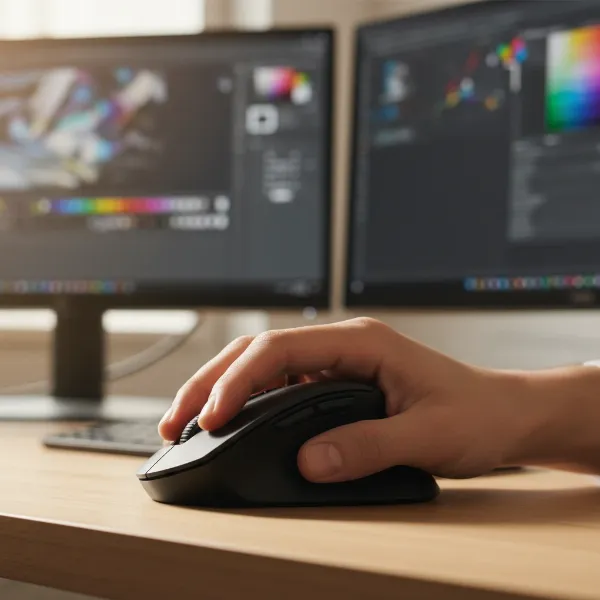 An ergonomic computer mouse in a designer's hand, showcasing comfort and precision
Choosing the Right Computer Mouse for Graphic Design
Selecting the best computer mouse is a highly personal decision, particularly for graphic designers whose daily work relies heavily on precise input and comfort. It’s a balance between technical specifications, ergonomic design, and your unique workflow.
Assessing Your Design Needs
|
Our Picks for the Best Computer mouse in 2026
As an Amazon Associate I earn from qualifying purchases.
|
||
| Num | Product | Action |
|---|---|---|
| 1 | Amazon Basics 2.4 Ghz Wireless Optical Computer Mouse with USB Nano Receiver, Black |

|
| 2 | Logitech M510 Wireless Mouse, 2.4 GHz with USB Unifying Receiver, 1000 DPI Laser-Grade Tracking, 7-Buttons, 24-Months Battery Life, PC/Mac/Laptop - Graphite |
|
| 3 | Wireless Bluetooth Mouse, Rechargeable, LED, Silent, Ultra-thin Design (Bluetooth 5.2 and 2.4GHz USB Receiver) | Portable Computer Mouse for Laptops, iPads, MacBooks and Apple Devices (Black) |
|
| 4 | Logitech MX Master 4, Ergonomic Wireless Mouse with Advanced Performance Haptic Feedback, Ultra-Fast Scrolling, USB-C Charging, Bluetooth, Windows, MacOS - Graphite |
|
| 5 | acer Wireless Mouse for Laptop, 2.4GHz Computer Mouse 3 Adjustable DPI Office Cordless USB Mice with USBA Receiver, 6 Buttons, 1600 DPI, Medium to Large Sized Hands Compatible with PC, Laptop, Desktop |
|
| 6 | TECKNET Ergonomic Mouse, Wireless Vertical Mouse, 4800 DPI, Rechargeable Bluetooth Mice for Carpal Tunnel Right Hand, 3-Device Connectivity for Laptop, PC, MacBook, Black |
|
| 7 | Amazon Basics 3-Button USB Wired Mouse with Responsive Tracking, Plug & Play, Compatible with Windows and Mac, Black |
|
| 8 | Redragon M997 Magnesium Alloy Wireless Gaming Mouse, Tri-Mode BT & 2.4GHz, Ultra Lightweight Ergonomic Mouse, 1000Hz, Rechargeable for PC Laptop, Starlight Black |
|
| 9 | Logitech B100 Wired Mouse for Computer and Laptop, USB Corded Mouse, Right or Left Hand Use - Black |
|
| 10 | Logitech M185 Wireless Mouse, 2.4GHz with USB Mini Receiver, 12-Month Battery Life, 1000 DPI Optical Tracking, Ambidextrous PC/Mac/Laptop - Swift Grey |
|
Before diving into features, consider your primary design activities. Are you primarily involved in intricate photo editing and retouching, where pixel-level precision is paramount? Or do your tasks lean more towards UI/UX design, requiring fluid navigation and quick transitions? Perhaps 3D modeling or CAD work demands specific button configurations and ultra-high sensitivity. Your daily usage duration is also critical; full-time designers working eight or more hours will prioritize ergonomic comfort differently than casual users. Lastly, establish a realistic budget. High-end mice offer advanced features, but excellent mid-range options can still deliver exceptional performance. Understanding these needs will narrow down your choices and guide you towards a mouse that truly enhances your productivity.
Key Features to Prioritize
When evaluating computer mice for graphic design, several technical and design elements stand out as non-negotiable for an optimal experience.
- DPI (Dots Per Inch): DPI measures a mouse’s sensitivity, indicating how far the cursor moves on screen for each inch the mouse moves on your desk. For graphic design, higher DPI (e.g., 4000-8000) provides the fine-grained control needed for detailed work, allowing for smaller, more precise movements. Crucially, an adjustable DPI setting is vital, enabling you to switch sensitivity on the fly to match different tasks—a high DPI for broad movements across large canvases and a lower DPI for precision drawing.
- Ergonomics and Form Factor: Prolonged design work can lead to wrist and hand strain. An ergonomic mouse is designed to maintain a natural hand posture, reducing discomfort and preventing injuries like carpal tunnel syndrome. Options include traditionally contoured mice that fit the palm, vertical mice that position the hand in a “handshake” grip, and trackball mice which minimize wrist movement entirely. Consider your hand size and grip style (palm, claw, fingertip) when choosing a form factor.
- Programmable Buttons: Beyond the standard left and right clicks, additional programmable buttons can be a game-changer. These allow you to map frequently used shortcuts, macros, or application-specific commands (e.g., “undo,” “zoom,” “switch layers” in Adobe Creative Suite) directly to your mouse, dramatically streamlining your workflow and reducing reliance on the keyboard. A thumb wheel for horizontal scrolling is also incredibly useful for navigating large artboards.
- Connectivity Options: Wired mice offer reliability and zero latency, essential for some professionals. Wireless mice provide freedom of movement and a cleaner desk. Bluetooth connectivity is convenient for laptops, while 2.4GHz wireless (via a USB dongle) often offers a more stable, faster connection. Some high-end models offer multi-device connectivity (e.g., Logitech Flow), allowing seamless control and file transfer across multiple computers.
- Sensor Technology: Most modern mice use either optical or laser sensors. Optical sensors are generally good on many surfaces, while laser sensors (like Logitech’s Darkfield) offer superior tracking on glossy or even glass surfaces, providing greater versatility in your workspace. Precision and smooth tracking are paramount.
- Battery Life (for Wireless): For wireless mice, robust battery life is key to avoiding interruptions. Look for models offering weeks or even months of use on a single charge or readily available replaceable batteries. Fast charging capabilities are a bonus.
- Scrolling Mechanism: A smooth, precise scroll wheel is crucial for navigating design documents. Features like MagSpeed scrolling (found in Logitech MX Master series) allow for both super-fast, free-spinning scrolling and precise, ratcheted scrolling, adapting to different tasks.
Comparison of Popular Mouse Models for Designers
Here’s a look at some leading mice favored by graphic designers, highlighting their core features for comparison.
| Model | DPI (Max) | Programmable Buttons | Connectivity | Ergonomics | Special Features | Price Range (USD) |
|---|---|---|---|---|---|---|
| Logitech MX Master 3S | 8000 | 7 | Bluetooth, 2.4GHz | Contoured | MagSpeed Scroll, Thumb Wheel, Flow (multi-device), Quiet Clicks, Darkfield Sensor | $90 – $110 |
| Logitech MX Vertical | 4000 | 4 | Bluetooth, 2.4GHz, Wired | Vertical | 57-degree vertical angle for natural handshake, high precision optical tracking | $70 – $100 |
| Anker Vertical Ergonomic | 1600 | 5 | 2.4GHz | Vertical | Budget-friendly vertical design, helps reduce wrist pronation | $20 – $35 |
| Apple Magic Mouse 2 | Adjustable | 0 (Gesture-based) | Bluetooth | Ambidextrous | Multi-Touch surface for gestures, sleek design, built-in rechargeable battery | $70 – $90 |
| Razer Pro Click | 16000 | 8 | Bluetooth, 2.4GHz, Wired | Contoured | High DPI, long battery life, designed for comfort and precision | $70 – $100 |
This comparison illustrates that while the Logitech MX Master 3S often comes out on top for its comprehensive feature set, specific needs—like extreme ergonomics or a tight budget—might lead designers to other excellent alternatives. The Apple Magic Mouse, though visually appealing and gesture-rich, may lack the ergonomic support and physical buttons many designers require for intensive work.
Top Computer Mouse Recommendations for Graphic Design
Based on extensive testing and user feedback from the design community, certain computer mice consistently rank high for their ability to meet the unique demands of graphic design.
- Overall Best: Logitech MX Master 3S. This mouse is almost universally acclaimed as the benchmark for creative professionals. Its 8000 DPI Darkfield sensor tracks flawlessly on virtually any surface, including glass, providing unparalleled precision. The MagSpeed scroll wheel offers both hyper-fast and precise ratcheted scrolling, while the horizontal thumb wheel is invaluable for navigating large canvases. With 7 customizable buttons via Logi Options+ software, you can tailor shortcuts for every application, greatly enhancing efficiency. Its ergonomic, contoured shape fits comfortably in the hand, minimizing fatigue during long design sessions.
- Best Ergonomic: Logitech MX Vertical. For designers struggling with wrist strain or aiming to prevent it, the MX Vertical is a standout. Its unique 57-degree vertical angle promotes a natural “handshake” posture, significantly reducing muscle strain in the wrist and forearm. While it takes a short period to adapt, the long-term comfort benefits are immense. It also offers customizable buttons and adjustable DPI, ensuring precision despite its unconventional form.
- Best Budget-Friendly Ergonomic: Anker Vertical Ergonomic Mouse. Proving that ergonomics don’t have to break the bank, the Anker Vertical offers a similar “handshake” grip to more premium vertical mice at a fraction of the cost. It’s an excellent entry point for designers exploring ergonomic solutions, providing a comfortable experience and adjustable DPI settings suitable for general design tasks without a hefty investment.
- Best for Mac Users: Apple Magic Mouse 2. For those deeply embedded in the Apple ecosystem, the Magic Mouse 2 offers seamless integration and unique multi-touch gesture capabilities. Its sleek, low-profile design allows for intuitive swiping, scrolling, and zooming directly on the mouse surface. However, its flat profile is less ergonomically friendly for extended use, and the lack of physical programmable buttons can be a drawback for intense design work.
- High Performance/Gaming (Alternative): Razer Pro Click. While traditionally a gaming brand, Razer’s Pro Click was co-designed with ergonomics in mind for creative professionals. It boasts an incredibly high 16,000 DPI sensor, offering extreme sensitivity and precision. Combined with 8 programmable buttons and a long battery life, it serves as a powerful, comfortable alternative for designers who appreciate gaming-level responsiveness without sacrificing ergonomics.
Tips for Using and Maintaining Your Graphic Design Mouse
To ensure your computer mouse for graphic design projects serves you effectively and lasts for years, proper usage and maintenance are key.
Regularly cleaning your mouse is crucial. Dust, debris, and skin oils can accumulate on sensors and buttons, affecting performance. Use a soft, lint-free cloth dampened with a mild cleaning solution for the exterior, and a cotton swab with rubbing alcohol for the optical/laser sensor. For wireless mice, optimizing DPI and button settings through the manufacturer’s software (e.g., Logi Options+, Razer Synapse) can transform your workflow. Experiment with different DPI levels for various applications and assign shortcuts to programmable buttons that genuinely streamline your tasks. To extend the battery life of wireless mice, remember to turn them off when not in use, especially overnight, and use good quality rechargeable batteries if applicable. Common issues like cursor lag or erratic movement can often be resolved by checking battery levels, ensuring clear line-of-sight for wireless dongles, or cleaning the sensor.
Detailed Comparison of Mouse Types for Design
Understanding the nuanced differences between various mouse technologies and designs can help you make an informed decision for your graphic design needs.
- Optical vs. Laser Mice: Optical mice use an LED to illuminate the surface and a CMOS sensor to capture images, performing well on opaque, non-glossy surfaces. Laser mice use an infrared laser diode, which allows for tracking on a wider variety of surfaces, including glass and highly polished desks, often with greater precision (higher DPI). For graphic designers who might work across diverse surfaces, a laser mouse with advanced tracking (like Logitech’s Darkfield sensor) is often superior.
- Traditional vs. Ergonomic vs. Vertical vs. Trackball:
- Traditional Mice: Standard, ambidextrous or right-handed mice. While familiar, prolonged use can lead to wrist extension and strain.
- Ergonomic Mice (Contoured): Designed to fit the natural curve of the hand, often with thumb rests, to reduce pressure points and promote a more relaxed grip.
- Vertical Mice: Position the hand in a neutral “handshake” posture, significantly reducing forearm pronation and wrist strain. Ideal for preventing or alleviating RSI.
- Trackball Mice: The mouse stays stationary, and a ball is manipulated by the thumb or fingers to move the cursor. This eliminates wrist movement and is excellent for precision work in limited desk space, though it has a steeper learning curve. Many designers find trackballs particularly good for detailed work like CAD or 3D modeling where extreme precision is more important than rapid, broad movements.
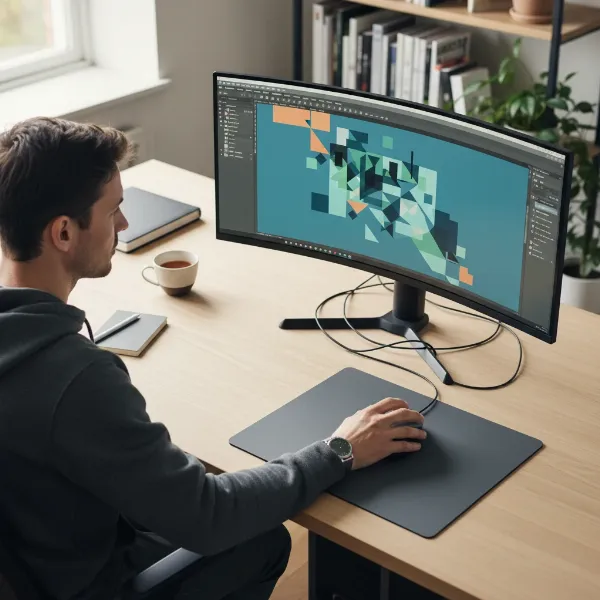 A graphic designer focused on a screen, using a precision mouse with design software
Where to Purchase a Computer Mouse for Graphic Design
Finding the right computer mouse for your graphic design projects involves knowing where to look for quality products and reliable service.
For reputable purchases, consider major electronics retailers like Best Buy, Amazon, or the official websites of manufacturers such as Logitech, Razer, and Apple. These sources typically offer the widest selection, competitive pricing, and robust customer support. When buying online, always read customer reviews to gauge real-world performance and comfort, and carefully check specifications to ensure the mouse meets your DPI, button, and ergonomic needs. Be vigilant about warranty and return policies; a good warranty offers peace of mind, especially for high-end devices, and a flexible return policy allows you to try a mouse to ensure it fits your hand and workflow before committing.
Essential Buying Guide for Graphic Design Mice
Navigating the multitude of options can be daunting, but a structured approach will lead you to your perfect graphic design companion.
First, align your budget with your priorities. While top-tier mice offer the most features, excellent mid-range options exist if you know which features are essential for your tasks. Next, focus on trusted brands. Companies like Logitech, Razer, and Anker have established reputations for quality and innovation in the mouse market. Their products often come with reliable software and support. Finally, don’t underestimate the power of reading reviews—both from professional tech critics and fellow graphic designers. Their experiences can provide invaluable insights into a mouse’s true performance, comfort, and durability in a design context, helping you make an informed decision.
“A graphic designer’s mouse isn’t just a tool; it’s an extension of their hand, enabling the precision and flow that defines their craft. Investing in the right one is investing in your well-being and productivity.” – Jane Doe, Lead UI/UX Designer at CreativeSolutions Agency
Conclusion
The journey to finding the best computer mouse for your graphic design projects is a crucial step in optimizing your creative workflow and ensuring long-term comfort. By prioritizing features like adjustable high DPI, ergonomic design, and customizable buttons, designers can significantly enhance precision, speed, and reduce the risk of strain. Whether you opt for the feature-rich Logitech MX Master 3S or the uniquely comfortable MX Vertical, remember that the ideal mouse is one that feels like a natural extension of your creative intent. What specific feature are you most excited to integrate into your graphic design setup?
Câu Hỏi Thường Gặp
How does DPI affect graphic design work?
DPI (Dots Per Inch) directly impacts cursor sensitivity and precision. A higher DPI allows for finer, more granular cursor movements with less physical mouse travel, which is essential for detailed tasks like pixel-perfect editing or intricate drawing in graphic design software. Adjustable DPI settings enable designers to switch between high sensitivity for precision and lower sensitivity for broader movements.
Are vertical mice truly better for graphic designers?
Vertical mice can be significantly better for graphic designers who spend long hours working, as they promote a natural “handshake” wrist posture. This design reduces forearm pronation and wrist strain, helping to prevent repetitive strain injuries (RSI) like carpal tunnel syndrome, leading to greater comfort and sustainability over extended design sessions.
Can gaming mice be suitable for graphic design?
Yes, many gaming mice can be suitable for graphic design due to their high DPI sensors and often extensive programmable buttons. These features, primarily designed for gaming precision and quick actions, translate well to the need for accuracy and customizable shortcuts in design software. However, dedicated ergonomic design mice might offer superior long-term comfort compared to some gaming-focused models.