Are you navigating a world of touchscreens and trackpads, wondering if a dedicated computer mouse still holds its value? Many users find themselves questioning whether to invest in an external mouse or rely solely on integrated pointing devices. This comprehensive guide aims to demystify the computer mouse, exploring its fundamental advantages, guiding you through the selection process, and offering essential tips for use and maintenance. By the end, you’ll have a clear understanding of why a computer mouse remains an indispensable tool for enhancing productivity, comfort, and precision across various computing tasks.
Overview of Computer Mice
A computer mouse is a handheld input device that detects two-dimensional motion relative to a surface, translating that movement into cursor control on your screen. Since its invention, the mouse has undergone significant evolution, moving from mechanical ball-based designs to highly advanced optical and laser sensors. This evolution has led to a diverse range of mouse types, each tailored to specific user needs and computing environments.
Modern computer mice generally fall into several categories:
- Wired Mice: These connect directly to your computer, typically via a USB cable. Their primary advantages include reliable, lag-free performance and no need for batteries, making them a favored choice for tasks demanding high precision, such as professional graphic design or competitive gaming. The main drawback is the physical constraint of the cable, which can limit movement and contribute to desk clutter.
- Wireless Mice: Offering freedom of movement and a cleaner workspace, wireless mice communicate with your computer using radio frequency (RF) via a USB dongle or Bluetooth technology. While providing convenience, they require batteries or recharging, and some lower-end models might experience minimal latency or interference, though advanced wireless gaming mice have largely mitigated these issues.
- Optical Mice: The most common type, optical mice use an LED light and a small camera to detect movement across surfaces. They offer good accuracy and are generally durable and cost-effective, performing best on non-glossy, opaque surfaces.
- Laser Mice: A more advanced form of optical mouse, laser mice utilize a laser diode for tracking, providing even higher sensitivity and the ability to track on a wider variety of surfaces, including glass and highly reflective materials, where optical mice might struggle.
- Gaming Mice: Engineered for performance, gaming mice boast features like ultra-high DPI settings for swift, precise movements, low latency for quick response times, and customizable buttons for in-game macros. They often feature ergonomic designs tailored for specific grip styles and may include adjustable weights for personalized feel.
- Ergonomic Mice: Designed with user comfort and health in mind, ergonomic mice aim to reduce strain on the hand, wrist, and forearm during extended use. This category includes vertical mice, which position the hand in a natural “handshake” grip, and trackball mice, which remain stationary, with users controlling the cursor by moving a built-in ball, ideal for limited desk space or those with wrist issues.
While trackpads offer convenience for portability, external mice generally provide superior precision, speed, and comfort, leading to increased productivity for many tasks. Studies have even shown that using an external mouse can boost productivity by a significant margin compared to a touchpad, alongside improving ergonomic well-being by reducing muscle activity in the neck, shoulder, and forearm.
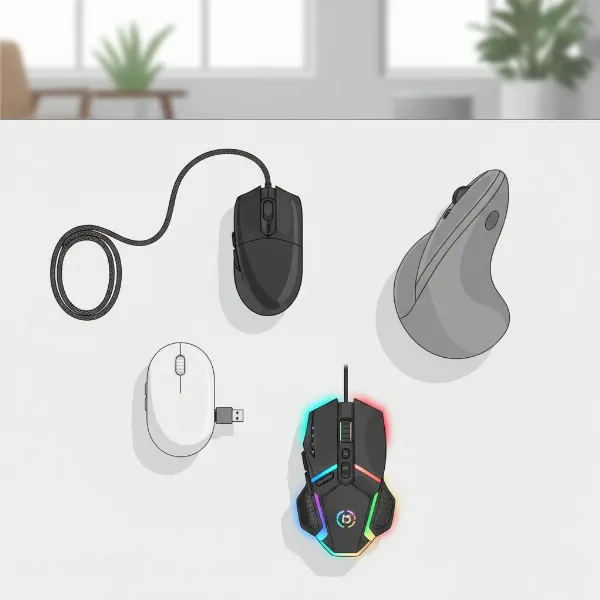 Various types of computer mice, including wired, wireless, ergonomic, and gaming models, arranged on a desk.
How to Choose the Right Computer Mouse
Selecting the perfect computer mouse involves more than just picking the first one you see. It’s about matching the device to your personal needs, usage patterns, and physical comfort. Making an informed choice can significantly impact your efficiency and long-term well-being.
Determine Your Needs
Before diving into specifications, consider how you intend to use your mouse. This foundational step will narrow down your options considerably.
- What tasks will you perform? For routine office work, browsing, and casual use, a basic, comfortable mouse with standard functionality is usually sufficient. Graphic designers, CAD professionals, and video editors will prioritize precision and potentially programmable buttons. Gamers, especially those in competitive esports, demand ultra-responsive sensors, numerous customizable buttons, and specific ergonomic profiles.
- How often will you use the mouse? If you spend many hours daily at your computer, ergonomics become paramount to prevent discomfort or repetitive strain injuries. Casual users might tolerate less-than-perfect ergonomics.
- What is your budget? Mouse prices vary widely. Basic models are very affordable, while high-performance gaming or advanced ergonomic mice can be a significant investment. Setting a budget helps manage expectations and focus on the best value within your price range.
|
Our Picks for the Best Computer mouse in 2026
As an Amazon Associate I earn from qualifying purchases.
|
||
| Num | Product | Action |
|---|---|---|
| 1 | Uineer Wireless Mouse,Upgraded 2.4GHz Rechargeable (Battery Level Visible) Ergonomic Computer Mouse,4 Levels DPI, Wireless Mice for Laptop Computer(Matte Black) |

|
| 2 | Logitech M185 Wireless Mouse, 2.4GHz with USB Mini Receiver, 12-Month Battery Life, 1000 DPI Optical Tracking, Ambidextrous PC/Mac/Laptop - Swift Grey |
|
| 3 | Logitech M510 Wireless Mouse, Mouse for Laptop and PC with USB Unifying Receiver, Programmable Buttons - Graphite |
|
| 4 | Logitech B100 Wired Mouse for Computer and Laptop, USB Corded Mouse, Right or Left Hand Use - Black |
|
| 5 | Amazon Basics 3-Button USB Wired Mouse with Scrolling and Tracking - Standard, Black |
|
| 6 | TECKNET Wireless Mouse, 2.4G Ergonomic Optical Mouse, Computer Mouse for Laptop, PC, Computer, Chromebook, Notebook, 6 Buttons, 24 Months Battery Life, 2600 DPI, 5 Adjustment Levels - Purple |
|
| 7 | Logitech MX Master 4, Ergonomic Wireless Mouse with Advanced Performance Haptic Feedback, Ultra-Fast Scrolling, USB-C Charging, Bluetooth, Windows, MacOS - Graphite |
|
| 8 | RAPIQUE R306 Pro Wireless Mouse, Dual Bluetooth & 2.4GHz, Connect Up to 3 Devices, Type-C Rechargeable, Silent Click, Ergonomic Symmetrical Design, for MacBook, Laptop, Tablet, Milk Tea Pink |
|
| 9 | ProtoArc Wireless Bluetooth Trackball Mouse, EM02 Two Adjustable Angle Ergonomic Rechargeable Computer Ball Mouse, 3 Device Connection, Thumb Control and Smooth Tracking for Laptop, PC, Mac-Gray |
|
| 10 | Apple Magic Mouse - White Multi-Touch Surface |
|
Key Factors When Choosing a Mouse
Once you understand your primary needs, evaluate these technical and ergonomic factors to find your ideal mouse.
- Sensitivity (DPI): DPI, or Dots Per Inch, measures how far your cursor moves on screen for every inch you move the mouse. Higher DPI means the cursor travels farther with less physical movement of the mouse. For general office and browsing, 800-1600 DPI is typically adequate. Content creators and multitaskers might prefer 2000-4000 DPI for navigating multiple monitors efficiently. Gamers and graphic designers often benefit from 4000+ DPI for extreme precision and rapid adjustments. Many mice offer adjustable DPI settings, allowing you to switch sensitivity on the fly.
- Ergonomics and Size: Comfort is crucial, especially for prolonged use. A mouse should fit your hand size and accommodate your preferred grip style:
- Palm Grip: The entire hand rests on the mouse. Best for larger, contoured mice that support the hand’s natural curve.
- Claw Grip: Fingertips and the back of the palm touch the mouse, with arched fingers. Suited for smaller, lightweight mice allowing for quick, precise movements.
- Fingertip Grip: Only the fingertips touch the mouse. Ideal for very lightweight mice, offering maximum agility.
- Consider the mouse’s weight; some models feature adjustable weights for customization. Vertical mice, designed for a “handshake” posture, are excellent for reducing wrist strain.
- Number of Buttons: Standard mice have two main buttons and a scroll wheel. However, many advanced mice, especially gaming and productivity models, offer additional programmable buttons. These can be mapped to perform macros, quick actions, or shortcuts, significantly boosting efficiency in complex applications or games.
- Connectivity (Wired vs. Wireless):
- Wired: Offers unparalleled reliability, virtually no latency, and never needs battery changes. Ideal for competitive gaming and professional work where every millisecond counts.
- Wireless (RF): Connects via a small USB dongle. Provides excellent freedom of movement and minimal latency in modern designs, often comparable to wired.
- Wireless (Bluetooth): Connects directly to your computer’s built-in Bluetooth, freeing up a USB port. Great for portability and connecting to multiple devices without a dongle.
- The choice often boils down to a trade-off between absolute performance (wired) and convenience (wireless).
- Sensor Technology:
- Optical (LED): Uses an LED to illuminate the surface and a sensor to track movement. Reliable and works well on most non-glossy surfaces.
- Laser: Utilizes an infrared laser for tracking, offering higher sensitivity and the ability to work on a wider array of surfaces, including glass. While highly sensitive, some gamers find optical sensors more consistent for very specific, rapid movements.
- Battery Life (for Wireless Mice): An important consideration for wireless models. Look for mice with long battery life, energy-saving features like automatic standby mode, or rechargeable capabilities to minimize interruptions.
- Polling Rate: This refers to how often the mouse reports its position to the computer, measured in Hertz (Hz). A higher polling rate means more frequent updates, resulting in smoother and more responsive cursor movements. For gaming, a 1000Hz (1ms response time) polling rate is highly recommended for minimal input lag.
Comparison of Mouse Types
| Type | Key Features | Best For | Pros | Cons |
|---|---|---|---|---|
| Wired | USB connection, fixed cable | Gaming, Graphic Design | Zero latency, no batteries, reliable | Limited movement, cable clutter |
| Wireless (RF) | USB dongle, radio frequency | General Use, Office, Travel | Freedom of movement, cleaner desk, low latency (modern) | Requires batteries/recharging, dongle can be lost, potential interference |
| Wireless (BT) | Bluetooth connection, no dongle | Laptops, Multi-device Users | No USB port needed, connects to multiple devices, portability | Can have higher latency than RF, relies on device’s Bluetooth |
| Gaming | High DPI, programmable buttons, low latency, ergonomic, adjustable weight | Competitive Gaming | Precision, speed, customization, comfort for long sessions | Often expensive, specialized design might not suit all users |
| Ergonomic | Contoured shape, vertical design, trackball | Long Hours, Wrist Strain Sufferers | Reduces strain, promotes natural posture, comfort | Can take getting used to, may be larger |
| Trackball | Stationary, ball for cursor control, buttons | Limited Space, Precision Tasks | Requires minimal desk space, precise control, less arm movement | Learning curve, less intuitive for some |
Top Computer Mouse Categories
Rather than specific models that quickly change, focusing on categories helps highlight the best features for various users. Top-rated computer mice excel in their respective niches by optimizing for specific user experiences.
- For General Office Use: Look for reliable optical or laser wireless mice that prioritize comfort and quiet clicks. Mice with a comfortable, ambidextrous design and long battery life are often highly valued. Features like smooth scrolling and simple programmable buttons for basic shortcuts (e.g., back/forward) enhance daily tasks without overcomplicating things.
- For Productivity and Creative Work: Precision is key here. Opt for laser mice with high and adjustable DPI settings to navigate large monitors or detailed design software. Multiple programmable buttons are incredibly useful for assigning application-specific shortcuts or macros, streamlining workflows. Ergonomic designs are also crucial for extended periods of focused work, preventing discomfort.
- For Gaming Enthusiasts: Competitive gamers often seek wired or advanced wireless (low-latency 2.4GHz RF) mice with optical sensors known for consistent tracking. Essential features include extremely high and adjustable DPI, a high polling rate (1000Hz or more), and customizable buttons strategically placed for quick access. Weight and balance can also be fine-tuned in many gaming mice to suit individual preferences and grip styles.
- For Ergonomic Support: Individuals experiencing wrist pain or seeking preventative measures should consider vertical mice, which position the hand in a more natural handshake-like posture. Trackball mice are also excellent, requiring minimal hand and wrist movement, which can alleviate strain. Prioritize models that fit your hand size and allow for a relaxed, neutral wrist position.
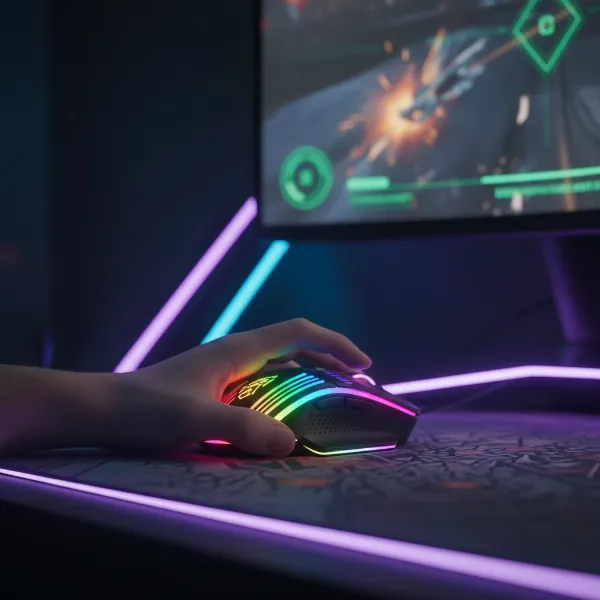 A high-performance gaming mouse positioned next to a keyboard on a gamer's desk with RGB lighting.
Tips for Using and Maintaining Your Computer Mouse
Proper use and regular maintenance are key to extending the life of your computer mouse and ensuring consistent performance. A well-maintained mouse contributes significantly to a smooth computing experience.
Cleaning Your Computer Mouse
Dust, dirt, skin oils, and debris can accumulate on and inside your mouse, leading to erratic cursor movement, unresponsive buttons, or sticky scroll wheels. Regular cleaning is essential, ideally on a monthly basis or as needed.
- Preparation: Always disconnect your wired mouse from the computer or turn off your wireless mouse and remove its batteries before cleaning to prevent accidental inputs or electrical issues.
- Outer Surface: Lightly dampen a soft, lint-free cloth or cotton swab with a mild soap-and-water solution or a 70% isopropyl alcohol (IPA) solution. Wring out the cloth thoroughly to ensure it’s barely damp. Gently wipe all outer surfaces, paying attention to areas that come into frequent contact with your hand, like the palm rest and buttons.
- Sensor: Carefully clean the optical or laser sensor on the underside of the mouse using a dry cotton swab. If there’s stubborn dirt, very lightly dampen a swab with IPA solution, which evaporates quickly. Avoid pressing too hard on the lens.
- Scroll Wheel and Buttons: Use a dry or lightly dampened cotton swab to clean around the scroll wheel and in the crevices of the buttons. Compressed air can also be useful for dislodging trapped debris.
- What to Avoid: Never spray liquids directly onto your mouse. Do not use harsh chemical cleaners, abrasives, or excessive moisture, as these can damage sensitive internal components or the mouse’s finish.
Adjusting DPI and Other Settings
Many modern mice come with software that allows you to customize various settings, including DPI, button assignments, and polling rate.
- DPI Adjustment: Experiment with different DPI levels to find what feels most comfortable and efficient for your tasks. Lower DPI is often preferred for precise tasks like photo editing, while higher DPI allows for quicker cursor navigation across large displays or during fast-paced gaming.
- Button Customization: Assign frequently used commands or macros to programmable buttons. For instance, in a web browser, you might assign “back” and “forward” to side buttons, or in a game, assign complex spell combinations to accessible buttons.
- Polling Rate: While often set to a default high rate for gaming mice, ensure it’s optimized for responsiveness if your software allows adjustment.
Extending Wireless Mouse Battery Life
For wireless mice, managing battery life is crucial to avoid interruptions.
- Power Off: Turn off your wireless mouse when not in use, especially overnight or when transporting it.
- Auto-Standby: Many wireless mice feature an automatic standby or sleep mode that conserves power after a period of inactivity. Ensure this feature is enabled if available.
- Rechargeable Batteries: If your mouse uses disposable batteries, consider investing in rechargeable ones. For mice with built-in rechargeable batteries, establish a routine for charging them.
- Quality Mouse Pad: Using a good quality mouse pad can help the sensor track more efficiently, potentially reducing power consumption compared to struggling on an uneven or challenging surface.
Common Issues and Troubleshooting
Even with good maintenance, mice can sometimes develop issues. Here are a few common problems and their solutions:
- Erratic Cursor Movement/Unresponsiveness:
- Dirty Sensor: Clean the sensor as described above.
- Bad Surface: Try using the mouse on a different, smooth, opaque surface or a quality mouse pad.
- Loose Connection (Wired): Ensure the USB cable is firmly plugged into a functional port. Try a different USB port.
- Low Battery (Wireless): Replace or recharge batteries.
- Interference (Wireless): Move the USB receiver closer to the mouse, or try a different USB port, especially for RF dongles.
- Buttons Not Clicking/Double Clicking:
- Dirt: Clean around and under the affected button.
- Driver Issues: Ensure your mouse drivers are up to date.
- Hardware Fault: If cleaning and driver updates don’t work, the button mechanism might be worn out, and the mouse may need replacement.
- Scroll Wheel Problems:
- Dirt: Clean the scroll wheel thoroughly to remove any trapped debris.
- Software Glitch: Restart your computer or check mouse settings in your operating system.
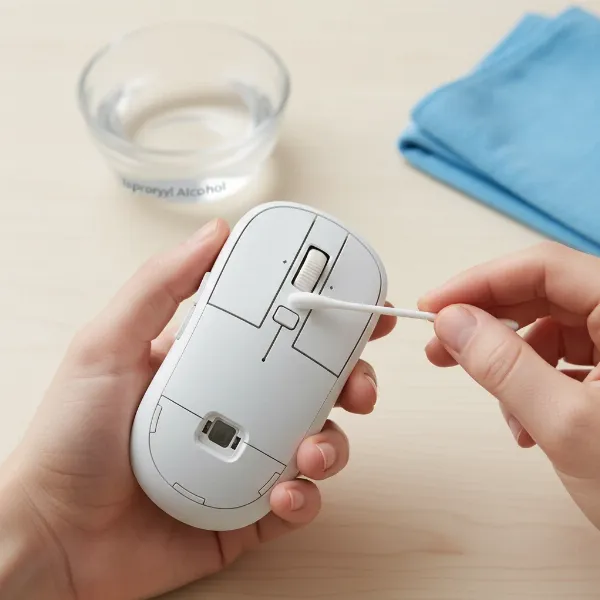 A person carefully cleaning a computer mouse with a cotton swab and cleaning solution.
Detailed Comparison of Computer Mouse Types
Understanding the nuances between different mouse types can further refine your choice, especially when specific tasks or health considerations are involved.
- Optical vs. Laser Mice: While both use light to track movement, their methods differ. Optical mice use an LED, which typically works best on non-glossy, textured surfaces. They are praised for their consistent tracking, making them a favorite among many professional gamers. Laser mice, using an infrared laser, can track on almost any surface, including transparent ones like glass. They often offer higher maximum DPI, which translates to extreme sensitivity. However, some users report that laser sensors can exhibit “acceleration” or “jitter” on certain surfaces, potentially affecting precision in very demanding tasks.
- Mechanical (Ball) Mice: This older generation of mice relied on a rubber ball to detect movement. As the ball rolled, internal rollers translated its motion into cursor movement. Mechanical mice are largely obsolete today due to their susceptibility to dirt buildup, requiring frequent cleaning, and offering lower precision compared to modern optical and laser counterparts. They are primarily of historical interest now.
- Gaming Mice: Beyond high DPI and customizable buttons, gaming mice often feature advanced attributes like higher polling rates (up to 8000Hz in some cases) for incredibly smooth and responsive cursor control. They may also include specialized sensor tuning, on-board memory for profiles, and adjustable weights for perfect balance. The ergonomic design of gaming mice is often highly specialized, catering to specific grip styles and game genres (e.g., lightweight designs for FPS games, or mice with many side buttons for MMOs). The build quality is typically robust to withstand intense gaming sessions.
- Ergonomic Mice: These devices are a significant investment in long-term health. Vertical mice, by placing the hand in a natural handshake position, alleviate pressure on the wrist’s median nerve, a common cause of carpal tunnel syndrome. Trackball mice eliminate the need for arm movement, reducing shoulder and elbow strain, and are particularly beneficial for users with limited desk space or those with mobility issues that make traditional mouse movement difficult. Ergonomic designs often focus on natural hand contours and materials that provide a comfortable, non-slip grip.
Where to Buy a Computer Mouse
Purchasing a computer mouse, whether online or in a physical store, requires careful consideration to ensure you get an authentic product with proper support.
- Reputable Retailers: Always opt for established electronics stores, major online retailers, or official brand websites. This minimizes the risk of purchasing counterfeit products and ensures you receive a manufacturer’s warranty. Examples include large electronics chains, well-known e-commerce platforms, and direct-from-brand stores.
- Online Shopping Considerations: When buying online, thoroughly check product descriptions, specifications, and customer reviews. Pay attention to shipping policies, return procedures, and warranty information. Look for high-resolution images and videos that provide a clear view of the mouse’s design and features.
- Physical Stores: Shopping in person allows you to physically hold and try out different mouse models. This is particularly beneficial for assessing ergonomics, hand fit, and button placement, which are highly personal preferences. If you can test a mouse, do so, especially for ergonomic or gaming models.
- Warranty and Support: Ensure the mouse comes with a manufacturer’s warranty. Understand the duration and coverage of the warranty, as well as the brand’s customer support options, should you encounter any issues. Reputable brands typically offer good support.
Buying Guide – Computer Mouse Overview
Making the final decision on a computer mouse can be simplified by reviewing a few key considerations. This guide serves as a quick checklist to ensure you’ve covered all bases.
- Budget: Determine how much you’re willing to spend. While budget-friendly options exist, investing a bit more can often yield significant improvements in comfort, precision, and durability, especially for heavy users. Remember that a good mouse is an investment in your productivity and health.
- Brand Reputation: Stick with well-known and respected brands in the peripheral market. Companies with a long history of producing computer mice often have better research and development, quality control, and customer support. Look for brands frequently recommended in expert reviews and user forums.
- Read Reviews: Before finalizing your purchase, read independent reviews from tech publications and, crucially, user reviews. User experiences can provide valuable insights into real-world performance, comfort over time, and potential quirks that specifications alone might not reveal. Pay attention to comments regarding durability, sensor accuracy, and battery life.
- Trial Period (If Possible): If buying from a store with a generous return policy, consider purchasing a mouse and using it for a few days to see if it genuinely meets your comfort and performance expectations. This “try before you buy” approach is invaluable for subjective factors like ergonomics and grip feel.
In summary, a computer mouse is undoubtedly worth it for most users seeking to maximize their efficiency, comfort, and control. From enhancing productivity by offering superior precision and speed over trackpads to preventing long-term strain with ergonomic designs, the benefits are substantial. By carefully considering your individual needs, exploring the diverse range of available options, and prioritizing factors like DPI, ergonomics, and connectivity, you can confidently select a computer mouse that transforms your computing experience. What specific feature are you looking for in your next computer mouse?
Frequently Asked Questions
What DPI is good for everyday use?
For general everyday use, including web browsing, document editing, and basic tasks, a DPI range of 800 to 1600 is usually sufficient. This range offers a good balance of cursor speed and precision without being overly sensitive. Many users find a DPI around 1200 to be a comfortable sweet spot for daily computing on standard monitor setups.
How often should I clean my computer mouse?
It is recommended to clean your computer mouse at least once a month, or more frequently if you use it extensively or notice any performance issues like erratic cursor movement or sticky buttons. Regular cleaning prevents the buildup of dust, dirt, and oils that can degrade performance and potentially shorten the mouse’s lifespan.
Are wireless gaming mice as good as wired ones?
Recent advancements in wireless technology have made high-end wireless gaming mice nearly indistinguishable from wired ones in terms of performance. Many now offer ultra-low latency 2.4GHz RF connections and high polling rates that provide lag-free and responsive gameplay. However, wired mice still have the advantage of never needing a battery charge and generally being slightly lighter due to the absence of a built-in battery.
Can a computer mouse prevent wrist pain?
Yes, an ergonomic computer mouse, particularly a vertical mouse or a trackball mouse, can significantly help prevent and alleviate wrist pain. These designs promote a more natural hand and wrist posture, reducing strain on tendons and nerves compared to traditional flat mice. Choosing a mouse that fits your hand size and grip style is also crucial for long-term comfort and injury prevention.