In our increasingly digital world, the computer mouse, often overlooked, stands as a fundamental tool that profoundly shapes our daily interactions with technology. From navigating complex spreadsheets to executing precise gaming maneuvers, the right mouse is more than just a peripheral; it’s an extension of your intent. As a technician with over a decade of hands-on experience evaluating hundreds of models, I’ve seen firsthand how a well-chosen mouse can elevate comfort, productivity, and overall performance. This comprehensive guide will explore the intricacies of computer mice, helping you discern whether an upgrade is a worthwhile investment for your unique needs.
A Comprehensive Look at Computer Mice
The journey of the computer mouse began in the 1960s with a humble wooden device, evolving dramatically through rubber balls, optical LEDs in the 1990s, and laser precision in the 2000s. Today, mice are sophisticated instruments featuring advanced wireless technology, customizable buttons, high-resolution sensors, and ergonomic designs, catering to virtually every user. Understanding the various types available is the first step in appreciating their value.
- Wired Mice: These traditional peripherals connect directly to your computer via a USB cable, drawing power and transmitting data instantly.
- Pros: Reliable, low latency (ideal for gaming and precision work), no battery concerns, generally more affordable.
- Cons: Limited movement range, cable clutter, less portable.
- Wireless Mice: Offering freedom from cables, these connect via Bluetooth or a USB receiver (RF).
- Pros: Clutter-free, highly portable, convenient for various setups.
- Cons: Require batteries or recharging, potential for signal interference, can be pricier, slight latency in older models (though modern ones are near-wired performance).
- Gaming Mice: Engineered for performance, these feature advanced sensors, customizable buttons, ergonomic designs, and often high DPI settings.
- Pros: High precision, quick response times, programmable buttons for macros, enhanced comfort for extended sessions.
- Cons: Often more expensive, features might be overkill for casual use.
- Ergonomic Mice: Designed to promote a natural hand and wrist posture, reducing strain and preventing repetitive stress injuries.
- Pros: Enhanced comfort for long working hours, reduces fatigue and pain, available in various shapes (e.g., vertical, trackball).
- Cons: Can take time to adjust to, may be more expensive, less suitable for certain high-speed tasks.
- Trackball Mice: Instead of moving the entire mouse, users manipulate a stationary ball with their fingers or thumb to move the cursor.
- Pros: Reduces arm and wrist movement, good for confined spaces, high precision for specific tasks.
- Cons: Less intuitive for some users, can be slower for broad movements.
- Vertical Mice: A specific type of ergonomic mouse that keeps your hand in a “handshake” position, aligning the forearm and wrist more naturally.
- Pros: Significantly reduces wrist pronation, excellent for preventing and alleviating wrist pain.
- Cons: Requires an adjustment period, not ideal for fast-paced gaming.
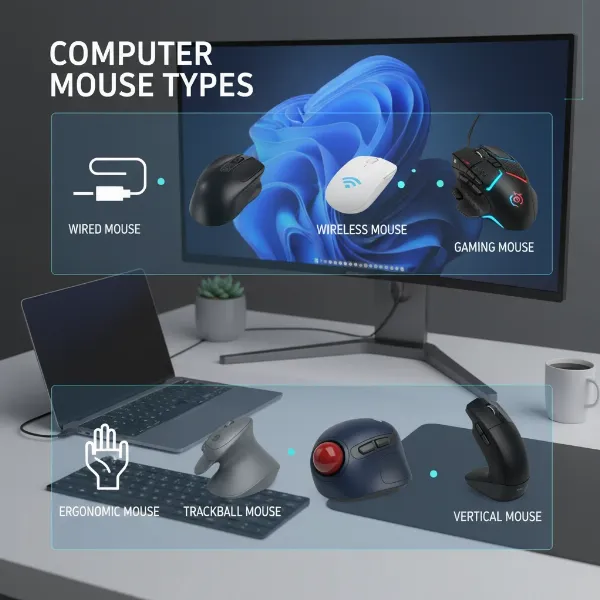 Various types of computer mice showcasing different designs and functionalities
Your Guide to Choosing the Perfect Computer Mouse
Selecting the ideal computer mouse is a highly personal journey, akin to finding the perfect pair of shoes. What works wonders for one individual may be entirely unsuitable for another. The key lies in aligning the mouse’s features with your specific workflow, physical comfort, and budget.
Identifying Your Usage Needs
Before diving into specifications, consider how you intend to use your mouse. Are you a professional graphic designer, a competitive gamer, or someone who primarily browses the web and handles office tasks?
- For Work and Productivity: If you spend hours on spreadsheets, documents, or creative applications, comfort and precision are paramount. An ergonomic or productivity-focused mouse with programmable buttons for shortcuts can significantly boost efficiency.
- For Gaming: Gamers demand high responsiveness, precision, and customization. Look for mice with high DPI, fast polling rates, and durable switches.
- For Casual Use/Travel: Portability and ease of use take precedence. A compact wireless mouse is often the best fit.
- Daily Usage: Extended daily use necessitates a focus on ergonomics to prevent strain. Intermittent use allows for more flexibility in choice.
- Budget: Mice range from basic, affordable models to high-end, feature-rich peripherals. Define your budget early to narrow down options.
|
Our Picks for the Best Computer mouse in 2026
As an Amazon Associate I earn from qualifying purchases.
|
||
| Num | Product | Action |
|---|---|---|
| 1 | Apple Magic Mouse - White Multi-Touch Surface |

|
| 2 | Amazon Basics 3-Button USB Wired Mouse with Scrolling and Tracking - Standard, Black |
|
| 3 | Logitech M510 Wireless Mouse, Mouse for Laptop and PC with USB Unifying Receiver, Programmable Buttons - Graphite |
|
| 4 | Logitech MX Master 4, Ergonomic Wireless Mouse with Advanced Performance Haptic Feedback, Ultra-Fast Scrolling, USB-C Charging, Bluetooth, Windows, MacOS - Graphite |
|
| 5 | Logitech B100 Wired Mouse for Computer and Laptop, USB Corded Mouse, Right or Left Hand Use - Black |
|
| 6 | RAPIQUE R306 Pro Wireless Mouse, Dual Bluetooth & 2.4GHz, Connect Up to 3 Devices, Type-C Rechargeable, Silent Click, Ergonomic Symmetrical Design, for MacBook, Laptop, Tablet, Milk Tea Pink |
|
| 7 | TECKNET Wireless Mouse, 2.4G Ergonomic Optical Mouse, Computer Mouse for Laptop, PC, Computer, Chromebook, Notebook, 6 Buttons, 24 Months Battery Life, 2600 DPI, 5 Adjustment Levels - Purple |
|
| 8 | Logitech M185 Wireless Mouse, 2.4GHz with USB Mini Receiver, 12-Month Battery Life, 1000 DPI Optical Tracking, Ambidextrous PC/Mac/Laptop - Swift Grey |
|
| 9 | Uineer Wireless Mouse,Upgraded 2.4GHz Rechargeable (Battery Level Visible) Ergonomic Computer Mouse,4 Levels DPI, Wireless Mice for Laptop Computer(Matte Black) |
|
| 10 | ProtoArc Wireless Bluetooth Trackball Mouse, EM02 Two Adjustable Angle Ergonomic Rechargeable Computer Ball Mouse, 3 Device Connection, Thumb Control and Smooth Tracking for Laptop, PC, Mac-Gray |
|
Key Factors in Mouse Selection
Once you understand your needs, several technical and design elements come into play.
DPI (Dots Per Inch)
DPI measures your mouse’s sensitivity. It quantifies how many pixels the cursor moves on the screen for each inch of physical movement of the mouse. A higher DPI means the cursor travels further with less hand movement, making the mouse feel “faster.”
- Impact: For competitive gamers, adjustable DPI allows for quick changes—lower DPI for precise sniper shots, higher for swift turns. For graphic designers, a lower DPI provides meticulous control. For general office tasks, a moderate DPI (around 800-1600) is often sufficient.
- Adjustable DPI: Many modern mice feature dedicated buttons to cycle through DPI settings, offering flexibility for different tasks.
Form Factor and Size
The physical design and size of a mouse are crucial for comfort and preventing strain.
- Grip Styles:
- Palm Grip: The entire hand rests on the mouse, providing comfort and stability for prolonged use. Often suits larger mice.
- Claw Grip: Fingers are arched, with fingertips and the base of the palm contacting the mouse. Offers precision and quick, responsive movements, favored by some gamers.
- Fingertip Grip: Only the fingertips touch the mouse, allowing for very fine control and rapid, small movements. Suits smaller, lighter mice.
- Hand Size: An ill-fitting mouse can lead to discomfort and injury. Test mice to ensure your fingers rest comfortably on buttons and your palm is supported.
- Ergonomics: Beyond standard shapes, vertical and sculpted ergonomic mice promote a more natural wrist and forearm posture.
Button Count
Basic mice offer two buttons and a scroll wheel, sufficient for most daily tasks. However, many mice include additional programmable buttons.
- Customization: Gamers use extra buttons for in-game macros, while professionals can assign shortcuts for software functions, enhancing workflow. Consider how many extra buttons you would genuinely use.
Connectivity (Wired/Wireless)
The choice between wired and wireless often balances performance with convenience.
- Wired: Offers a consistent, lag-free connection with no battery worries. Ideal for competitive gaming or critical tasks requiring zero delay.
- Wireless: Provides a clutter-free desk and enhanced portability. Modern wireless technologies (like 2.4 GHz RF with a USB dongle) have significantly reduced latency, making them viable for most users, including many gamers. Bluetooth mice are also wireless but may have slightly higher latency and are best for general productivity.
Sensor Technology
The sensor is the “eye” of the mouse, detecting movement. The two primary types are optical and laser.
- Optical Sensors: Use an LED (Light Emitting Diode, often infrared or red) to illuminate the surface and a CMOS sensor to track movement. They perform reliably on most non-glossy, matte surfaces like mouse pads and regular desks. Generally offer stable, predictable tracking.
- Laser Sensors: Utilize an invisible laser beam, penetrating deeper into surfaces to detect finer details. This allows them to work on a wider range of materials, including glass and glossy surfaces, where optical mice might struggle. While offering higher sensitivity (DPI), they can sometimes pick up too much surface detail, leading to “jitter” or inconsistent tracking for extremely precise movements.
Battery Life (for Wireless Mice)
For wireless mice, battery life is a practical consideration. Modern wireless mice can last from weeks to months on a single charge or set of batteries.
- Importance: A long battery life minimizes interruptions. Look for models with efficient power management, rechargeable options (USB-C is common), or docking stations. Some even support wireless charging.
Comparing Popular Mouse Models
Here’s a snapshot of some highly-rated computer mice that excel in different categories:
| Model | DPI (Max) | Form Factor | Buttons | Connectivity | Sensor Type | Ideal Use |
|---|---|---|---|---|---|---|
| Logitech MX Master 3S | 8000 | Ergonomic, Right-handed | 7 (programmable) | Wireless (RF/BT) | Optical | Productivity, Design, Multi-device |
| Razer DeathAdder V3 Pro | 30000 | Ergonomic, Right-handed | 5 (programmable) | Wireless (RF)/Wired | Optical | High-performance Gaming |
| Logitech Lift | 4000 | Vertical, Ergonomic | 4 (programmable) | Wireless (RF/BT) | Optical | Ergonomics, Productivity |
| Corsair M65 RGB Ultra | 26000 | Ergonomic, Right-handed | 8 (programmable) | Wired | Optical | FPS Gaming, Precision |
| Logitech G203 Lightsync | 8000 | Ambidextrous, Compact | 6 (programmable) | Wired | Optical | Budget Gaming, General Use |
These models represent a blend of performance, ergonomics, and value across different price points, catering to diverse user needs.
Top-Rated Computer Mice for Every User
Finding the “best” mouse is subjective, but certain models consistently receive high praise for their design, performance, and features in specific categories.
- Best Overall Productivity Mouse: The Logitech MX Master 3S is a standout. With an 8000 DPI sensor that tracks on virtually any surface, silent clicks, and extensive customization options, it’s a productivity powerhouse. Its long battery life (up to 70 days) and ability to switch between multiple devices make it a top choice for professionals.
- Best High-Performance Gaming Mouse: The Razer DeathAdder V3 Pro offers exceptional precision and speed. It’s incredibly lightweight, features a high-performance optical sensor (up to 30000 DPI), and boasts a comfortable ergonomic shape for right-handed users. For gamers who prioritize a wired connection for absolute zero latency, the Corsair M65 RGB Ultra is another excellent choice, with an impressive 26000 DPI.
- Best Ergonomic Mouse: The Logitech Lift is an ideal entry point into vertical mice, providing a comfortable “handshake” grip that can significantly reduce wrist strain. Its compact design is suitable for smaller to medium hands, making it a great option for office workers seeking comfort.
- Best Budget-Friendly Gaming Mouse: For those entering PC gaming without breaking the bank, the Logitech G203 Lightsync provides solid performance with adjustable DPI settings and programmable buttons in a durable, wired package.
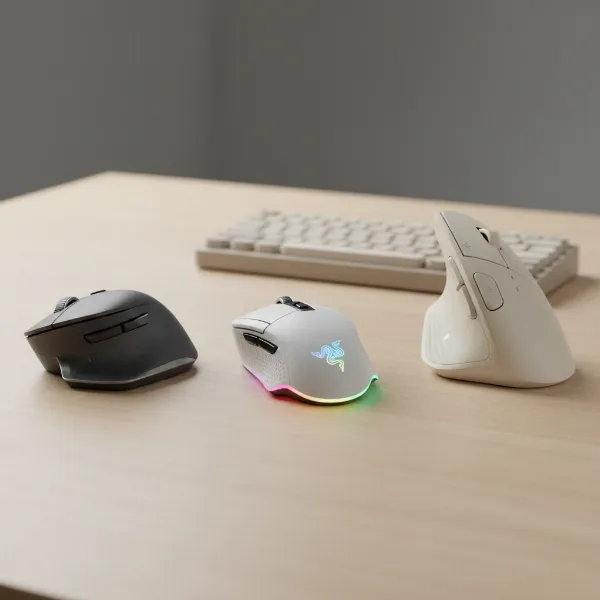 A selection of top-rated computer mice arranged on a modern desk setup
Essential Tips for Mouse Usage and Maintenance
To maximize your mouse’s lifespan and performance, proper usage and regular maintenance are crucial.
Cleaning Your Computer Mouse Correctly
Your mouse accumulates dirt, skin oils, and debris quickly. Regular cleaning prevents performance issues and promotes hygiene.
- Disconnect: Always unplug wired mice or turn off wireless mice and remove batteries before cleaning.
- Surface Cleaning: Dampen a lint-free cloth or microfiber cloth with a mild cleaning solution (like diluted dish soap and water, or 70% isopropyl alcohol for light-colored mice). Never spray liquid directly onto the mouse. Gently wipe all outer surfaces, including buttons, scroll wheel, and the bottom.
- Crevices: Use a soft toothpick or cotton swab to carefully dislodge dirt from tight spaces around buttons and scroll wheels. Avoid applying too much pressure to the sensor lens.
- Compressed Air: Use a can of compressed air (held upright) to blow away loosened debris from crevices.
- Dry Thoroughly: Ensure the mouse is completely dry before reconnecting or reinserting batteries.
- Frequency: A quick wipe weekly and a deeper clean monthly is generally recommended, more often if shared or used in dusty environments.
Adjusting DPI and Other Settings
Many mice come with companion software that allows for customization.
- DPI Adjustment: Use dedicated DPI buttons or software to find the sensitivity that feels most comfortable and efficient for your tasks. Remember that higher DPI isn’t always better; precision often benefits from lower settings.
- Button Programming: Assign shortcuts, macros, or specific functions to extra buttons to streamline your workflow.
- Polling Rate: For gaming mice, a higher polling rate (e.g., 1000Hz or more) means the mouse reports its position to the computer more frequently, leading to smoother, more responsive tracking.
Extending Wireless Mouse Battery Life
- Turn Off When Not in Use: Most wireless mice have an on/off switch. Using it, especially overnight, can significantly extend battery life.
- Use High-Quality Batteries: If using replaceable batteries, opt for reputable brands.
- Recharge Regularly: For rechargeable mice, a consistent charging routine prevents unexpected power loss during critical tasks. Some mice can be used while charging.
- Consider Multi-Mode Mice: These offer both wired and wireless options, allowing you to use them wired when battery is low or when a stable, zero-latency connection is preferred.
 Tips for cleaning and maintaining a computer mouse
Detailed Comparison of Mouse Technologies
Understanding the nuances of different mouse technologies can further refine your selection. Here’s a comparative overview:
| Feature/Type | Advantages | Disadvantages | Best Applications |
|---|---|---|---|
| Optical Mouse | Reliable, consistent tracking, affordable | Struggles on reflective/glass surfaces, lower max DPI | General use, productivity, most gaming |
| Laser Mouse | Works on more surfaces (including glass), higher max DPI | Can sometimes “jitter” on subtle surfaces, more expensive | Travel, varied surfaces, high-resolution screens |
| Wired Mouse | Zero latency, no batteries, cost-effective | Cable drag, limited mobility, desk clutter | Competitive gaming, graphic design, fixed setups |
| Wireless Mouse | Clutter-free, portable, flexible range | Battery dependency, potential interference, higher cost | General use, laptops, presentations, clean desk |
| Gaming Mouse | High DPI, programmable buttons, fast polling rate, ergonomic | Often expensive, complex features for casual users | Esports, intensive gaming |
| Ergonomic Mouse | Reduces strain, prevents RSI, comfort | Takes getting used to, may not suit all tasks | Long work sessions, users with hand/wrist pain |
| Trackball Mouse | Reduces arm movement, precise for certain tasks | Learning curve, slower for broad movements | Confined spaces, specific professional tasks |
| Vertical Mouse | Promotes natural wrist posture, excellent for RSI prevention | Different feel, less common for gaming | Office work, users prone to wrist discomfort |
Where to Purchase Your Next Computer Mouse
Choosing a mouse is only half the battle; knowing where to buy it ensures you get a genuine product with reliable support.
- Reputable Retailers: Purchase from authorized electronics stores or well-known online retailers. This minimizes the risk of counterfeits and ensures you receive manufacturer warranties.
- Online vs. In-Store:
- In-Store: Allows you to physically hold and test the mouse, checking for comfort and grip style fit—a critical factor.
- Online: Offers a wider selection and often competitive pricing. Read reviews and check return policies carefully.
- Warranty and Return Policies: Always verify the warranty period and the store’s return policy. A good return policy allows you to exchange the mouse if it doesn’t meet your comfort or performance expectations after a few days of use.
The Ultimate Computer Mouse Buying Guide
Navigating the vast landscape of computer mice can be overwhelming, but by keeping a few core principles in mind, you can confidently make a choice that truly enhances your digital life.
- Budget First: Determine how much you’re willing to invest. High-end mice offer advanced features, but excellent options exist across all price points.
- Trusted Brands: Stick to reputable brands known for quality and customer support, such as Logitech, Razer, Corsair, Microsoft, and SteelSeries. These brands often innovate and offer robust software for customization.
- Read Reviews and Testimonials: Leverage the experiences of other users. Look for detailed reviews that discuss performance in scenarios similar to yours, and pay close attention to comments about ergonomics and durability.
“The best choice is the one that fits your hand comfortably. A good mouse should keep your hand, wrist, and arm in a natural, relaxed position.”
This insight from Caleb Leary, an Ergonomist, underscores the paramount importance of personal fit and comfort, a principle I wholeheartedly endorse from years of practical experience.
 A detailed buying guide checklist for selecting a computer mouse
Conclusion
Is a computer mouse worth it? Absolutely. In an age where digital interaction is constant, the humble mouse is far more than a simple pointing device; it’s a critical tool for productivity, comfort, and performance. Investing time to choose the right computer mouse, one that perfectly aligns with your needs and hand, can drastically improve your daily computing experience, mitigate discomfort, and even boost your efficiency. Whether you prioritize precision for gaming, ergonomic comfort for long workdays, or portability for on-the-go tasks, there’s a mouse designed to fit your unique requirements.
So, how will your next computer mouse elevate your digital journey?
Frequently Asked Questions
What is the ideal DPI for general office work?
For typical office tasks like browsing, document editing, and presentations, a DPI setting between 800 and 1600 is usually ideal. This range offers a good balance of speed and precision, allowing for smooth navigation without being overly sensitive or requiring excessive hand movement.
Can a gaming mouse be used for professional work?
Yes, absolutely. Many gaming mice feature high precision sensors, programmable buttons, and ergonomic designs that are highly beneficial for professional tasks, especially in design or CAD software where fine control is crucial. Their robust build quality also means they can withstand extensive daily use.
How do I know if a mouse is the right size for my hand?
To check if a mouse fits, rest your wrist on the desk and lay your hand over the mouse. Your fingers should comfortably reach the buttons without stretching, and your palm should naturally rest on the mouse’s back. Avoid mice that force your fingers into an uncomfortable claw grip or cause your wrist to bend awkwardly.
What are the main advantages of a vertical mouse?
The primary advantage of a vertical mouse is its ergonomic design, which positions your hand in a neutral “handshake” posture. This significantly reduces forearm pronation and pressure on the wrist, making it excellent for preventing and alleviating discomfort or repetitive strain injuries (RSI) from prolonged computer use.
Is wireless mouse latency still a major concern for gamers?
For most modern wireless gaming mice, latency is no longer a significant concern. Advanced 2.4 GHz wireless technologies, like Logitech’s Lightspeed or Razer’s HyperSpeed, offer response times that are virtually indistinguishable from wired connections, making them suitable even for competitive gaming. Bluetooth mice, however, may still have a noticeable delay.
How often should I replace my computer mouse?
The lifespan of a computer mouse varies depending on its quality, usage intensity, and maintenance. High-quality mice can last 3-5 years or even longer. However, if you notice decreased responsiveness, inconsistent tracking, button malfunctions, or persistent discomfort, it’s generally a good time to consider a replacement.
Can I use an optical mouse on a glass desk?
Generally, standard optical mice struggle on transparent or highly reflective surfaces like glass. Their LED sensors require a textured, opaque surface to accurately track movement. If you frequently use your mouse on glass, a laser mouse or a quality mouse pad specifically designed for optical sensors would be a more suitable choice.