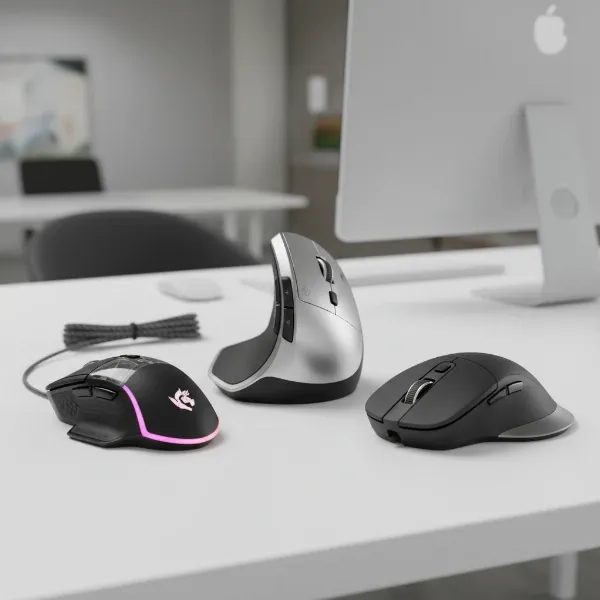
In the digital age, a computer mouse remains an indispensable tool, guiding our interactions across countless tasks. While often overlooked, the right mouse can profoundly impact productivity, comfort, and overall computing experience. From navigating complex design software to executing precision maneuvers in gaming, the subtle clicks and fluid movements of a well-chosen computer mouse define efficiency and ease. This comprehensive guide explores the evolution, types, selection criteria, and maintenance of computer mice, helping you discover if a dedicated mouse is truly worth the investment for your unique needs.
An Overview of the Computer Mouse
A computer mouse is a handheld pointing device that translates two-dimensional motion into cursor movement on a display, providing intuitive control over a graphical user interface. Its origins trace back to Douglas Engelbart’s groundbreaking demonstration in 1968, where the first wooden prototype featured two perpendicular wheels for X-Y axis tracking. Over decades, this fundamental design evolved from mechanical ball mice to modern optical and laser sensors, eliminating moving parts and enhancing precision. The shift from wired connections to wireless communication further transformed its utility, offering greater freedom and reduced desktop clutter.
Today, computer mice come in various forms, each designed to cater to specific user requirements. Wired mice, connected via USB, offer consistent performance without latency concerns or battery management, making them favorites for competitive gamers. Wireless mice, utilizing Bluetooth or a USB receiver, provide superior portability and a clean workspace, ideal for general use and travel. Gaming mice are engineered for high performance, featuring advanced sensors, numerous programmable buttons, and ergonomic designs to withstand intense, prolonged sessions. Ergonomic mice prioritize comfort and health, often contoured to support a natural hand position and reduce strain, particularly beneficial for users with long working hours or those prone to repetitive strain injuries. Trackball mice offer an alternative interaction method, where a stationary ball is manipulated by the thumb or fingers, reducing arm movement and catering to specific ergonomic preferences.
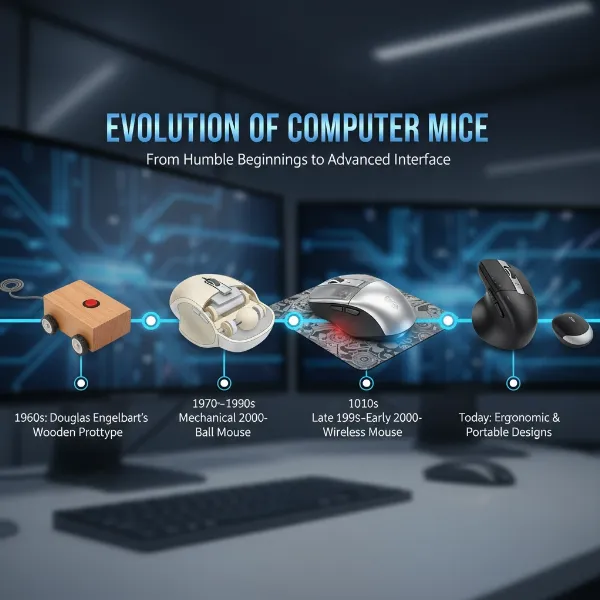 A historical timeline showing the evolution of computer mice from early prototypes to modern wireless designs.
Choosing the Right Computer Mouse
Selecting the perfect computer mouse involves more than just picking the first one you see. It’s about understanding how your daily activities intersect with the device’s capabilities. A thoughtful choice ensures not only comfortable usage but also an enhancement in performance, whether for work or leisure.
Determine Your Needs
|
Our Picks for the Best Computer mouse in 2026
As an Amazon Associate I earn from qualifying purchases.
|
||
| Num | Product | Action |
|---|---|---|
| 1 | ProtoArc Wireless Bluetooth Trackball Mouse, EM02 Two Adjustable Angle Ergonomic Rechargeable Computer Ball Mouse, 3 Device Connection, Thumb Control and Smooth Tracking for Laptop, PC, Mac-Gray |

|
| 2 | Logitech M185 Wireless Mouse, 2.4GHz with USB Mini Receiver, 12-Month Battery Life, 1000 DPI Optical Tracking, Ambidextrous PC/Mac/Laptop - Swift Grey |
|
| 3 | Logitech M510 Wireless Mouse, Mouse for Laptop and PC with USB Unifying Receiver, Programmable Buttons - Graphite |
|
| 4 | Amazon Basics 3-Button USB Wired Mouse with Scrolling and Tracking - Standard, Black |
|
| 5 | Apple Magic Mouse - White Multi-Touch Surface |
|
| 6 | TECKNET Wireless Mouse, 2.4G Ergonomic Optical Mouse, Computer Mouse for Laptop, PC, Computer, Chromebook, Notebook, 6 Buttons, 24 Months Battery Life, 2600 DPI, 5 Adjustment Levels - Purple |
|
| 7 | Uineer Wireless Mouse,Upgraded 2.4GHz Rechargeable (Battery Level Visible) Ergonomic Computer Mouse,4 Levels DPI, Wireless Mice for Laptop Computer(Matte Black) |
|
| 8 | Logitech MX Master 4, Ergonomic Wireless Mouse with Advanced Performance Haptic Feedback, Ultra-Fast Scrolling, USB-C Charging, Bluetooth, Windows, MacOS - Graphite |
|
| 9 | RAPIQUE R306 Pro Wireless Mouse, Dual Bluetooth & 2.4GHz, Connect Up to 3 Devices, Type-C Rechargeable, Silent Click, Ergonomic Symmetrical Design, for MacBook, Laptop, Tablet, Milk Tea Pink |
|
| 10 | Logitech B100 Wired Mouse for Computer and Laptop, USB Corded Mouse, Right or Left Hand Use - Black |
|
Before diving into specifications, consider your primary usage scenarios. Are you a casual user who primarily browses the internet and handles basic office tasks? Do you engage in graphic design, requiring pixel-perfect accuracy and programmable shortcuts? Or are you a dedicated gamer, where swift, precise movements and low latency are paramount? The intensity and duration of your daily mouse usage also play a crucial role; long hours necessitate a focus on ergonomics to prevent discomfort. Finally, setting a realistic budget helps narrow down options, as advanced features often come with a higher price tag.
Key Factors to Consider
Several technical and ergonomic factors distinguish one mouse from another, each contributing to a different user experience.
- DPI (Dots Per Inch): DPI measures a mouse’s sensitivity, indicating how many pixels the cursor moves on screen for every inch the mouse moves physically. A higher DPI means the cursor travels farther with minimal hand movement, making it suitable for large monitors or fast-paced gaming. Conversely, lower DPI offers slower, more controlled movement, preferred by graphic designers and professional esports players for precision. Many modern mice offer adjustable DPI settings, allowing users to switch sensitivity on the fly.
- Ergonomics and Size: Comfort is paramount, especially for extended use. Mice are designed for different hand sizes and grip styles: palm grip (entire hand rests on the mouse), claw grip (fingers arched, palm partially touching), and fingertip grip (only fingertips touch). An ergonomic mouse is contoured to fit the natural curve of the hand, promoting a neutral wrist position to alleviate strain. It’s often recommended to try different shapes and sizes to find what feels most natural.
- Number of Buttons: Beyond the standard left, right, and scroll wheel, many mice include additional programmable buttons. These can be invaluable for productivity tasks, allowing users to assign macros, copy/paste functions, or specific application shortcuts. For gamers, extra buttons can map in-game actions, spells, or complex command sequences, providing a competitive edge.
- Connectivity (Wired/Wireless): Wired mice offer the fastest response times and eliminate battery concerns, as they draw power directly from the computer. However, the cable can restrict movement and clutter your desk. Wireless mice provide unparalleled freedom of movement and a cleaner setup, connecting either via a USB dongle (2.4 GHz) or Bluetooth. While modern wireless technology has significantly reduced latency, some competitive gamers still prefer wired for guaranteed instantaneous input.
- Sensor Technology: The two predominant sensor technologies are optical and laser. Optical mice use an LED light to track movement by capturing images of the surface below. They perform best on opaque, non-reflective surfaces like mouse pads, offering consistent and predictable tracking. Laser mice use a laser diode, which penetrates deeper into the surface, allowing them to track on a wider range of materials, including glass. While laser mice often boast higher DPI, they can sometimes exhibit “jitter” or “acceleration” on certain surfaces due to over-sensitive tracking of minute imperfections. For critical precision, optical sensors are often favored.
- Battery Life (Wireless): For wireless mice, battery life is a key consideration. Models vary significantly, with some offering weeks or even months of use on a single charge or set of disposable batteries. Features like RGB lighting and high polling rates can consume more power. Many wireless mice include power-saving modes or rechargeable batteries with USB-C charging for convenience.
Comparing Common Mouse Features
Understanding the variations in mouse features can help you align your selection with your specific needs.
| Feature Category | Basic Office Mouse | Ergonomic Productivity Mouse | High-Performance Gaming Mouse |
|---|---|---|---|
| DPI Range | 800-1600 | 1200-4000 | 400-26,000+ (adjustable) |
| Form Factor | Symmetrical, standard size | Contoured, vertical, specialized | Symmetrical/Ergonomic, lightweight |
| Button Count | 2-3 (Left, Right, Scroll Click) | 5-8 (Programmable, gesture buttons) | 6-18+ (Highly programmable) |
| Connectivity | Wired, basic wireless (USB dongle) | Advanced wireless (Bluetooth, USB) | Wired, high-speed wireless (2.4GHz) |
| Sensor Type | Optical | Optical/Laser | High-precision Optical/Laser |
| Battery Life | Up to 6-12 months (wireless) | Up to 2-3 months (rechargeable) | 24-90 hours (depending on settings) |
| Price Range | Low ($10-$30) | Mid-High ($50-$150+) | Mid-High ($60-$200+) |
| Key Benefits | Simplicity, affordability | Comfort, multi-device, efficiency | Speed, accuracy, customization |
Top Computer Mouse Recommendations
While specific product models evolve rapidly, understanding the characteristics that define top-tier mice for different users remains consistent.
For Office and Everyday Use, a mouse prioritizing comfort, reliability, and ease of use is ideal. Look for models with a comfortable ergonomic shape that fits your hand well, a smooth scroll wheel, and stable wireless connectivity. Features like multi-device pairing can enhance productivity for those who switch between computers or tablets. Good battery life is also crucial to minimize interruptions.
For Creative Professionals and Designers, precision and customization are key. A mouse with a high-quality optical or laser sensor offering a wide, adjustable DPI range allows for meticulous control over design elements. Additional programmable buttons can streamline workflows by assigning specific functions or macros for design software. Some designers might also benefit from mice with horizontal scroll wheels for navigating large canvases.
Gaming Enthusiasts demand the highest performance. A gaming mouse should feature an extremely responsive sensor with high, adjustable DPI and a high polling rate (how often the mouse reports its position to the computer) for fluid, lag-free movement. Ergonomics are critical for long sessions, with designs often optimized for specific grip styles. Programmable buttons are essential for executing complex commands quickly, and some high-end models offer adjustable weights for personalized feel. Wired options are often preferred for their zero-latency assurance, though advanced wireless gaming mice now offer comparable performance.
“A quality mouse isn’t just about functionality; it’s about extending your comfort and precision as a user, making it an investment in your daily digital life.”
Computer Mouse Usage and Maintenance Tips
Proper care can significantly extend the lifespan of your computer mouse and ensure consistent performance. Regular cleaning prevents dust and grime from affecting tracking and button responsiveness.
- Cleaning Your Mouse: Always unplug a wired mouse or power off a wireless one before cleaning. Use a soft, lint-free cloth lightly dampened with isopropyl alcohol (70% concentration) to wipe down the entire exterior, removing fingerprints and oils. For crevices around buttons and the scroll wheel, use cotton swabs or toothpicks to gently dislodge debris. Compressed air can also be effective for blowing out dust. For optical or laser sensors, a dry cotton swab can gently clean the lens; avoid direct liquid contact with the sensor.
- Adjusting DPI and Settings: Most gaming and advanced productivity mice come with software that allows you to customize DPI settings, button assignments, and even RGB lighting. Experiment with different DPI levels to find what feels most comfortable and efficient for your tasks. Lower DPI is generally better for precision, while higher DPI suits faster movements.
- Extending Wireless Mouse Battery Life: To maximize battery life, turn off your wireless mouse when not in use for extended periods. Reduce unnecessary RGB lighting if your mouse has it, as it can be a significant power drain. Consider using rechargeable batteries or models with efficient sensors and power management features.
- Common Issues and Troubleshooting: If your mouse isn’t tracking properly, first clean the sensor and the surface you’re using it on. For wireless mice, check the battery level or ensure the USB receiver is securely plugged in and there’s no interference. If buttons are unresponsive, a gentle cleaning might help. For persistent issues, consult the manufacturer’s troubleshooting guide or update your mouse drivers.
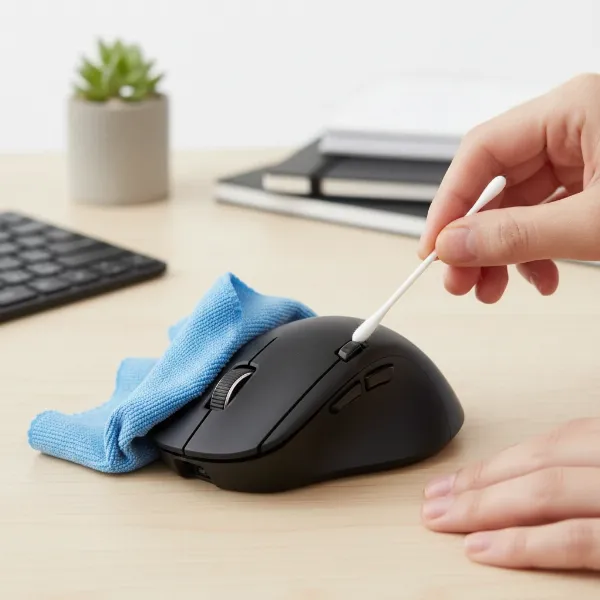 A person gently cleaning a computer mouse with a microfiber cloth and cotton swabs.
Detailed Comparison of Mouse Types
Beyond general categories, a deeper look into specific mouse technologies reveals their unique strengths and ideal applications.
| Mouse Type | Advantages | Disadvantages | Suitable Applications |
|---|---|---|---|
| Optical Mouse | Consistent tracking, affordable, good for gaming | Less effective on glossy/glass surfaces | General use, gaming (especially FPS), graphic design |
| Laser Mouse | Works on more surfaces (including glass), high DPI | Can have “jitter” or “acceleration,” more expensive | General use, productivity (travel, various surfaces) |
| Trackball Mouse | Reduces arm/wrist movement, precise control | Learning curve, less intuitive for some, bulkier | Ergonomic needs, limited desk space, precision work |
| Gaming Mouse | High DPI/polling rate, programmable buttons, ergonomic for grip styles, low latency | Often more expensive, can have aggressive aesthetics | Competitive gaming, demanding applications, power users |
| Ergonomic Mouse | Reduces strain, promotes natural hand position, customizable | Can be larger, unconventional shapes, may not suit all grip styles | Extended office work, users with wrist/hand discomfort |
| Wired Mouse | Zero latency, no battery worries, generally cheaper | Cable management, limited mobility | Gaming, high-precision tasks, static desk setups |
| Wireless Mouse | Freedom of movement, clutter-free, portable | Battery management, potential minor latency | General use, travel, multi-device setups |
Where to Purchase Your Computer Mouse
Acquiring a computer mouse is simple, with numerous options available both online and in physical stores. Reputable electronics retailers such as Best Buy, Staples, Target, and Micro Center typically offer a wide selection of brands and models, allowing you to physically test different mice for comfort and grip. Online marketplaces like Amazon and the official websites of manufacturers (e.g., Logitech, Razer, SteelSeries) provide an even broader range, often with competitive pricing and detailed product specifications.
When buying online, pay close attention to the return policy and warranty offered by both the retailer and the manufacturer. This is particularly important if you are unable to test the mouse beforehand. Reading customer reviews can provide valuable insights into real-world performance and comfort. For high-end or specialized mice, checking dedicated tech enthusiast forums or review sites can offer in-depth analyses.
Buying Guide – Computer Mouse Essentials
Making an informed decision on a computer mouse simplifies the selection process and ensures you invest in a device that truly meets your needs.
- Budget: Determine how much you’re willing to spend. Basic mice are affordable, while ergonomic and high-performance gaming mice can range from moderate to premium prices. Understand that an appropriate budget helps align expectations with available features.
- Brands: Familiarize yourself with reputable brands known for quality and innovation. Logitech, Razer, SteelSeries, Corsair, and Microsoft are widely recognized for their diverse range of reliable computer mice. These brands often provide robust software for customization and good customer support.
- Read Reviews: Before finalizing your purchase, extensively research and read reviews from other users and professional critics. User reviews often highlight practical experiences regarding comfort, durability, and specific performance aspects that product descriptions might not cover. Pay attention to common complaints or praises, as they can reveal crucial insights.
Conclusion
The computer mouse, a humble yet powerful extension of our digital selves, is undeniably worth the investment when chosen thoughtfully. Whether for enhancing productivity, ensuring ergonomic comfort during long workdays, or gaining a competitive edge in gaming, understanding the diverse options and key features is crucial. By considering your specific needs, exploring factors like DPI, ergonomics, and sensor technology, and maintaining your device properly, you can select a mouse that not only feels natural in your hand but also elevates your entire computing experience. So, are you ready to upgrade your digital journey with the perfect pointing device?
Frequently Asked Questions
What is the ideal DPI for a general-use computer mouse?
For general office work and web browsing, a DPI range of 800 to 1600 is usually ideal. This range provides a good balance between cursor speed and precision, making it comfortable for most users without feeling overly sensitive or sluggish on standard monitor setups.
Can a gaming mouse be used for office work?
Yes, a gaming mouse can be excellent for office work. Many gaming mice offer superior ergonomics for comfort during long sessions, precise sensors, and programmable buttons that can be customized for productivity shortcuts, making them versatile tools beyond gaming.
How often should I clean my computer mouse?
It’s recommended to perform a light cleaning of your computer mouse weekly, wiping down the surface with a damp cloth. A more thorough deep clean, addressing crevices and the sensor with cotton swabs and isopropyl alcohol, should be done monthly or whenever you notice grime buildup affecting performance.
What’s the difference between an ergonomic mouse and a regular mouse?
An ergonomic mouse is specifically designed to support the hand and wrist in a natural, neutral position, reducing strain and preventing repetitive strain injuries. Regular mice often have a flatter, more symmetrical design that can encourage pronation of the wrist, which may lead to discomfort over long periods.
Is it better to have a wired or wireless computer mouse for everyday use?
For everyday use, the choice between wired and wireless largely depends on personal preference. Wireless mice offer greater freedom of movement and a clutter-free desk, while wired mice provide consistent performance without battery concerns. Modern wireless technology has minimal latency, making either a viable option for most users.