In the vast landscape of personal computing, the choice of an input device profoundly shapes your daily interactions. For over a decade, as an Admin at ReviewMew.com, I’ve delved deep into the nuances of hundreds of computer mice and touchpads, from the simplest models to advanced gaming and design peripherals. This journey has underscored a fundamental truth: the “best” device isn’t universal but deeply personal, reflecting individual needs, usage patterns, and comfort preferences. This comprehensive guide aims to arm you with the insights and advice necessary to pinpoint the perfect computer mouse or touchpad that aligns seamlessly with your unique computing demands. Whether you’re navigating complex spreadsheets, engaging in high-stakes gaming, or simply browsing the web, understanding the core distinctions between these two essential tools is your first step towards an optimized digital experience.
Overview of Computer Mice and Touchpads
A computer mouse is an external peripheral that translates physical movement across a surface into cursor movement on screen. Its history dates back to the 1960s, evolving from mechanical ball-based designs to the sophisticated optical and laser sensors we use today. Touchpads, also known as trackpads, are integrated, touch-sensitive surfaces typically found on laptops, responding directly to finger gestures rather than physical device movement. Both serve the primary function of on-screen navigation, clicking, and selection, yet their operational principles lead to distinct advantages and disadvantages across various applications.
Modern computer mice broadly fall into categories such as wired, wireless (connecting via USB receiver or Bluetooth), gaming-specific, and ergonomic designs. Each type offers unique benefits, from the reliable, lag-free connection of wired mice to the untethered freedom of wireless options. Gaming mice often boast high DPI (dots per inch) for sensitivity and programmable buttons, while ergonomic mice prioritize comfort and injury prevention. Touchpads, particularly modern “clickpads,” have evolved to offer intuitive multi-finger gestures, enhancing navigation without the need for an external device.
Guide to Choosing Your Ideal Computer Mouse
Selecting the right input device hinges on understanding your specific needs and priorities. The dynamic between a computer mouse and a touchpad is not about one being definitively superior, but rather which one offers the most effective solution for your individual workflow and comfort over extended periods.
Determine Your Usage Needs
|
Our Picks for the Best Computer mouse in 2026
As an Amazon Associate I earn from qualifying purchases.
|
||
| Num | Product | Action |
|---|---|---|
| 1 | RAPIQUE R306 Pro Wireless Mouse, Dual Bluetooth & 2.4GHz, Connect Up to 3 Devices, Type-C Rechargeable, Silent Click, Ergonomic Symmetrical Design, for MacBook, Laptop, Tablet, Milk Tea Pink |

|
| 2 | Logitech M510 Wireless Mouse, Mouse for Laptop and PC with USB Unifying Receiver, Programmable Buttons - Graphite |
|
| 3 | Uineer Wireless Mouse,Upgraded 2.4GHz Rechargeable (Battery Level Visible) Ergonomic Computer Mouse,4 Levels DPI, Wireless Mice for Laptop Computer(Matte Black) |
|
| 4 | ProtoArc Wireless Bluetooth Trackball Mouse, EM02 Two Adjustable Angle Ergonomic Rechargeable Computer Ball Mouse, 3 Device Connection, Thumb Control and Smooth Tracking for Laptop, PC, Mac-Gray |
|
| 5 | TECKNET Wireless Mouse, 2.4G Ergonomic Optical Mouse, Computer Mouse for Laptop, PC, Computer, Chromebook, Notebook, 6 Buttons, 24 Months Battery Life, 2600 DPI, 5 Adjustment Levels - Purple |
|
| 6 | Logitech M185 Wireless Mouse, 2.4GHz with USB Mini Receiver, 12-Month Battery Life, 1000 DPI Optical Tracking, Ambidextrous PC/Mac/Laptop - Swift Grey |
|
| 7 | Amazon Basics 3-Button USB Wired Mouse with Scrolling and Tracking - Standard, Black |
|
| 8 | Logitech B100 Wired Mouse for Computer and Laptop, USB Corded Mouse, Right or Left Hand Use - Black |
|
| 9 | Logitech MX Master 4, Ergonomic Wireless Mouse with Advanced Performance Haptic Feedback, Ultra-Fast Scrolling, USB-C Charging, Bluetooth, Windows, MacOS - Graphite |
|
| 10 | Apple Magic Mouse - White Multi-Touch Surface |
|
Your daily computing tasks are the primary determinant in choosing between a mouse and a touchpad. Are you primarily involved in office work, requiring precise document editing and spreadsheet navigation? Do creative endeavors like graphic design or video editing demand pixel-perfect accuracy? Or perhaps competitive gaming necessitates lightning-fast reflexes and pinpoint aiming?
Consider the intensity and duration of your daily computer use. Casual browsing or occasional typing may find a touchpad perfectly adequate. However, if your work involves prolonged sessions of detailed tasks, an external computer mouse often becomes a necessity, offering a level of control and comfort that integrated touchpads struggle to match. Your budget, too, plays a critical role, as mice range from basic, affordable models to high-end, feature-rich peripherals designed for specific professional or gaming demands.
Key Factors When Selecting an Input Device
The decision between a computer mouse and a touchpad boils down to several critical characteristics that impact your overall experience.
Sensitivity (DPI)
DPI, or Dots Per Inch, measures a mouse’s sensitivity, indicating how far the cursor moves on screen relative to the physical distance the mouse travels. Higher DPI settings allow for faster cursor movement with minimal hand motion, which can be advantageous for large monitors or rapid actions in gaming. Conversely, lower DPI settings offer finer control, crucial for precision tasks like graphic design or detailed editing. Many modern mice feature adjustable DPI settings, letting you switch sensitivity on the fly to suit different applications.
Ergonomics and Size
The physical design and size of your input device significantly influence long-term comfort and can mitigate the risk of repetitive strain injuries (RSI). A computer mouse should fit comfortably in your hand, supporting a natural grip style (palm, claw, or fingertip). Ergonomic mice are specifically sculpted to promote a neutral wrist and arm posture, reducing strain during extended use. Touchpads, by their nature, require more repetitive finger movements on a smaller surface, which can lead to fatigue over prolonged periods. Studies have shown that using an external mouse can lead to a significant reduction in muscle activity in the neck, shoulder, and forearm compared to a touchpad, highlighting its ergonomic benefits for prolonged use.
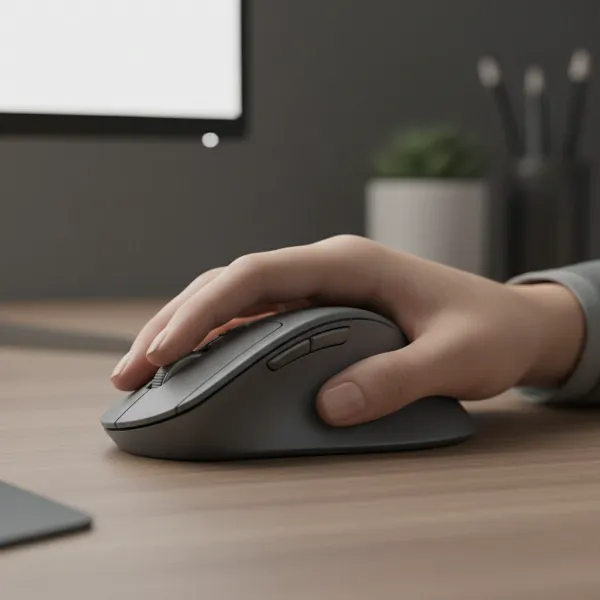 An ergonomic computer mouse shaped to fit a hand comfortably, promoting natural wrist posture.
Number of Buttons
While a standard mouse features left and right-click buttons and a scroll wheel, many models offer additional programmable buttons. These can be customized for specific shortcuts, macros, or in-game actions, drastically improving efficiency for power users, gamers, and professionals alike. Touchpads primarily rely on multi-finger gestures for extended functionality, though modern clickpads can offer some customization for taps and swipes.
Connectivity (Wired vs. Wireless)
The connection type impacts both performance and portability.
- Wired Mice: Offer a direct, lag-free connection, eliminating battery concerns. They are often preferred by competitive gamers for their reliability.
- Wireless Mice: Provide greater freedom of movement and a clutter-free workspace, connecting via a USB receiver (2.4 GHz) or Bluetooth. While generally convenient, they require batteries or charging and can occasionally experience minor lag or interference.
- Touchpads: Being integrated into laptops, they inherently offer the ultimate wireless experience for cursor control, requiring no external setup.
Sensor Technology
The core of a computer mouse’s performance lies in its sensor technology.
- Optical Sensors: Utilize LED lights to track movement. They are reliable and perform well on most opaque, non-glossy surfaces like mouse pads.
- Laser Sensors: Employ laser beams for tracking, offering higher sensitivity and the ability to work on a wider variety of surfaces, including glass. However, they can sometimes be overly sensitive to subtle surface imperfections.
Battery Life (for Wireless Mice)
For wireless mouse users, battery life is a practical consideration. Advanced wireless mice offer weeks or even months of use on a single charge or set of batteries, with some supporting fast charging or efficient power-saving modes. Touchpads, being integrated, draw power directly from the laptop, so their “battery life” is tied to the laptop’s overall endurance.
Comparative Table of Popular Mouse Types
| Feature | Wired Mouse | Wireless Mouse | Gaming Mouse | Ergonomic Mouse | Touchpad |
|---|---|---|---|---|---|
| Connectivity | USB Cable | 2.4 GHz Receiver/Bluetooth | Wired/Wireless | Wired/Wireless | Integrated (Laptop) |
| Precision | Excellent | Excellent | Superior | Very Good | Fair to Good |
| Speed | Excellent (no lag) | Very Good (minimal lag) | Exceptional | Very Good | Moderate (gesture-dependent) |
| Ergonomics | Good | Good | Varies (often contoured) | Excellent (promotes natural grip) | Fair (can cause strain over time) |
| DPI Range | Standard to High | Standard to High | Very High (adjustable) | Standard to High | N/A (sensitivity adjustable via OS) |
| Buttons | Standard + often programmable | Standard + often programmable | Many programmable | Standard + sometimes programmable | Taps & Multi-finger gestures |
| Portability | Limited | High | Moderate | Moderate | Excellent |
| Price Range | Low to Mid | Mid to High | Mid to Very High | Mid to High | N/A (part of laptop) |
| Best For | Reliable desktop work, budget | General use, travel, clean desk | Competitive gaming, rapid action | Long work sessions, RSI prevention | Travel, casual use, small spaces |
Top Preferred Computer Mouse Options
While specific model recommendations can quickly become outdated, understanding the characteristics that make a mouse “top-tier” remains constant. Generally, the best computer mice offer a blend of high precision, ergonomic comfort, customizable features, and reliable connectivity for their intended use.
For gamers, mice from brands like Logitech and Razer often stand out for their advanced sensors, high polling rates, numerous programmable buttons, and durable designs. The Razer DeathAdder V3 HyperSpeed, for example, is recognized for its responsiveness and lightweight design, making it a favorite among competitive players. For professionals in design or CAD, precision is paramount, and devices with high DPI, smooth tracking, and a comfortable, stable grip are preferred. For general office use, a balance of comfort, decent precision, and wireless convenience is key, with many users opting for ergonomic wireless mice that promote health during prolonged work.
When making a choice, consider reading recent reviews from reputable tech publications and user testimonials. These can provide real-world insights into a mouse’s performance, durability, and ergonomic suitability for various hand sizes and grip styles.
Tips for Using and Maintaining Your Computer Mouse
To maximize the lifespan and performance of your computer mouse, proper care and usage are essential.
- Cleaning: Regularly clean your mouse’s sensor and body with a soft, dry cloth. For optical sensors, ensure no dust or debris obstructs the light path. For mechanical parts (older mice or scroll wheels), a cotton swab with a little rubbing alcohol can help dislodge grime.
- DPI Adjustment: Experiment with your mouse’s DPI settings to find what feels most comfortable and efficient for different tasks. Many gaming mice have dedicated buttons to cycle through DPI profiles.
- Extending Wireless Battery Life: For wireless mice, switch them off when not in use. Some models offer eco-modes or come with software that allows you to manage power consumption. Using rechargeable batteries is also an economical and eco-friendly option.
- Troubleshooting Common Issues: If your mouse stops responding, check batteries, USB connections, or try a different USB port. For wireless mice, ensure the receiver is not blocked and close to the mouse. Software glitches can sometimes be resolved by updating drivers or restarting your computer.
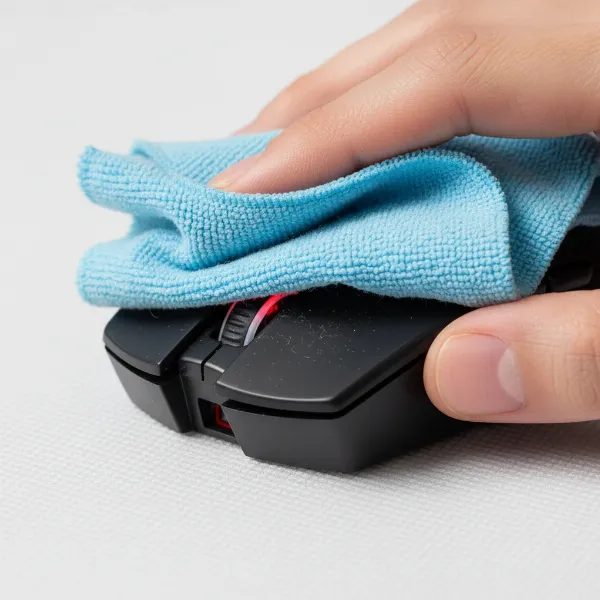 Hand cleaning a computer mouse sensor with a soft cloth for maintenance.
Detailed Comparison of Computer Mouse Types
Understanding the specific mechanics and advantages of different mouse types can further inform your decision.
- Optical Mouse: Uses an LED light and a sensor to track movement on most non-reflective surfaces. Known for reliability and cost-effectiveness, ideal for everyday use and casual gaming.
- Laser Mouse: Employs a laser diode for tracking, offering higher precision and the ability to work on a wider range of surfaces, including glass. Often preferred by professionals and high-performance users.
- Gaming Mouse: Characterized by high, adjustable DPI, fast polling rates (how often the mouse reports its position to the computer), durable switches, and customizable buttons. Designed for rapid, accurate movements in demanding gaming scenarios.
- Ergonomic Mouse: Focuses on reducing strain and promoting a natural hand posture. This category includes vertical mice, trackball mice, and contoured designs that minimize wrist pronation and muscle activity.
- Trackball Mouse: Features a fixed ball that users manipulate with their thumb or fingers to move the cursor. It remains stationary, requiring minimal arm movement, making it excellent for tight spaces and reducing wrist strain.
Each type caters to distinct needs, emphasizing precision, speed, comfort, or portability. For instance, while a gaming mouse offers unparalleled responsiveness for competitive play, an ergonomic mouse might be the better choice for preventing strain during an eight-hour workday.
Where to Purchase Your Computer Mouse
Acquiring a quality computer mouse involves choosing reputable retailers and being aware of key purchasing considerations.
- Authorized Retailers: Purchase from official brand websites or authorized electronics stores to ensure authenticity and valid warranties. Major retailers often carry a wide selection, allowing you to compare models in person.
- Online Marketplaces: While online stores offer convenience and competitive pricing, be vigilant about seller reputation and product reviews. Always confirm return policies and warranty information.
- Warranty and Returns: Check the manufacturer’s warranty and the retailer’s return policy before purchasing. A good warranty provides peace of mind against defects, and a flexible return policy allows for exchanges if the mouse doesn’t meet your comfort or performance expectations.
When shopping, remember to factor in potential shipping costs and look for deals, especially during seasonal sales events. Investing a little extra time in research can lead to significant savings and a more satisfying purchase.
Buying Guide: Overall Considerations for Your Computer Mouse
When faced with the choice between a computer mouse and a touchpad, a holistic approach is best.
- Budget: Determine how much you are willing to spend. High-end mice offer advanced features but may not be necessary for every user. There are excellent options across all price points.
- Brand Reputation: Research reputable brands known for quality, durability, and customer support. Companies like Logitech, Razer, and Keychron are often cited for their reliable input devices.
- Read Reviews: Always consult professional reviews and user testimonials. Real-world experiences offer valuable insights into a product’s strengths and weaknesses, helping you manage expectations and make an informed decision.
“The right computer mouse can be a game-changer for productivity and comfort, turning repetitive tasks into seamless workflows. It’s an investment in your daily digital interaction.” – Admin of ReviewMew.com, Computer Mouse Expert
Ultimately, the best input device is the one that enhances your personal computing experience, making it more efficient, comfortable, and enjoyable.
Conclusion
The debate between the computer mouse and the touchpad is not about a definitive winner, but rather understanding their complementary roles in the digital world. For tasks demanding high precision, speed, and sustained comfort—such as gaming, graphic design, or extensive document work—a well-chosen computer mouse, especially an ergonomic or high-performance model, typically outperforms a touchpad. Conversely, for ultimate portability, casual browsing, or computing in confined spaces, the integrated convenience and gesture functionality of a touchpad are unmatched. Many users find the most flexible solution lies in utilizing both: a dedicated computer mouse for a primary workstation and the touchpad for on-the-go efficiency.
What drives your choice of computer mouse, and how has it shaped your computing experience?
Frequently Asked Questions
What is the primary advantage of a computer mouse over a touchpad?
The primary advantage of a computer mouse is its superior precision and accuracy, making it ideal for tasks requiring fine cursor control like graphic design, photo editing, and competitive gaming.
Can a touchpad be as ergonomic as a computer mouse?
While touchpads are convenient, they generally offer less ergonomic comfort for prolonged use compared to a well-designed computer mouse, which can reduce wrist and hand strain by promoting a more natural posture.
Is a gaming mouse suitable for general office work?
Yes, a gaming mouse can be suitable for general office work, often providing enhanced precision, customizable buttons, and comfortable designs that can boost productivity. However, some features like very high DPI may need adjustment.
How do optical and laser sensors in computer mice differ?
Optical sensors use an LED light to track movement and work best on non-reflective surfaces. Laser sensors use a laser diode, offering higher sensitivity and compatibility with a wider range of surfaces, including glass.
What are multi-touch gestures on a touchpad used for?
Multi-touch gestures on a touchpad allow for efficient navigation and multitasking, such as two-finger scrolling, pinch-to-zoom, and three-finger swipes to switch between applications or access task views.