In the vast landscape of personal computing, few tools are as ubiquitous yet often underestimated as the computer mouse. This humble device is your primary interface with the digital world, guiding your cursor, enabling precise selections, and executing commands with a simple click. Whether you are a dedicated gamer, a meticulous graphic designer, or simply navigating daily office tasks, the quality and features of your mouse can profoundly impact your efficiency, comfort, and overall experience. A well-chosen computer mouse acts as a seamless extension of your thoughts, transforming digital interaction from a chore into an intuitive flow. This comprehensive review delves into the intricate features, diverse types, and crucial considerations to help you select the perfect computer mouse that truly aligns with your unique needs.
Overview of Computer Mice
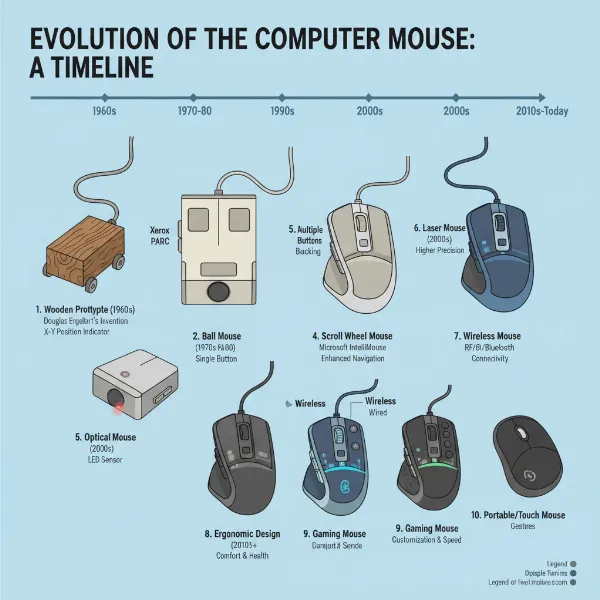
A computer mouse is an input device that translates hand movements into cursor movements on a screen. Its evolution has seen it transform from a basic peripheral into a sophisticated tool with a myriad of designs and functionalities. Initially a simple wooden block with two wheels, modern mice leverage advanced sensor technologies to offer unparalleled precision and versatility.
Today, the market offers a wide array of computer mice, each designed to cater to specific user requirements and preferences. These generally fall into categories based on their connectivity, intended use, and ergonomic design. Wired mice provide a consistent, lag-free connection, powered directly by your computer via a USB cable. Wireless mice, on the other hand, offer freedom of movement and a clutter-free workspace, typically connecting via a USB dongle (RF wireless) or Bluetooth, though they require batteries or charging. Gaming mice prioritize speed, precision, and customization, often featuring high DPI, rapid polling rates, and programmable buttons. Ergonomic mice are specifically sculpted to promote a natural hand posture, reducing strain and preventing repetitive stress injuries during prolonged use.
Each type comes with its own set of advantages and disadvantages. Wired mice excel in responsiveness and cost-effectiveness, but their cable can restrict movement. Wireless mice offer convenience and portability but introduce the need for battery management and a minimal potential for latency. Gaming mice deliver performance but can be overkill and more expensive for casual users. Ergonomic mice enhance comfort but may require an adjustment period due to their often unconventional shapes.
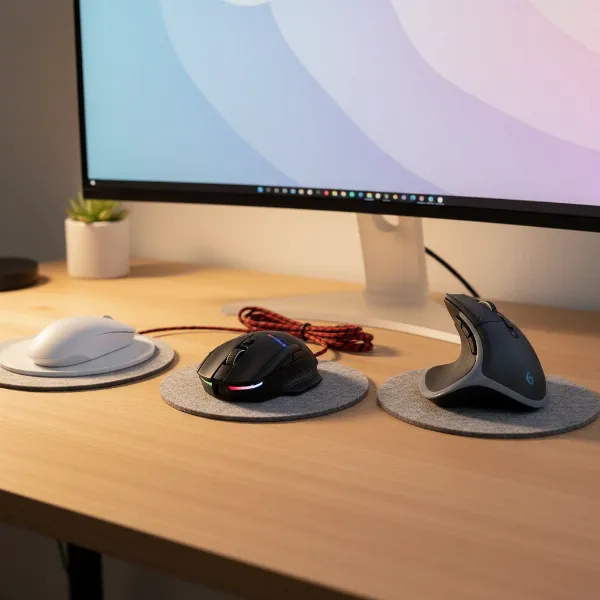 Various types of computer mice, highlighting wired, wireless, ergonomic, and gaming models on a modern desk setup
How to Choose the Right Computer Mouse
Selecting the ideal computer mouse involves more than just picking a visually appealing model; it requires a thoughtful assessment of your personal needs and preferences. A mouse that feels perfect for one user might be completely unsuitable for another. By considering several key factors, you can make an informed decision that enhances your computing experience.
Determine Your Usage Needs
|
Our Picks for the Best Computer mouse in 2026
As an Amazon Associate I earn from qualifying purchases.
|
||
| Num | Product | Action |
|---|---|---|
| 1 | TECKNET Wireless Mouse, 2.4G Ergonomic Optical Mouse, Computer Mouse for Laptop, PC, Computer, Chromebook, Notebook, 6 Buttons, 24 Months Battery Life, 2600 DPI, 5 Adjustment Levels - Purple |

|
| 2 | Logitech B100 Wired Mouse for Computer and Laptop, USB Corded Mouse, Right or Left Hand Use - Black |
|
| 3 | Amazon Basics 3-Button USB Wired Mouse with Scrolling and Tracking - Standard, Black |
|
| 4 | Uineer Wireless Mouse,Upgraded 2.4GHz Rechargeable (Battery Level Visible) Ergonomic Computer Mouse,4 Levels DPI, Wireless Mice for Laptop Computer(Matte Black) |
|
| 5 | Logitech M510 Wireless Mouse, Mouse for Laptop and PC with USB Unifying Receiver, Programmable Buttons - Graphite |
|
| 6 | Logitech MX Master 4, Ergonomic Wireless Mouse with Advanced Performance Haptic Feedback, Ultra-Fast Scrolling, USB-C Charging, Bluetooth, Windows, MacOS - Graphite |
|
| 7 | RAPIQUE R306 Pro Wireless Mouse, Dual Bluetooth & 2.4GHz, Connect Up to 3 Devices, Type-C Rechargeable, Silent Click, Ergonomic Symmetrical Design, for MacBook, Laptop, Tablet, Milk Tea Pink |
|
| 8 | Apple Magic Mouse - White Multi-Touch Surface |
|
| 9 | ProtoArc Wireless Bluetooth Trackball Mouse, EM02 Two Adjustable Angle Ergonomic Rechargeable Computer Ball Mouse, 3 Device Connection, Thumb Control and Smooth Tracking for Laptop, PC, Mac-Gray |
|
| 10 | Logitech M185 Wireless Mouse, 2.4GHz with USB Mini Receiver, 12-Month Battery Life, 1000 DPI Optical Tracking, Ambidextrous PC/Mac/Laptop - Swift Grey |
|
Before diving into specifications, consider how you primarily use your mouse. Are you spending hours on detailed graphic design projects or competitive gaming? Or is your daily routine mostly web browsing and word processing? Your primary activities will dictate the essential features you should prioritize and the budget you might allocate. For office work, comfort and reliable connectivity are paramount. Gamers will demand high responsiveness and customizable controls. Designers, conversely, need precision and often an ergonomic form factor for extended sessions.
Key Factors When Choosing a Mouse
Several technical and physical attributes contribute to a mouse’s overall performance and user satisfaction. Understanding these factors is crucial for making an educated choice.
- Sensitivity (DPI): DPI, or “Dots Per Inch,” measures how sensitive your mouse sensor is, determining how far the cursor moves on your screen for every inch you move the mouse. Higher DPI settings result in faster cursor movement, which can be advantageous for large monitors or rapid actions in gaming, while lower DPI offers finer control necessary for precision tasks like graphic design or detailed editing. Many modern mice offer adjustable DPI settings, allowing you to switch between sensitivities on the fly to suit different applications.
- Form Factor and Size: The physical shape and size of a mouse are critical for long-term comfort and avoiding strain. Your grip style (palm, claw, or fingertip) and hand size should guide your choice. A mouse that is too small can lead to cramped hands, while an overly large one might cause wrist strain. Ergonomic designs, such as vertical mice, aim to keep your hand in a natural “handshake” position, significantly reducing forearm and wrist stress.
- Number of Buttons: Beyond the standard left, right, and scroll wheel, many mice include additional programmable buttons. These can be incredibly useful for assigning shortcuts, macros, or specific in-game commands, boosting productivity for professionals and offering a competitive edge for gamers. For general use, a simpler layout might suffice, but extra buttons can be a valuable asset for complex workflows.
- Connectivity (Wired/Wireless): Wired mice connect via a cable, usually USB, offering immediate, consistent response and no need for battery management. They are generally preferred by competitive gamers who prioritize zero latency. Wireless mice provide a cable-free experience, enhancing desk aesthetics and portability. They use either a USB dongle (RF wireless) for low-latency connections or Bluetooth, which allows connection to multiple devices without a dongle. Modern wireless technologies have significantly closed the performance gap with wired counterparts, making them suitable for most users.
- Sensor Technology: The two main types are optical and laser. Optical sensors use an LED light to track movement on various non-glossy surfaces, offering reliable and accurate performance. Laser sensors, using a laser beam, typically offer higher sensitivity and can track on a wider range of surfaces, including reflective ones. Both are highly effective, but choice often comes down to specific tracking needs and surface compatibility.
- Battery Life (for Wireless Mice): This is a key consideration for wireless users. A good wireless mouse should offer extended battery life, ideally several months, to minimize interruptions. Some gaming-oriented wireless mice, especially those with high polling rates (e.g., 4000Hz or 8000Hz), may have shorter battery life due to increased power consumption, so rechargeable options or hot-swappable batteries are beneficial.
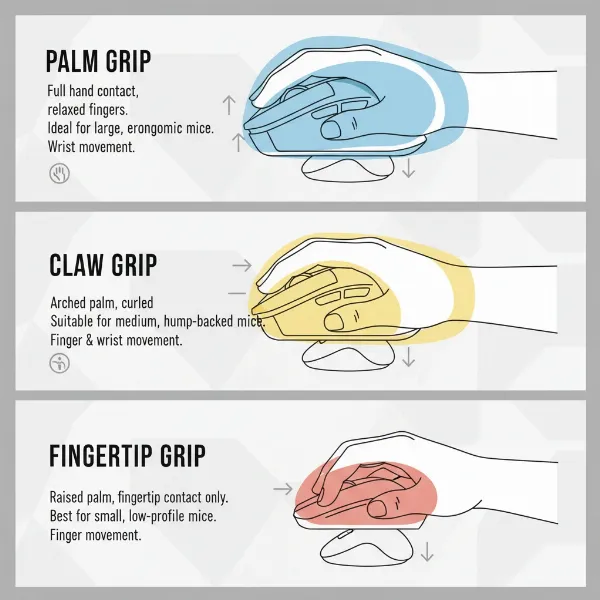 Illustrating different hand grip styles for computer mice: palm, claw, and fingertip, with appropriate mouse shapes
Comparison Table of Popular Mouse Models
To illustrate the diversity in features, here’s a comparison of a few popular computer mice across different categories:
| Model | Type | DPI Range (Approx.) | Buttons | Connectivity | Sensor Tech | Key Features | Price Range (USD) |
|---|---|---|---|---|---|---|---|
| Logitech MX Master 3S | Productivity/Ergonomic | 200-8000 | 7 | Wireless (RF/BT) | Darkfield Optical | Ergonomic design, MagSpeed scroll, multi-device, silent clicks | $99 – $110 |
| Razer Viper V3 Pro | Gaming | 100-35000+ | 5 | Wireless (RF) | Optical | Ultralight, high polling rate (up to 8KHz), ambidextrous | $150 – $170 |
| Logitech M720 Triathlon | Budget/Multi-device | 1000 (fixed) | 6 | Wireless (RF/BT) | Optical | Multi-device (3), silent operation, long battery life | $30 – $45 |
| Logitech Lift | Ergonomic (Vertical) | 400-4000 | 6 | Wireless (RF/BT) | Optical | Vertical design for comfort, silent clicks, compact | $70 – $85 |
| Corsair M65 RGB Ultra | Gaming (Wired/Wireless) | 100-26000 | 8 | Wired/Wireless | Optical | Customizable weights, adjustable DPI, durable switches | $70 – $100 |
 Visualizing the impact of mouse DPI sensitivity on cursor movement across a screen
Top-Rated Computer Mice
The market for computer mice is highly competitive, with manufacturers constantly innovating to deliver superior performance and comfort. Based on expert reviews and user feedback in 2024, several models consistently stand out in their respective categories.
For overall productivity and general use, the Logitech MX Master 3S is frequently lauded. It boasts an ergonomic design, a highly precise Darkfield optical sensor with adjustable DPI up to 8000, and a remarkable MagSpeed electromagnetic scroll wheel that can zip through thousands of lines or scroll precisely line-by-line. Its ability to connect to three devices simultaneously and silent click buttons make it a top choice for professionals.
In the gaming arena, the Razer Viper V3 Pro (or its predecessor, Viper V2 Pro) often takes the crown. This ultralight mouse offers extreme precision with DPI up to 35,000+, an incredibly high polling rate (up to 8000Hz with a dongle), and an ambidextrous design, making it a favorite for competitive gamers who demand speed and accuracy. Another strong contender is the Logitech G Pro X Superlight, known for its minimalist design and exceptional wireless performance.
For those prioritizing ergonomics, the Logitech Lift offers a unique vertical design that positions your hand in a natural “handshake” posture, alleviating wrist strain. The Posturite Penguin Vertical Mouse is another popular ergonomic option, particularly for users seeking an ambidextrous design.
On a budget, the Logitech M720 Triathlon is an excellent choice. It provides multi-device connectivity, silent clicks, and an impressive battery life for a very accessible price, proving that quality doesn’t always come with a premium tag.
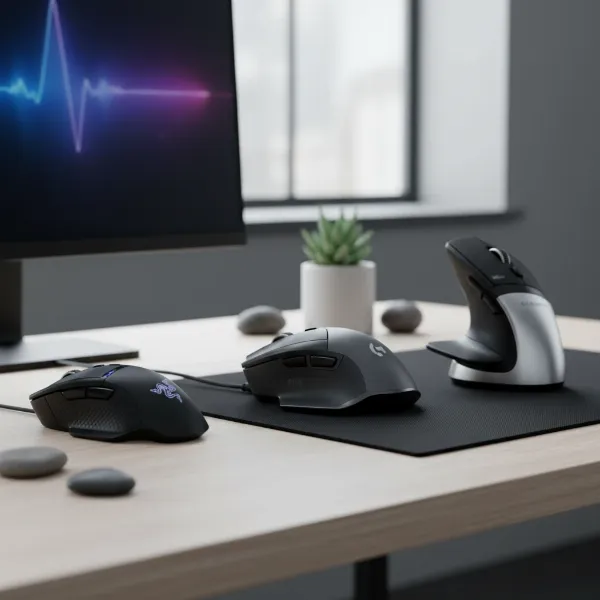 A curated selection of top-rated computer mice for various uses, showcasing modern designs
Tips for Using and Maintaining Your Computer Mouse
Proper use and regular maintenance are essential for extending the lifespan of your computer mouse and ensuring its consistent performance. Neglecting these simple steps can lead to premature wear, reduced accuracy, and frustrating interruptions.
- Regular Cleaning: Dust, skin oils, and debris can accumulate on your mouse, especially around buttons, the scroll wheel, and the sensor. Cleaning your mouse monthly, or even weekly in dusty environments or with heavy use, is recommended. Always unplug a wired mouse or turn off a wireless one before cleaning. Use a soft, lint-free cloth slightly dampened with water or isopropyl alcohol to wipe down the surface. For crevices, use cotton swabs or compressed air to dislodge trapped particles. Pay special attention to the optical sensor at the bottom, ensuring it remains clear.
- Adjusting DPI and Settings: Take advantage of your mouse’s adjustable DPI settings. Experiment to find the optimal sensitivity for different tasks. Many mice have dedicated buttons to switch DPI profiles, allowing for quick adjustments between precise work and rapid movements. Additionally, customize programmable buttons through the manufacturer’s software to streamline your workflow with shortcuts or macros.
- Battery Management (for Wireless Mice): To maximize battery life, turn off your wireless mouse when not in use for extended periods, such as overnight or when traveling. Consider investing in rechargeable batteries, which are more environmentally friendly and cost-effective in the long run. If storing a wireless mouse for a very long time, remove the batteries to prevent leakage or corrosion.
- Cable Care (for Wired Mice): Avoid yanking or sharply bending the cable of a wired mouse, as this can cause internal damage and fraying. Use cable ties or a mouse bungee to manage the cord, preventing tangles and reducing cable drag during use. Regularly inspect the cable for any signs of wear.
- Use a Mouse Pad: A good quality mouse pad provides a consistent surface for your mouse’s sensor, improving tracking accuracy and reducing wear on the mouse’s feet. It also offers a comfortable resting place for your wrist and enhances overall ergonomics.
- Firmware Updates: Periodically check the manufacturer’s website or software for firmware updates. These updates often improve sensor performance, battery efficiency, and introduce new features, ensuring your mouse operates at its best.
- Proper Storage: When transporting your mouse, especially a wireless one, store it in a protective case or pouch to prevent damage from drops or impacts. Avoid exposing your mouse to extreme temperatures or humidity.
 A person cleaning a computer mouse with a microfiber cloth and compressed air, demonstrating proper maintenance
Detailed Comparison of Computer Mouse Types
The world of computer mice extends beyond simple wired or wireless distinctions, encompassing a variety of sensor technologies and ergonomic designs. Each type offers distinct benefits tailored to different user preferences and tasks.
- Optical Mice: These are the most common type, using an LED light to illuminate the surface and a small camera to capture images. Movement is detected by analyzing changes in these images. Optical mice are reliable, accurate on most non-glossy surfaces (like mouse pads and desks), and generally energy-efficient, making them ideal for everyday office work and casual gaming.
- Laser Mice: Similar to optical mice, laser mice use a laser beam instead of an LED to illuminate the surface. This allows them to track on a wider variety of surfaces, including glass and other reflective materials, and often offers higher DPI settings for increased sensitivity and precision. They are popular among graphic designers and some gamers who require extremely fine control.
- Trackball Mice: Instead of moving the entire mouse, users manipulate a stationary ball with their thumb or fingers to move the cursor. Trackball mice are excellent for users with limited desk space or those seeking to reduce wrist and arm movement, which can alleviate repetitive strain injuries. They offer precise control, though they may have a learning curve for new users.
- Vertical/Ergonomic Mice: Designed to minimize forearm pronation, vertical mice position the hand in a more natural “handshake” posture. This reduces pressure on the wrist and can significantly improve comfort for individuals experiencing wrist pain or carpal tunnel syndrome. Ergonomic mice come in various sculpted shapes that conform to the hand, promoting a neutral posture.
- Gaming Mice: These are high-performance mice engineered for speed, accuracy, and customization. They feature advanced sensors with very high DPI ranges, high polling rates (up to 8000Hz) for minimal latency, durable switches, and often multiple programmable buttons for macros. Gaming mice frequently include customizable RGB lighting and may feature adjustable weights for personalized balance.
| Feature / Mouse Type | Optical Mouse | Laser Mouse | Trackball Mouse | Vertical/Ergonomic Mouse | Gaming Mouse |
|---|---|---|---|---|---|
| Tracking Method | LED light + camera | Laser beam + camera | Stationary ball (thumb/finger) | Optical/Laser sensor | High-end Optical/Laser sensor |
| Surface Tracking | Most non-glossy surfaces | Wider range, incl. glass, reflective | Any stable surface (mouse is static) | Most non-glossy surfaces | Optimal with quality mouse pads |
| DPI Range | Moderate to High (up to 8000) | High to Very High (up to 35000+) | Moderate (often fixed) | Moderate to High | Very High (up to 35000+) |
| Precision | Good, reliable | Excellent, fine control | Excellent, especially for fine work | Good, can be very precise | Exceptional, minimal jitter |
| Ergonomics | Varies by design | Varies by design | Reduces wrist/arm movement | Promotes natural hand posture | Varies, often contoured for grip |
| Connectivity | Wired or Wireless | Wired or Wireless | Wired or Wireless | Wired or Wireless | Wired or Wireless (low latency RF) |
| Ideal Use | General computing, office, casual gaming | Graphic design, advanced users | Limited space, RSI prevention | Long-term comfort, RSI prevention | Competitive gaming, eSports |
| Pros | Reliable, affordable | High accuracy, versatile surfaces | Space-saving, low arm strain | Superior comfort, health benefits | Speed, precision, customization, low latency |
| Cons | May struggle on glossy surfaces | Can be sensitive to dust/texture | Learning curve, less common | Learning curve, unconventional look | Higher cost, often specialized features |
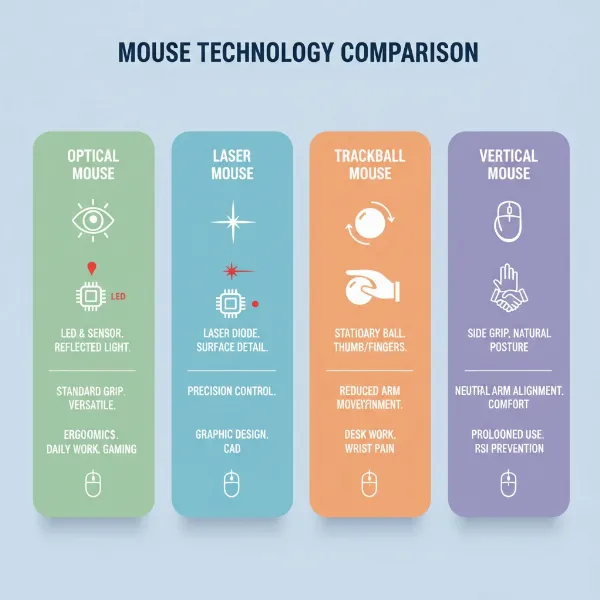 Infographic comparing different computer mouse types: optical, laser, trackball, and vertical, highlighting features
Where to Buy a Computer Mouse?
Finding the right computer mouse involves considering both the product and the vendor. Reputable retailers, both online and physical, offer a wide selection, competitive pricing, and reliable after-sales support.
For purchasing computer mice, major electronics retailers like Best Buy, Micro Center, and Amazon are excellent starting points. They carry a vast inventory from leading brands such as Logitech, Razer, Corsair, and Microsoft, often with detailed product descriptions and user reviews. Specialized gaming stores, either online or brick-and-mortar, will typically stock a more focused range of high-performance gaming mice and accessories. Additionally, the official websites of manufacturers often provide the latest models, exclusive bundles, and comprehensive warranty information.
When buying a computer mouse online, it is crucial to read product reviews carefully to gauge real-world performance and user satisfaction. Pay attention to specifications like DPI range, polling rate, battery life, and connectivity options. Always verify the seller’s return policy and warranty details. For physical stores, if possible, try holding different models to assess their size and ergonomic fit for your hand, as comfort is paramount. Checking for local sales and promotions can also help you secure a better deal on your desired mouse.
 A person browsing online reviews and specifications for computer mice on a laptop, considering purchasing options
Buying Guide – Computer Mouse Overview
Making an informed decision about your next computer mouse requires a holistic approach, factoring in your budget, preferred brands, and the collective wisdom of other users. This buying guide distills the essential steps to ensure you find a device that perfectly complements your computing habits.
- Budget: Determine how much you are willing to spend. Entry-level mice (under $30) are suitable for basic tasks, while mid-range options ($30-$70) offer enhanced features and better ergonomics. Premium mice ($70+) cater to specialized needs like competitive gaming or professional design, boasting advanced sensors, superior build quality, and extensive customization. Establishing a budget early helps narrow down your choices efficiently.
- Brand Reputation: Researching reputable computer mouse brands can save you from buyer’s remorse. Companies like Logitech, Razer, Microsoft, Corsair, and SteelSeries are well-regarded for their innovation, reliability, and customer support. Brands often specialize; for instance, Razer and Corsair are gaming powerhouses, while Logitech excels in productivity and general-purpose mice. A strong brand reputation often signals a commitment to quality and user satisfaction.
- Read Reviews: Before finalizing your purchase, extensively read reviews from both professional tech journalists and everyday users. These reviews provide invaluable insights into a mouse’s real-world performance, comfort, and potential drawbacks. Look for consistent feedback regarding tracking accuracy, button durability, battery life (for wireless models), and software compatibility. User-generated content, especially on specialized forums or e-commerce platforms, can offer perspectives on specific use cases that might match your own.
“A great computer mouse isn’t just about high DPI or fancy lighting; it’s about seamless integration with your workflow, making every click and scroll feel natural and effortless.” – ReviewMew.com Admin, Computer Mouse Specialist
Conclusion
Choosing the right computer mouse is a personal journey, significantly influencing your daily interaction with technology. From understanding the nuances of DPI and sensor technology to prioritizing ergonomic comfort and reliable connectivity, each feature plays a vital role in crafting your ideal digital experience. Whether you’re a hardcore gamer demanding split-second precision, a creative professional requiring pixel-perfect accuracy, or an office worker seeking all-day comfort, there is a computer mouse designed specifically for you. By carefully considering your usage needs, exploring various types and features, and leveraging detailed reviews, you can confidently select a device that not only meets but exceeds your expectations, truly elevating your computing setup. What features are most crucial for your next computer mouse upgrade?
Câu Hỏi Thường Gặp
What DPI is best for a computer mouse?
The “best” DPI depends entirely on your usage. For general office tasks, 800-1600 DPI is often ideal, offering a balance of speed and control. Gamers might prefer higher DPI (2000-8000+), adjustable for different game scenarios, while graphic designers often use lower DPI (400-1000) for precision. Many mice feature adjustable DPI to accommodate varied tasks.
Are wireless computer mice good for gaming?
Modern wireless gaming mice have advanced significantly, with low-latency RF (radio frequency) technologies that often rival wired performance. Brands like Razer and Logitech offer wireless gaming mice with polling rates up to 8000Hz, making them highly competitive. However, they require charging or batteries, which is a key consideration during intense gaming sessions.
How often should I clean my computer mouse?
It’s generally recommended to clean your computer mouse at least once a month. For heavy users or those in dusty environments, a weekly wipe-down might be more appropriate. Regular cleaning prevents the buildup of dirt and oils that can affect sensor performance and button functionality, extending the life of your computer mouse.
What’s the difference between an optical and a laser mouse?
Both optical and laser mice use light to track movement. An optical mouse uses an LED (light-emitting diode) to illuminate the surface, while a laser mouse uses a laser beam. Laser mice typically offer higher sensitivity (DPI) and can track on a wider variety of surfaces, including glass, which optical mice often struggle with.
How do ergonomic mice help reduce strain?
Ergonomic mice are designed to promote a more natural hand and wrist posture, often by adopting a vertical or sculpted shape. This “handshake” position reduces pronation of the forearm and pressure on the wrist, which can alleviate discomfort and prevent repetitive strain injuries (RSIs) like carpal tunnel syndrome, especially during long computing sessions.