Choosing the perfect computer mouse can dramatically enhance your daily computing experience, whether you’re tackling spreadsheets, designing intricate graphics, or immersing yourself in the latest gaming adventures. For over a decade, I’ve had the privilege of evaluating hundreds of computer mice, witnessing their evolution from simple input devices to sophisticated tools tailored for every need. This guide is crafted to share that accumulated knowledge, helping you navigate the vast options and pinpoint the ideal computer mouse that aligns perfectly with your specific requirements.
Overview of Computer Mice
A computer mouse is an essential handheld pointing device that translates two-dimensional hand movements into cursor motion on a display, providing intuitive control over a computer’s graphical user interface. The concept of the computer mouse emerged in the early 1960s from the visionary work of Douglas Engelbart at SRI International. His team built the first wooden prototype in 1964, featuring two wheels to track X-Y movement. This groundbreaking invention was publicly showcased during the “Mother of All Demos” in 1968, forever changing human-computer interaction. The design later evolved, transitioning from a mechanical ball to optical and laser sensors, and from wired connections to various wireless technologies, offering greater freedom and precision.
Modern computer mice come in various types, each designed to cater to different user needs and preferences. Understanding these distinctions is crucial for making an informed decision.
- Wired Mice: These connect directly to your computer, typically via a USB cable.
- Pros: Offer consistent power, zero-lag performance, and are generally more affordable.
- Cons: Limited by cable length, can clutter your desk, and restrict movement.
- Wireless Mice: These communicate with your computer without a physical cable, often using a USB receiver (2.4GHz RF) or Bluetooth.
- Pros: Provide greater freedom of movement, reduce cable clutter, and are highly portable.
- Cons: Require batteries (rechargeable or disposable), can introduce minimal latency (though modern gaming wireless mice are exceptionally fast), and may be more expensive.
- Gaming Mice: Engineered for performance, these mice prioritize precision, speed, and customization.
- Pros: High DPI and polling rates, programmable buttons, often feature ergonomic designs for extended use, and durable switches.
- Cons: Can be expensive, often have aggressive aesthetics, and advanced features might be overkill for casual use.
- Ergonomic Mice: Designed to promote a natural hand and wrist posture, reducing strain and preventing repetitive strain injuries (RSI).
- Pros: Enhanced comfort for prolonged use, can alleviate wrist pain, and support a more natural grip.
- Cons: May take time to adjust to, designs can be unconventional (e.g., vertical mice), and might be less suitable for fast, precise movements required in some gaming scenarios.
- Trackball Mice: Instead of moving the entire mouse, users manipulate a fixed ball with their thumb or fingers to move the cursor.
- Pros: Requires minimal desk space, beneficial for users with limited mobility, and offers precise control.
- Cons: Can be slower for sweeping movements, takes practice to master, and less ideal for fast-paced gaming.
- Vertical Mice: A specific type of ergonomic mouse that holds the hand in a “handshake” position, significantly reducing forearm pronation.
- Pros: Excellent for preventing wrist and arm strain, very comfortable for long sessions.
- Cons: Unique grip requires adaptation, potentially less agile than traditional mice.
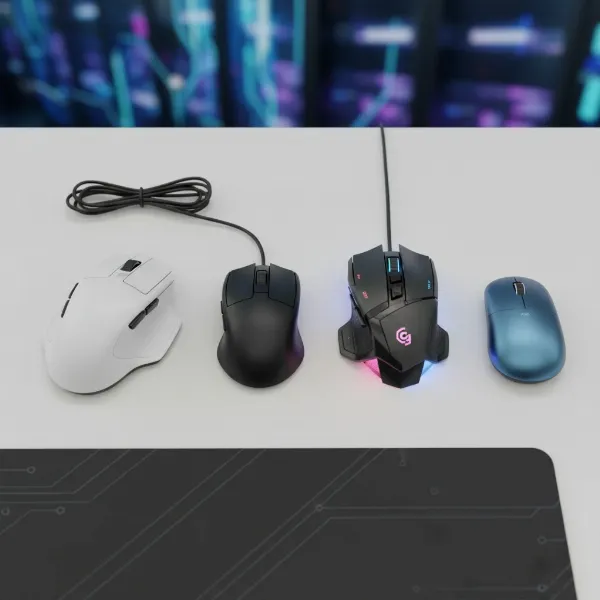 Overview of different computer mouse types including wired, wireless, ergonomic, and gaming models on a desk.
Choosing the Right Computer Mouse
Selecting the right computer mouse is a personal journey, influenced by your daily tasks, comfort preferences, and budget. Consider these factors to find your perfect match.
Determine Your Usage Needs
Before diving into specifications, clarify how you primarily use your computer mouse. Are you a professional graphic designer, a competitive gamer, or simply seeking a comfortable device for everyday office tasks? Your usage dictates the features you should prioritize, directly impacting performance and comfort.
- Office/Productivity: Look for comfort, quiet clicks, reliable tracking, and potentially programmable buttons for shortcuts. Features like multi-device connectivity can also be beneficial.
- Graphic Design/Precision Work: High-precision sensors, comfortable ergonomic design, and a moderate DPI range with fine-tuning capabilities are key.
- Gaming: Prioritize high DPI, high polling rate, low latency (especially wireless models), programmable buttons, durable switches, and an ergonomic design suited for your grip style.
- Travel/Mobile: Compact, lightweight, wireless (Bluetooth preferred for device compatibility), and long battery life.
- Budget: Determine how much you’re willing to spend. Entry-level mice are affordable, while high-end models offer premium features and build quality.
|
Our Picks for the Best Computer mouse in 2026
As an Amazon Associate I earn from qualifying purchases.
|
||
| Num | Product | Action |
|---|---|---|
| 1 | RAPIQUE R306 Pro Wireless Mouse, Dual Bluetooth & 2.4GHz, Connect Up to 3 Devices, Type-C Rechargeable, Silent Click, Ergonomic Symmetrical Design, for MacBook, Laptop, Tablet, Milk Tea Pink |

|
| 2 | Logitech M185 Wireless Mouse, 2.4GHz with USB Mini Receiver, 12-Month Battery Life, 1000 DPI Optical Tracking, Ambidextrous PC/Mac/Laptop - Swift Grey |
|
| 3 | Logitech B100 Wired Mouse for Computer and Laptop, USB Corded Mouse, Right or Left Hand Use - Black |
|
| 4 | Apple Magic Mouse - White Multi-Touch Surface |
|
| 5 | ProtoArc Wireless Bluetooth Trackball Mouse, EM02 Two Adjustable Angle Ergonomic Rechargeable Computer Ball Mouse, 3 Device Connection, Thumb Control and Smooth Tracking for Laptop, PC, Mac-Gray |
|
| 6 | Uineer Wireless Mouse,Upgraded 2.4GHz Rechargeable (Battery Level Visible) Ergonomic Computer Mouse,4 Levels DPI, Wireless Mice for Laptop Computer(Matte Black) |
|
| 7 | TECKNET Wireless Mouse, 2.4G Ergonomic Optical Mouse, Computer Mouse for Laptop, PC, Computer, Chromebook, Notebook, 6 Buttons, 24 Months Battery Life, 2600 DPI, 5 Adjustment Levels - Purple |
|
| 8 | Amazon Basics 3-Button USB Wired Mouse with Scrolling and Tracking - Standard, Black |
|
| 9 | Logitech MX Master 4, Ergonomic Wireless Mouse with Advanced Performance Haptic Feedback, Ultra-Fast Scrolling, USB-C Charging, Bluetooth, Windows, MacOS - Graphite |
|
| 10 | Logitech M510 Wireless Mouse, Mouse for Laptop and PC with USB Unifying Receiver, Programmable Buttons - Graphite |
|
Key Factors When Choosing a Mouse
Understanding the technical specifications and design aspects of a computer mouse is crucial for making an informed decision. These factors directly influence performance, comfort, and overall user experience.
- DPI (Dots Per Inch): DPI measures a mouse sensor’s sensitivity, indicating how far the cursor moves on screen in response to physical mouse movement. A higher DPI means the cursor covers more screen distance with less hand movement, making it feel “faster.” Conversely, a lower DPI requires more physical movement for the same cursor travel, offering finer, more controlled adjustments.
“Many professional players actually prefer moderate DPI with lower sensitivity, giving them a balance between speed and precision.” – Teevo Team, Gaming Gear Experts.
- Low DPI (400–800): Ideal for precision tasks like photo editing or first-person shooter (FPS) gaming, allowing for micro-adjustments and stable aiming.
- Medium DPI (1000–1600): Suitable for general use, balancing speed and control for everyday browsing and office applications.
- High DPI (2000+): Beneficial for high-resolution monitors, multi-monitor setups, or fast-paced real-time strategy (RTS) games where rapid cursor movement across large screens is required. Many modern gaming mice offer DPI up to 26,000 or even 42,000, often with on-the-fly adjustment buttons.
- Form Factor and Size: The physical shape and dimensions of a computer mouse significantly impact comfort and control, particularly during long hours of use. It’s essential to match the mouse’s design to your hand size and preferred grip style.
- Palm Grip: The entire palm rests on the mouse, with fingers flat. This grip typically benefits from taller, contoured mice that offer substantial palm support.
- Claw Grip: The palm rests on the back of the mouse, while fingers are arched or “clawed” to press the buttons. Shorter mice with a defined arch often work best for this style.
- Fingertip Grip: Only the fingertips touch the mouse, allowing for maximum agility and minimal wrist movement. Compact and lightweight mice are ideal for this precise grip.
- Consider ambidextrous designs if you’re left-handed or prefer a symmetrical mouse that can be used interchangeably.
- Number of Buttons: Beyond the standard left and right clicks and a scroll wheel, many computer mice feature additional programmable buttons. These can be assigned shortcuts, macros, or in-game actions, significantly boosting productivity or gaming efficiency. For power users, the ability to customize buttons is a game-changer.
- Connectivity (Wired/Wireless): The connection method impacts latency, portability, and power management.
- Wired: Offers near-zero latency and consistent power, making it a reliable choice for competitive gaming or mission-critical tasks where even minimal delay is unacceptable. No battery concerns.
- Wireless: Provides a clutter-free desk and enhanced portability.
- 2.4GHz RF (USB Dongle): Typically offers ultra-low latency comparable to wired mice, making it popular for wireless gaming.
- Bluetooth: Excellent for connecting to multiple devices without a dedicated dongle, ideal for laptops and tablets, though it may introduce slightly more latency than RF.
- Sensor Technology: The sensor is the “brain” of your computer mouse, responsible for tracking movement accurately.
- Optical Sensors (LED): Use an infrared LED light to illuminate the surface and capture images. They work well on most flat, opaque surfaces and are generally reliable for fast-paced movements, making them a good choice for gaming.
- Laser Sensors (Laser Diode): Employ a laser diode, offering higher sensitivity and the ability to track on a wider range of surfaces, including shiny or glass surfaces where optical sensors might struggle. However, some users report minor “jitter” or skipping with very fast movements on certain laser mice.
- Look for trusted sensor brands like PixArt (e.g., PMW3360, PMW3389) for lag-free, jitter-less performance.
- Battery Life (for Wireless Mice): For wireless mice, battery longevity is a critical consideration. Poor battery life can disrupt your workflow or gaming session. High-end wireless mice can offer anywhere from 40 to over 170 hours on a single charge, while some ergonomic models powered by AA batteries can last for months. Features like automatic sleep modes and efficient sensors help prolong battery life.
- Polling Rate: Measured in Hertz (Hz), the polling rate indicates how often your mouse reports its position to your computer per second.
- A 125Hz mouse updates 125 times per second (every 8 milliseconds), while a 1000Hz mouse updates 1,000 times per second (every 1 millisecond).
- Higher polling rates result in smoother cursor movement and reduced input delay, which is particularly beneficial for competitive gamers and users who require real-time accuracy in applications like video editing or digital illustration.
- While the jump from 125Hz to 1000Hz is very noticeable, the leap to ultra-high rates like 4000Hz or 8000Hz (available in some premium gaming mice) offers more subtle advantages, mainly for competitive players with high-refresh-rate monitors and powerful PCs. Higher polling rates also consume more battery life in wireless mice.
Comparison Table: Key Factors
Here’s a comparison of how different features stack up across various mouse types:
| Feature | Wired Mouse | Wireless Mouse | Gaming Mouse | Ergonomic Mouse |
|---|---|---|---|---|
| DPI Range | Moderate to High | Moderate to Ultra-High | High to Ultra-High | Low to Moderate |
| Polling Rate | High (up to 1000Hz) | Variable (125Hz-8000Hz) | High (1000Hz-8000Hz) | Standard (125Hz-500Hz) |
| Latency | Near Zero | Ultra-low (modern RF) | Ultra-low | Low to Moderate |
| Buttons | Standard to Many | Standard to Many | Highly Programmable | Standard to Few |
| Portability | Low | High | Moderate | Low to Moderate |
| Battery Life | N/A | Varies (40-170+ hrs) | 24-170 hrs (variable) | Months (AA) |
| Ergonomics | Varies | Varies | Good | Excellent |
| Price | Low to Mid | Mid to High | Mid to Premium | Mid to High |
Top Computer Mouse Picks
Based on extensive testing and user reviews, here are some highly-regarded computer mouse models across different categories:
- Best Overall / Productivity: Logitech MX Master 3S. This mouse offers an exceptional blend of comfort, precision, and versatile features like 8000 DPI tracking, silent clicks, and multi-device connectivity, lasting up to 70 days on a charge. It’s perfect for productivity power users.
- Best Ergonomic: Logitech Lift. A vertical mouse designed for a natural “handshake” grip, significantly reducing wrist strain. It’s comfortable and stylish, offering up to 24 months of battery life on a single AA battery.
- Best Gaming Mouse: Corsair M65 RGB Ultra or Razer Viper V2 Pro. The Corsair M65 RGB Ultra boasts a high 26000 DPI, a dedicated sniper button, and triple connectivity (Bluetooth, wireless dongle, wired USB). The Razer Viper V2 Pro is a premium, lightweight option with up to 4000Hz polling rate (with HyperPolling dongle) and 80 hours of battery life (24 hours at 4000Hz). These mice are built for competitive performance and customizability.
- Best Wired Mouse: Razer Basilisk V3. With 11 programmable buttons, a Hyperscroll tilt wheel, and durable optical switches with a 0.2ms actuation speed, the Basilisk V3 offers excellent features for gaming and productivity at a reasonable price.
- Best Budget Mouse: Logitech M720 Triathlon. An affordable wireless option offering silent clicks, 1000 DPI, and multi-point connectivity for up to three devices, making it great for multi-tasking and value-conscious users.
- Best Travel Mouse: Razer Cobra Pro. Lightweight (77 grams), fully wireless with 2.4GHz dongle and Bluetooth, and offering an impressive 170 hours of battery life, this ambidextrous mouse is ideal for on-the-go professionals.
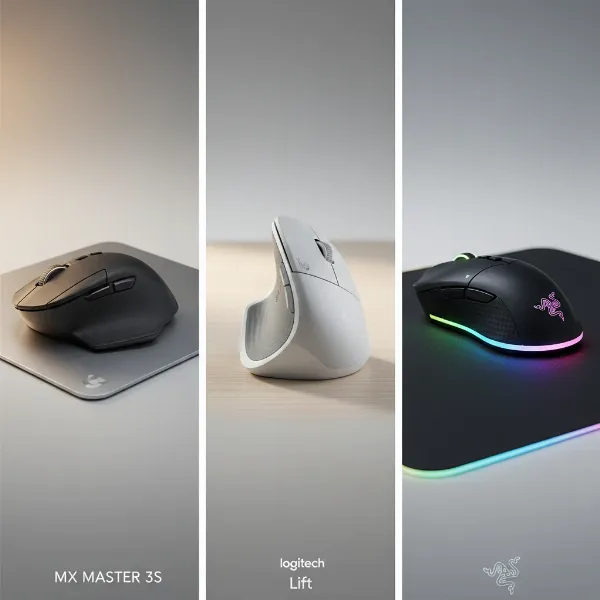 A visual collage of top computer mouse picks for various uses, showcasing design and features.
Tips for Using and Maintaining Your Computer Mouse
Proper care and optimization can significantly extend the lifespan and enhance the performance of your computer mouse. A little attention goes a long way in ensuring your pointing device remains responsive and comfortable.
- Regular Cleaning: Over time, dust, sweat, and debris can accumulate in crevices and around the sensor, affecting tracking accuracy. Use a soft, dry cloth to wipe down the exterior. For optical/laser sensors, a cotton swab lightly dampened with rubbing alcohol can gently clean the sensor lens. For older mechanical ball mice, regularly remove and clean the ball and internal rollers.
- Adjusting DPI and Settings: Most gaming and productivity mice come with software that allows you to customize DPI settings, reassign buttons, create macros, and even adjust RGB lighting. Experiment with different DPI levels to find what feels most natural for your tasks and monitor resolution. Many mice have on-the-fly DPI buttons for quick adjustments.
- Optimizing Polling Rate: While a higher polling rate (e.g., 1000Hz or 8000Hz) offers smoother tracking and reduced latency, it can consume more battery on wireless mice and slightly increase CPU usage. For most general tasks, 1000Hz is sufficient. Reserve ultra-high polling rates for competitive gaming on high-refresh-rate monitors, and be mindful of battery drain.
- Extending Wireless Mouse Battery Life:
- Turn off the mouse when not in use, especially for extended periods.
- Reduce RGB lighting brightness or turn it off if aesthetics aren’t critical.
- Consider using lower polling rates for general productivity to conserve power.
- Invest in rechargeable batteries or a mouse with a long-lasting integrated battery.
- Mouse Pad Importance: Don’t overlook your mouse pad. It provides a consistent surface for optimal sensor performance and can enhance glide.
- Soft pads: Good for high-DPI users and precise tasks, offering more control.
- Hard pads: Ideal for fast swipes in gaming, providing minimal friction.
- Ensure the pad complements your mouse’s glide feet (PTFE feet are common).
- Common Issues and Fixes:
- Unresponsive Mouse: Check battery levels (wireless), cable connection (wired), or try a different USB port. Restart your computer.
- Jumpy/Inaccurate Cursor: Clean the sensor. Test on a different surface or mouse pad. Update mouse drivers.
- Laggy Wireless: Ensure the USB receiver is close to the mouse. Avoid obstructions or interference from other wireless devices.
Detailed Comparison Table: Types of Computer Mice
To further clarify the strengths and ideal applications of various computer mouse types, here’s a detailed comparison:
| Type of Mouse | Key Features | Advantages | Disadvantages | Best Use Cases |
|---|---|---|---|---|
| Optical | LED sensor, tracks on most opaque surfaces | Reliable, cost-effective, good for general use and gaming | May struggle on glossy/glass surfaces, less sensitive than laser | Everyday computing, mainstream gaming, office tasks |
| Laser | Laser diode sensor, higher sensitivity | Tracks on almost any surface (including glass), higher precision | Can be prone to “jitter” on fast movements, typically more expensive | Graphic design, high-precision tasks, some gaming |
| Wired | Physical USB cable connection | Zero latency, consistent power, no battery required, generally cheaper | Restricts movement, cable clutter, limited portability | Competitive gaming, professional workstations, fixed setups |
| Wireless | RF (dongle) or Bluetooth connection | Freedom of movement, clutter-free desk, high portability | Requires batteries/charging, potential for minimal latency (Bluetooth) | Travel, presentations, general use, modern gaming |
| Gaming | High DPI, high polling rate, programmable buttons | Extreme precision, rapid response, extensive customization, durable | Often more expensive, can have aggressive aesthetics, may be overkill | Esports, competitive gaming, power users |
| Ergonomic | Contoured for natural hand/wrist position | Superior comfort, reduces strain/RSI, supports healthy posture | Takes adjustment, specific hand sizes/grips, can be less agile | Prolonged computer use, office work, users with wrist pain |
| Trackball | Stationary ball manipulated by thumb/fingers | Saves desk space, precise control, good for limited mobility | Slower for sweeping movements, learning curve, less common | Limited desk space, CAD, graphic design, accessibility |
| Vertical | Holds hand in “handshake” position | Significantly reduces forearm pronation, excellent for RSI prevention | Unique grip requires adaptation, less common for high-speed tasks | Ergonomic comfort, prolonged use, preventing wrist/arm strain |
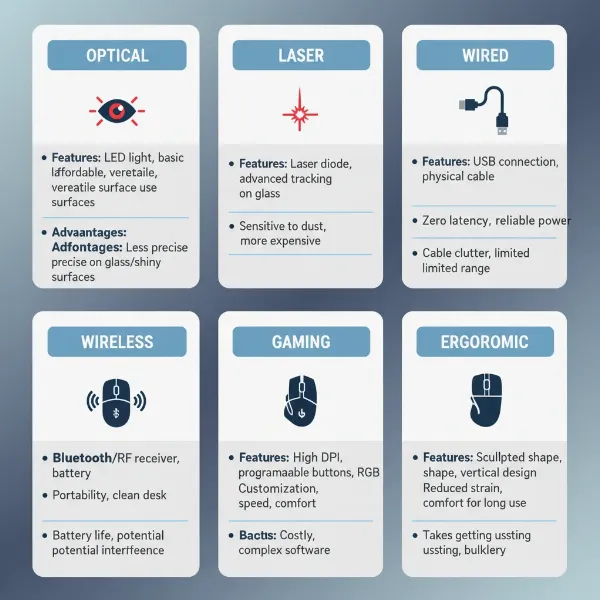 An infographic comparing different computer mouse types based on features, pros, and cons.
Where to Buy a Computer Mouse?
Finding a reliable vendor for your new computer mouse is just as important as choosing the right model. When purchasing, whether online or in-store, consider the vendor’s reputation, warranty policies, and customer support.
- Online Retailers: Large e-commerce platforms like Amazon, Best Buy (US), Currys PC World (UK), or specialized tech stores such as Newegg are convenient and often offer competitive pricing and a wide selection. Always check seller ratings and read recent customer reviews to ensure trustworthiness.
- Physical Stores: Electronics stores (e.g., Best Buy, Micro Center) allow you to physically hold and test different computer mice, which is invaluable for assessing comfort and fit. Sales associates can also offer personalized recommendations.
- Official Brand Websites: Purchasing directly from manufacturers like Logitech, Razer, or Corsair ensures you receive genuine products, often with full manufacturer warranties and direct support. They may also offer exclusive bundles or early access to new products.
- Refurbished/Used: For budget-conscious buyers, reputable refurbished marketplaces or certified pre-owned programs can offer significant savings. However, verify the warranty and return policy for such purchases.
Before finalizing your purchase, always confirm the warranty period and understand the seller’s return and exchange policies. This provides peace of mind and protection for your investment.
Buying Guide Summary – Your Computer Mouse Checklist
With countless options available, making a final decision on your computer mouse can feel overwhelming. To simplify the process, here’s a concise checklist to guide your final choice:
- Define Your Budget: How much are you willing to invest? Prices range from basic models under $20 to premium gaming/productivity mice over $150.
- Identify Your Primary Use Case: Is it for office work, graphic design, intensive gaming, or portability? This will narrow down crucial features like DPI range, button programmability, and ergonomic design.
- Choose Your Connectivity: Do you prefer the reliability of a wired connection or the freedom of wireless (2.4GHz dongle or Bluetooth)? Consider battery life for wireless options.
- Prioritize Ergonomics and Grip Style: Ensure the mouse fits your hand size and natural grip (palm, claw, or fingertip) to prevent discomfort and strain during extended use. Vertical or ambidextrous designs might be necessary.
- Evaluate Sensor Performance: Optical sensors are great for most, while laser offers wider surface compatibility. For gaming, look for trusted sensors (e.g., PixArt PMW series) and a high polling rate (1000Hz+).
- Consider Customization: Do you need programmable buttons, macro support, or on-board memory for different profiles?
- Read Reviews: Always consult reviews from other users and reputable tech publications to gauge real-world performance and reliability.
- Check Warranty and Return Policy: Protect your purchase by understanding the terms of warranty and options for returns or exchanges.
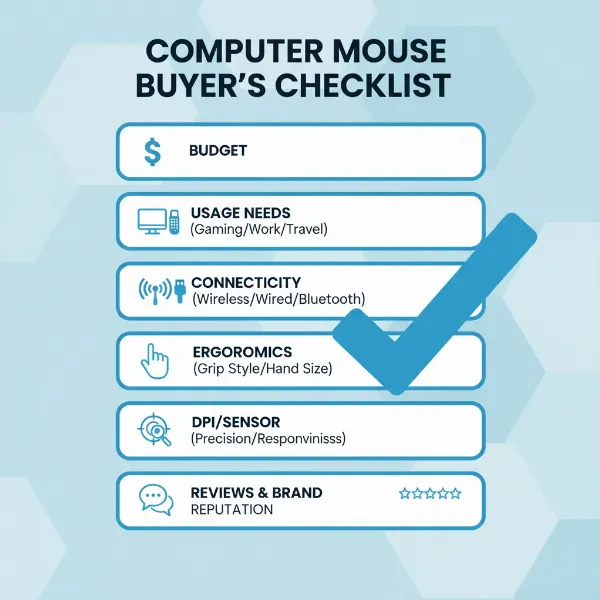 A clear visual checklist of factors to consider when buying a computer mouse, emphasizing key decision points.
Conclusion
The journey to finding the ideal computer mouse is about more than just picking a pointing device; it’s about selecting a tool that seamlessly integrates into your digital life, enhancing comfort, precision, and productivity. By understanding the diverse types, critical features like DPI and polling rate, and matching them to your unique usage needs and personal ergonomics, you can make a truly informed decision. The right computer mouse can transform your interaction with technology, making every click and scroll more intuitive and enjoyable. So, what are you waiting for? Take the leap and discover how a well-chosen computer mouse can elevate your entire computing experience.
Frequently Asked Questions
What is the primary difference between an optical and a laser mouse?
The primary difference lies in their sensor technology: an optical mouse uses an LED (Light Emitting Diode) to illuminate the surface, while a laser mouse uses a laser diode. Laser mice are generally more sensitive and can track on a wider variety of surfaces, including glass, whereas optical mice are reliable on most opaque surfaces and often preferred for their consistent tracking without “jitter” during fast movements.
Is a higher DPI always better for a computer mouse?
Not necessarily. While a higher DPI allows the cursor to move further with less physical movement, making it feel faster, excessively high DPI can make the cursor feel twitchy and difficult to control, especially for precise tasks like graphic design or aiming in FPS games. Many users, including professionals, prefer moderate DPI settings combined with software sensitivity adjustments for optimal balance.
How important is ergonomics when choosing a computer mouse?
Ergonomics is critically important, especially for individuals who spend long hours using a computer. An ergonomic computer mouse is designed to support a natural hand and wrist posture, significantly reducing the risk of discomfort, pain, and repetitive strain injuries (RSI). Prioritizing ergonomics can lead to a much more comfortable and healthier computing experience in the long run.
Can I use a gaming mouse for regular office work?
Absolutely. Gaming mice are built for high performance, precision, and durability, making them excellent for office work as well. Their programmable buttons can be customized for productivity shortcuts, and their comfortable designs can reduce fatigue. However, some gaming mice might be more expensive or have aesthetics that don’t fit a traditional office environment.
What is mouse polling rate, and why does it matter?
Mouse polling rate measures how often your mouse reports its position to your computer, typically in Hertz (Hz). A higher polling rate (e.g., 1000Hz) means the mouse updates its position more frequently, resulting in smoother cursor movement and reduced input delay. This is particularly crucial for competitive gaming where every millisecond of responsiveness can impact performance, and for precise tasks like video editing.
How do I prolong the battery life of my wireless computer mouse?
To extend battery life, turn off your wireless mouse when not in use, especially overnight. Reduce or disable any RGB lighting, as it consumes significant power. You can also lower the polling rate for general productivity tasks, as higher polling rates demand more power. Investing in rechargeable batteries or a mouse with a very efficient, long-lasting integrated battery is also a good strategy.