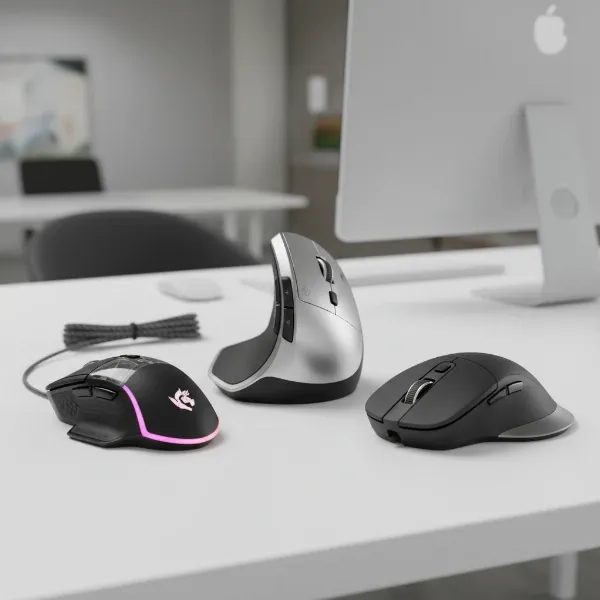
In today’s digital world, where our hands often glide across a desk more than they write on paper, the computer mouse stands as an indispensable tool. Far from being a mere accessory, a well-chosen mouse can significantly elevate your productivity, enhance your gaming performance, and even safeguard your long-term comfort. With countless models flooding the market, each boasting unique features and designs, navigating the options can feel overwhelming. This comprehensive guide will dissect the essential characteristics of computer mice, offering an honest evaluation of their capabilities to help you pinpoint the perfect match for your needs and preferences.
Understanding Computer Mice: A Comprehensive Overview
A computer mouse is a hand-held pointing device that detects two-dimensional motion relative to a surface. Its evolution from a wooden box with wheels to the sophisticated optical and laser devices of today reflects a continuous pursuit of precision, speed, and ergonomic design. Modern mice are categorized primarily by their connectivity and intended use, each offering distinct advantages.
Common Types of Computer Mice:
- Wired Mice: These connect directly to your computer via a USB cable.
- Pros: Generally offer lower latency and a more stable connection, making them ideal for competitive gaming where every millisecond counts. They never require battery charging, ensuring consistent performance.
- Cons: The cable can restrict movement and contribute to desk clutter.
- Wireless Mice: Utilizing either a USB receiver (2.4GHz) or Bluetooth, these mice offer freedom from cables.
- Pros: Provide a clutter-free workspace and greater portability, especially for laptop users. Modern wireless technology has significantly reduced latency, making many models suitable for various tasks, including casual gaming.
- Cons: Require batteries (disposable or rechargeable), which can run out. May experience slight interference in crowded wireless environments, though this is rare with quality models.
- Gaming Mice: Engineered for high performance, these mice often feature advanced sensors, high DPI, programmable buttons, and customizable aesthetics like RGB lighting.
- Pros: Exceptional precision, speed, and responsiveness. Numerous programmable buttons can be a significant advantage in complex games.
- Cons: Can be more expensive and sometimes less ergonomically focused for general productivity.
- Ergonomic Mice: Designed to promote a natural hand and wrist posture, minimizing strain during extended use.
- Pros: Reduce the risk of repetitive strain injuries (RSI) and offer superior comfort for long work sessions. Shapes often include contoured designs, thumb rests, or even vertical orientations.
- Cons: May take some getting used to if transitioning from a standard mouse. Some specialized ergonomic designs might not be ideal for fast-paced gaming.
- Vertical Mice: A subset of ergonomic mice, these position your hand in a “handshake” posture to alleviate wrist pronation.
- Pros: Excellent for preventing wrist strain and carpal tunnel syndrome.
- Cons: Can feel unnatural initially and might be less precise for detailed tasks or gaming.
- Trackball Mice: Instead of moving the entire mouse, you manipulate a stationary ball with your thumb or fingers to move the cursor.
- Pros: Requires minimal desk space and reduces arm and wrist movement, ideal for users with limited mobility or desk space.
- Cons: Can have a learning curve and may not offer the same level of fine precision as traditional mice for some users.
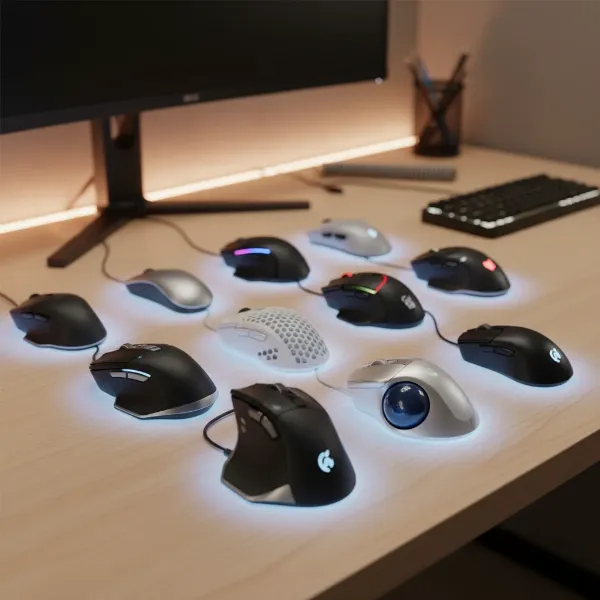 Various computer mice on a desk, illustrating different types like wired, wireless, gaming, and ergonomic designs.
Guiding Your Choice: Finding the Perfect Computer Mouse
Selecting the right computer mouse is a highly personal decision influenced by several factors. Understanding your specific requirements and the technical features available will empower you to make an informed choice that truly enhances your computing experience.
Identifying Your Usage Needs
Before diving into specifications, consider how you primarily use your mouse. This initial assessment will help narrow down the vast array of options.
- For what tasks will you use the mouse? If your work involves extensive document editing, web browsing, or general office applications, a comfortable, reliable, and precise mouse is paramount. For graphic design or CAD work, high sensitivity and customizable buttons become crucial. Gamers, especially those in competitive esports, prioritize speed, responsiveness, and advanced customization.
- How often do you use your mouse daily? If you spend many hours a day at your computer, ergonomic considerations should take precedence to prevent discomfort and potential long-term strain. Casual users may find basic models sufficient.
- What is your projected budget? Mouse prices vary widely, from affordable basic models to premium devices with advanced features. Defining a budget helps manage expectations and ensures you invest wisely.
|
Our Picks for the Best Computer mouse in 2026
As an Amazon Associate I earn from qualifying purchases.
|
||
| Num | Product | Action |
|---|---|---|
| 1 | Amazon Basics 3-Button USB Wired Mouse with Scrolling and Tracking - Standard, Black |

|
| 2 | Uineer Wireless Mouse,Upgraded 2.4GHz Rechargeable (Battery Level Visible) Ergonomic Computer Mouse,4 Levels DPI, Wireless Mice for Laptop Computer(Matte Black) |
|
| 3 | Logitech M185 Wireless Mouse, 2.4GHz with USB Mini Receiver, 12-Month Battery Life, 1000 DPI Optical Tracking, Ambidextrous PC/Mac/Laptop - Swift Grey |
|
| 4 | Logitech B100 Wired Mouse for Computer and Laptop, USB Corded Mouse, Right or Left Hand Use - Black |
|
| 5 | Apple Magic Mouse - White Multi-Touch Surface |
|
| 6 | TECKNET Wireless Mouse, 2.4G Ergonomic Optical Mouse, Computer Mouse for Laptop, PC, Computer, Chromebook, Notebook, 6 Buttons, 24 Months Battery Life, 2600 DPI, 5 Adjustment Levels - Purple |
|
| 7 | Logitech MX Master 4, Ergonomic Wireless Mouse with Advanced Performance Haptic Feedback, Ultra-Fast Scrolling, USB-C Charging, Bluetooth, Windows, MacOS - Graphite |
|
| 8 | ProtoArc Wireless Bluetooth Trackball Mouse, EM02 Two Adjustable Angle Ergonomic Rechargeable Computer Ball Mouse, 3 Device Connection, Thumb Control and Smooth Tracking for Laptop, PC, Mac-Gray |
|
| 9 | RAPIQUE R306 Pro Wireless Mouse, Dual Bluetooth & 2.4GHz, Connect Up to 3 Devices, Type-C Rechargeable, Silent Click, Ergonomic Symmetrical Design, for MacBook, Laptop, Tablet, Milk Tea Pink |
|
| 10 | Logitech M510 Wireless Mouse, Mouse for Laptop and PC with USB Unifying Receiver, Programmable Buttons - Graphite |
|
Key Features to Consider
Once you understand your usage needs, delve into the specific features that differentiate various computer mice. These technical aspects directly impact performance, comfort, and overall user experience.
- DPI (Dots Per Inch): DPI measures the sensitivity of your mouse, indicating how many pixels the cursor moves on the screen for every inch the mouse moves physically on your desk. A higher DPI means the cursor travels further with less physical movement, making the mouse feel more responsive. While often touted as a measure of quality, higher DPI isn’t always better for accuracy; it primarily affects speed. Many modern mice offer adjustable DPI settings, allowing you to switch between sensitivities for different tasks—higher for fast movements in gaming, lower for precise graphic design work.
- Ergonomics and Size: The physical shape and size of a mouse are crucial for comfort, especially during prolonged use.
- Ambidextrous vs. Ergonomic: Ambidextrous mice have a symmetrical design, suitable for both left and right-handed users, and are often preferred for fingertip or claw grips due to their neutral shape. Ergonomic mice are sculpted to fit the natural contours of a hand, often with a slight tilt or pronounced curve, promoting a more natural posture and reducing wrist strain. They are typically best for palm grips.
- Grip Style:
- Palm Grip: The entire palm rests on the mouse, with fingers flat. Best suited for larger, ergonomic mice that offer full hand support.
- Claw Grip: The palm rests on the back of the mouse, with fingers arched in a claw-like position. Works well with both ambidextrous and ergonomic mice that have a prominent hump.
- Fingertip Grip: Only the fingertips touch the mouse, allowing maximum agility. Ideal for smaller, lightweight, ambidextrous mice.
- Hand Size: Generally, larger hands pair better with bigger mice, and smaller hands with more compact models, though personal preference plays a significant role.
- Buttons: Beyond the standard left, right, and scroll wheel, many mice feature additional programmable buttons. These can be assigned macros, keyboard shortcuts, or specific functions, greatly enhancing productivity for complex tasks or gaming. Some scroll wheels offer dual modes: a tactile, notched scroll for precision and a free-spin mode for rapid scrolling through long documents.
- Connectivity:
- Wired: Offers consistent performance with no latency and no need for batteries. “Plug and play” simplicity.
- Wireless: Provides freedom of movement. 2.4GHz connections via a USB dongle are generally more responsive than Bluetooth for tasks requiring precision. Battery life varies, with some models lasting weeks or months on a single charge.
- Sensor Technology:
- Optical Sensors: Use an LED light to illuminate the surface and a small camera to track movement. They are versatile and work well on most non-reflective surfaces.
- Laser Sensors: Use a laser for illumination, offering higher precision and often working on a wider range of surfaces, including glass. However, some users report “jitter” at extremely high DPI settings.
- Battery Life (for Wireless Mice): A critical factor for wireless mouse users. Look for models with long battery life or convenient charging options to avoid interruptions.
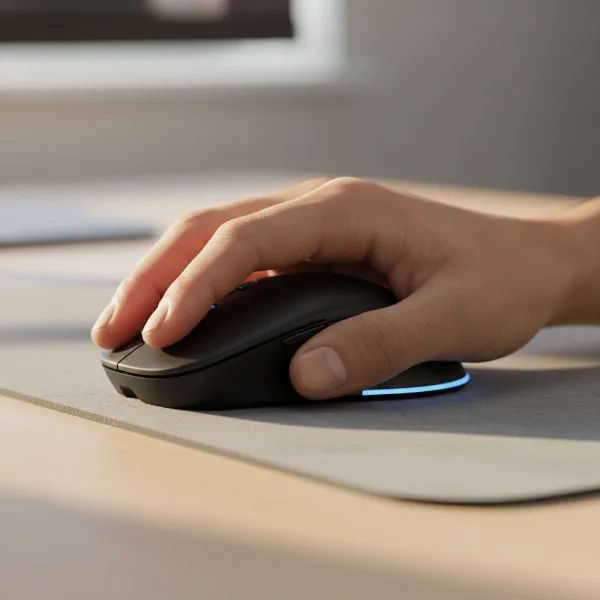 A person's hand demonstrating a comfortable grip on an ergonomic computer mouse.
Comparing Popular Mouse Models
When comparing popular models, it is essential to look at how their features align with your specific needs. Here’s a generalized comparison of common mouse types and what they typically offer:
| Feature | Standard Office Mouse | Gaming Mouse | Ergonomic Mouse | Vertical Mouse | Trackball Mouse |
|---|---|---|---|---|---|
| DPI Range | 800-2000 | 400-30,000+ (adjustable) | 800-4000 (often adjustable) | 800-2400 | 400-1600 (fixed or low adjustable) |
| Style | Symmetrical/Ambidextrous | Ambidextrous/Ergonomic (right-handed focused) | Right/Left-handed specific | Right/Left-handed specific | Symmetrical/Ergonomic |
| Buttons | 3-5 | 5-20+ (programmable) | 5-7 (some programmable) | 3-5 | 3-8 (often programmable) |
| Connectivity | Wired/Wireless (2.4GHz/Bluetooth) | Wired/Wireless (low latency 2.4GHz) | Wired/Wireless (2.4GHz/Bluetooth) | Wired/Wireless (2.4GHz/Bluetooth) | Wired/Wireless (2.4GHz/Bluetooth) |
| Sensor Tech | Optical | Optical/Laser (high precision) | Optical/Laser | Optical | Optical |
| Price Range | Low | Moderate to High | Moderate to High | Moderate | Moderate |
| Best For | General use, basic tasks | Competitive gaming, fast-paced applications | Prolonged productivity, comfort | Wrist strain prevention | Limited desk space, reduced arm movement |
Top-Rated Computer Mice: Expert Recommendations
Based on industry reviews and user feedback, several models consistently stand out across various categories, each excelling in specific areas.
- Best Overall Productivity Mouse: The Logitech MX Master series (e.g., MX Master 3S, MX Master 4) consistently receives high praise. These mice offer exceptional comfort, precise sensors (even on glass), customizable buttons, and a versatile scroll wheel that can switch between tactile and hyper-fast modes. They are typically wireless with excellent battery life and multi-device connectivity, perfect for professionals.
- Best Gaming Mouse: For serious gamers, models like the Razer DeathAdder V3 Pro or SteelSeries Aerox series are highly recommended. These mice combine ultra-lightweight designs, high-precision optical sensors (often 20,000+ DPI), minimal latency (especially in wired or high-end wireless variants), and highly programmable buttons. Their designs are optimized for quick, precise movements and various grip styles.
- Best Ergonomic Mouse: The Logitech Lift or Razer Pro Click Vertical are excellent choices for users seeking enhanced comfort and wrist health. Their vertical designs encourage a natural hand posture, significantly reducing strain. While great for productivity, some vertical mice might not be ideal for competitive gaming due to their shape.
- Best Budget Mouse: For those on a tighter budget, mice like the Logitech M720 Triathlon offer great value. They provide reliable wireless connectivity, decent ergonomics, and multi-device pairing without the premium price tag. While not packed with advanced gaming features, they are more than adequate for everyday office tasks and casual use.
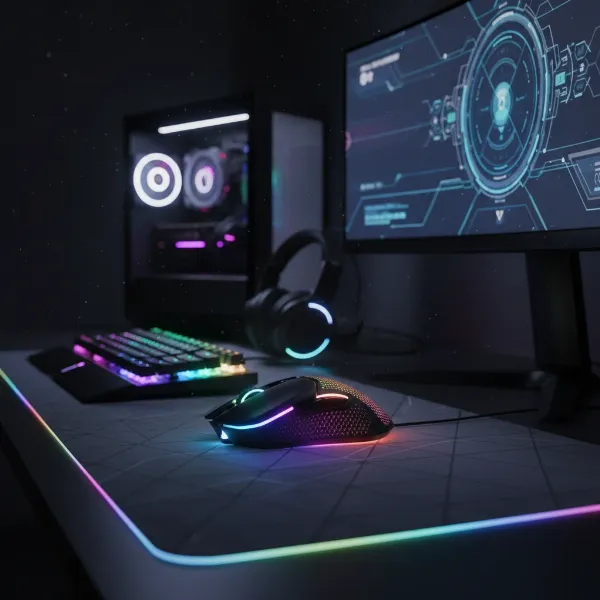 A high-performance gaming computer mouse on a mousepad with RGB lighting in a gaming setup.
Optimizing Your Mouse Experience: Tips for Use and Maintenance
Beyond choosing the right hardware, proper usage and maintenance can significantly extend the life of your computer mouse and enhance your daily experience.
- Cleaning Your Computer Mouse: Regular cleaning prevents dirt and grime from affecting performance. Use a soft, lint-free cloth and a small amount of isopropyl alcohol to wipe down the exterior. For optical or laser sensors, gently clean the sensor window with a cotton swab. For mechanical components like scroll wheels, compressed air can dislodge trapped debris. Always power off or unplug your mouse before cleaning.
- Adjusting DPI and Other Settings: Most operating systems and mouse manufacturers’ software (e.g., Logitech Options+, Razer Synapse) allow you to customize DPI, button assignments, polling rate, and scroll speed. Experiment with these settings to find what feels most comfortable and efficient for different applications. Many gaming mice feature dedicated DPI buttons for on-the-fly adjustments.
- Extending Wireless Mouse Battery Life:
- Turn off your mouse when not in use, especially for extended periods.
- Utilize power-saving modes if available in the mouse’s software.
- Reduce polling rate if high responsiveness isn’t critical, as higher polling rates consume more power.
- For rechargeable mice, avoid frequently deep-discharging the battery.
- Common Issues and Troubleshooting:
- Cursor Lag/Jitter: Check for physical obstructions in the sensor, clean the mousepad (or try a different surface), ensure wireless dongle is close, or replace batteries. For wired mice, check the cable connection.
- Unresponsive Buttons: Recalibrate through software, ensure drivers are updated, or check for physical damage.
- Connectivity Drops (Wireless): Move the receiver closer, check for interference from other wireless devices, update drivers, or try re-pairing.
Detailed Comparison: Mouse Types Explained
Understanding the nuances between different mouse technologies and designs can further refine your selection process. Each type offers a unique set of advantages and is suited for particular applications.
- Optical vs. Laser Mice: Optical mice, using an LED, are highly versatile and work well on most opaque surfaces. Laser mice, with their infrared laser, offer higher sensitivity and can track on more challenging surfaces like glass. However, laser sensors can sometimes exhibit “acceleration” or “jitter” at very high DPI, which can be undesirable for precision tasks or competitive gaming where consistent tracking is paramount. Optical sensors are generally favored by competitive gamers for their consistent 1:1 tracking.
- Gaming vs. Ergonomic Mice: This is a choice between peak performance and supreme comfort. Gaming mice prioritize low latency, high DPI, fast polling rates (how often the mouse reports its position to the computer), and extensive customization. Their shapes often accommodate quick movements. Ergonomic mice, conversely, focus on reducing physical strain and promoting a natural hand posture. While some gaming mice offer ergonomic shapes, dedicated ergonomic mice typically emphasize comfort above all else, making them ideal for long hours of non-gaming work.
- Trackball vs. Standard Mice: Trackball mice eliminate the need to move the entire device, saving desk space and reducing arm movements. This makes them excellent for users with limited space or those suffering from wrist/arm pain. However, they generally have a higher learning curve and may not feel as intuitive or precise for certain tasks, especially fine detailed graphic design or fast-paced gaming, compared to traditional mice that allow for broad, sweeping movements.
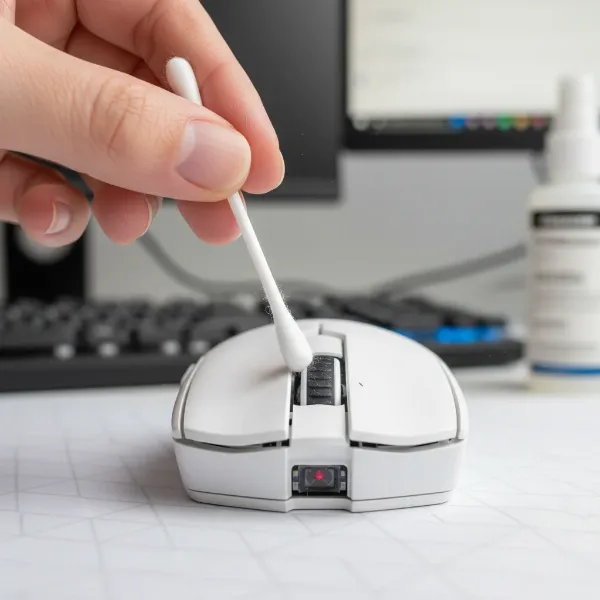 Close-up of a person cleaning a computer mouse sensor with a cotton swab.
Where to Buy Your Next Computer Mouse
Once you’ve identified the perfect computer mouse, knowing where to purchase it reliably is the next crucial step. Both online and physical retailers offer a wide selection, but each comes with its own considerations.
- Reputable Retailers:
- Major Electronics Stores: Stores like Best Buy, Micro Center, or regional equivalents offer the advantage of hands-on testing. You can physically hold different models to assess comfort and grip style before purchasing. Sales associates can also provide immediate assistance.
- Online Marketplaces: Amazon, Newegg, and the official brand websites (Logitech, Razer, SteelSeries, etc.) provide the widest selection, competitive pricing, and often detailed customer reviews.
- Online Shopping Considerations:
- Authenticity: Always buy from authorized sellers or the brand’s official store to avoid counterfeit products, especially for high-demand gaming mice.
- User Reviews: Take time to read customer reviews, paying attention to comments on comfort, durability, and specific features that matter to you. Look for patterns in feedback rather than relying on a single review.
- Price Comparison: Use price comparison tools to ensure you are getting the best deal, but be wary of deals that seem too good to be true, as they might indicate a less reputable seller.
- Warranty and Return Policies: Before purchasing, always check the retailer’s and manufacturer’s warranty policies. A good warranty provides peace of mind, while a flexible return policy allows you to exchange the mouse if it doesn’t meet your expectations for comfort or performance.
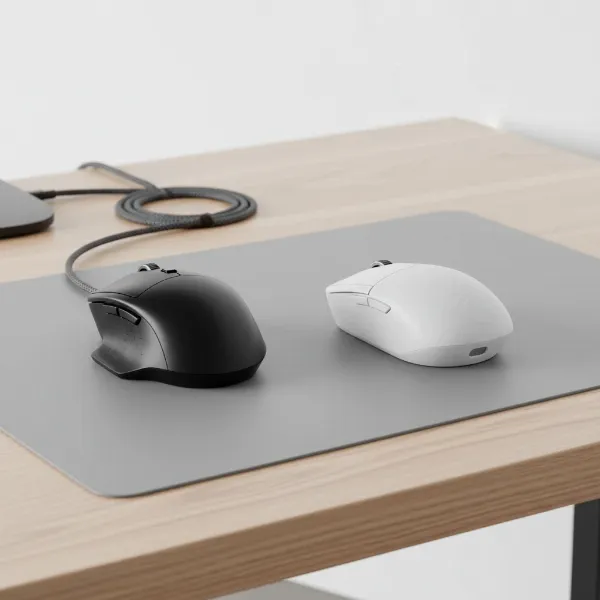 Comparison image of a wired and a wireless computer mouse on a desktop, highlighting connectivity.
Comprehensive Buying Guide for Computer Mice
Making the final decision on a new computer mouse involves harmonizing your needs with the available market options. A strategic approach will help you prioritize features and ensure long-term satisfaction.
- Determine Your Budget: Before you start browsing, decide on a realistic price range. This will immediately filter out options that are either too basic or excessively premium for your needs, streamlining your search. High-end features like advanced sensors, extensive programmability, and premium build quality will naturally come at a higher cost.
- Research Trusted Brands: Stick to well-established brands known for quality and reliability. Companies like Logitech, Razer, SteelSeries, Corsair, and Microsoft have long histories of producing respected computer mouse peripherals. Researching their product lines and reading independent reviews can provide valuable insights into their design philosophies and performance consistency.
- Leverage Reviews and Expert Opinions: Do not underestimate the power of diverse feedback. Consult both professional tech reviews for in-depth technical analysis and user reviews for real-world usage experiences. Pay close attention to comments regarding the mouse’s ergonomics, durability, software performance, and how it handles specific tasks relevant to your intended use. Cross-referencing opinions from different sources can give you a well-rounded perspective.
 A person browsing computer mice options on an e-commerce website on a laptop.
Conclusion
Choosing the ideal computer mouse is a nuanced process, but by understanding your individual needs and the array of features available, you can confidently select a device that truly serves as an extension of your hand. From the rapid precision of a gaming mouse to the ergonomic comfort of a productivity workhorse, each feature—be it DPI, connectivity, or button layout—plays a crucial role in shaping your digital experience. Investing time in this decision can lead to greater comfort, enhanced efficiency, and overall satisfaction with your computing setup. What specific feature do you find most critical in your daily computer mouse usage?
Câu Hỏi Thường Gặp
What is the ideal DPI setting for a computer mouse?
The ideal DPI varies based on your activities. For general office work, 800-1200 DPI is usually sufficient. Gamers might prefer higher settings (1600-3200+) for faster cursor movement, while graphic designers often opt for lower DPI for greater precision. Many mice offer adjustable DPI, allowing you to customize it for different tasks.
Are wireless mice good for gaming?
Modern wireless gaming mice have significantly advanced, offering low latency and stable connections comparable to wired models. High-end wireless gaming mice can be excellent for gaming, providing freedom of movement without noticeable performance compromise. However, they typically come at a higher price and require battery management.
How important is ergonomic design in a computer mouse?
Ergonomic design is very important, especially for individuals who spend long hours at a computer. A well-designed ergonomic mouse can significantly reduce hand and wrist strain, preventing discomfort and the risk of repetitive strain injuries. It promotes a natural hand posture, leading to better long-term comfort and health.
Can a gaming mouse be used for office work?
Yes, a gaming mouse can certainly be used for office work. Many gaming mice offer high precision, programmable buttons, and comfortable designs that can benefit productivity tasks. However, some may be overkill in terms of features or aesthetics, and their advanced sensors might not be strictly necessary for typical office applications.
What is mouse polling rate, and why does it matter?
Polling rate measures how often your mouse reports its position to your computer, typically expressed in Hertz (Hz). A 1000Hz polling rate means the mouse reports its position 1000 times per second. Higher polling rates result in smoother and more responsive cursor movements, which is particularly important for fast-paced gaming where precision and minimal input lag are critical.