Choosing the right computer mouse can significantly impact your daily productivity, gaming performance, and overall comfort. With countless options available, from basic wired models to advanced ergonomic designs and high-performance gaming peripherals, finding the perfect fit can feel overwhelming. This comprehensive guide will walk you through everything you need to know about computer mice, helping you navigate the features, understand the technology, and make an informed decision that perfectly matches your needs and budget.
An Overview of Computer Mice
A computer mouse is an essential input device that translates your hand movements into actions on a screen, allowing you to navigate graphical user interfaces with precision and ease. Its evolution has been remarkable, from the first “X-Y Position Indicator for a Display System” in the 1960s to the sophisticated optical and laser devices we use today. Modern mice offer a variety of forms and functions, catering to diverse users and tasks.
Common types of computer mice include:
- Wired Mice: These connect directly to your computer via a USB cable, offering a reliable, lag-free connection and no need for batteries. They are often favored by competitive gamers for their consistent performance.
- Wireless Mice: Utilizing either a USB receiver (2.4 GHz) or Bluetooth, wireless mice provide freedom from cables, offering a clutter-free desk and enhanced portability. They require batteries, which can be rechargeable or disposable.
- Gaming Mice: Designed for performance, gaming mice feature high DPI (dots per inch) for sensitivity, fast polling rates, programmable buttons, and often customizable RGB lighting. They prioritize speed, precision, and durability.
- Ergonomic Mice: Crafted to fit the natural contours of the hand and wrist, ergonomic mice aim to reduce strain and prevent repetitive strain injuries (RSIs) like carpal tunnel syndrome. They come in various shapes, including vertical and trackball designs.
- Trackball Mice: Instead of moving the entire mouse, users manipulate a stationary ball with their thumb or fingers to move the cursor. These are excellent for limited desk space and can reduce wrist movement, benefiting users with certain hand or wrist conditions.
- Travel/Compact Mice: Smaller and lighter than standard mice, these are designed for portability and fit easily into laptop bags. While convenient, their smaller size might not be comfortable for extended use.
How to Choose the Right Computer Mouse
Selecting the ideal computer mouse involves understanding your specific requirements and the various technical aspects that contribute to a mouse’s performance and comfort. This section breaks down the critical factors to consider.
Determine Your Usage Needs
|
Our Picks for the Best Computer mouse in 2026
As an Amazon Associate I earn from qualifying purchases.
|
||
| Num | Product | Action |
|---|---|---|
| 1 | ProtoArc Wireless Bluetooth Trackball Mouse, EM02 Two Adjustable Angle Ergonomic Rechargeable Computer Ball Mouse, 3 Device Connection, Thumb Control and Smooth Tracking for Laptop, PC, Mac-Gray |

|
| 2 | TECKNET Wireless Mouse, 2.4G Ergonomic Optical Mouse, Computer Mouse for Laptop, PC, Computer, Chromebook, Notebook, 6 Buttons, 24 Months Battery Life, 2600 DPI, 5 Adjustment Levels - Purple |
|
| 3 | Logitech M510 Wireless Mouse, Mouse for Laptop and PC with USB Unifying Receiver, Programmable Buttons - Graphite |
|
| 4 | Logitech B100 Wired Mouse for Computer and Laptop, USB Corded Mouse, Right or Left Hand Use - Black |
|
| 5 | Apple Magic Mouse - White Multi-Touch Surface |
|
| 6 | Amazon Basics 3-Button USB Wired Mouse with Scrolling and Tracking - Standard, Black |
|
| 7 | Uineer Wireless Mouse,Upgraded 2.4GHz Rechargeable (Battery Level Visible) Ergonomic Computer Mouse,4 Levels DPI, Wireless Mice for Laptop Computer(Matte Black) |
|
| 8 | RAPIQUE R306 Pro Wireless Mouse, Dual Bluetooth & 2.4GHz, Connect Up to 3 Devices, Type-C Rechargeable, Silent Click, Ergonomic Symmetrical Design, for MacBook, Laptop, Tablet, Milk Tea Pink |
|
| 9 | Logitech MX Master 4, Ergonomic Wireless Mouse with Advanced Performance Haptic Feedback, Ultra-Fast Scrolling, USB-C Charging, Bluetooth, Windows, MacOS - Graphite |
|
| 10 | Logitech M185 Wireless Mouse, 2.4GHz with USB Mini Receiver, 12-Month Battery Life, 1000 DPI Optical Tracking, Ambidextrous PC/Mac/Laptop - Swift Grey |
|
Before diving into specifications, reflect on how you primarily use your computer mouse. This foundational step will significantly narrow down your options.
Are you a professional designer requiring pixel-perfect accuracy, a gamer needing lightning-fast responses, or an office worker seeking all-day comfort? Daily usage intensity also plays a role; a casual user might prioritize simplicity and battery life, while a heavy user will benefit from durability and advanced features. Furthermore, setting a budget helps filter choices, as mice range from under $20 to well over $100 for premium models.
Key Factors When Selecting a Mouse
Understanding the technical specifications and design elements is crucial for making an informed decision about your next mouse. Each feature contributes to the overall user experience, performance, and comfort.
Sensitivity (DPI)
DPI, or Dots Per Inch, measures how sensitive a mouse is. A higher DPI means the cursor moves further on screen with less physical movement of the mouse. This is particularly important for tasks requiring precision, like graphic design, or for high-resolution monitors where more cursor travel is needed. Gaming mice often feature adjustable DPI settings, allowing users to switch between high sensitivity for quick maneuvers and lower sensitivity for precise aiming. A DPI range of 800-1600 is suitable for general use, while gamers may prefer 3200 DPI or higher.
Shape and Size
The physical design of a mouse is paramount for comfort and preventing strain. The ideal mouse should fit your hand size and grip style – whether you use a palm grip (hand rests entirely on the mouse), claw grip (fingertips and base of palm make contact), or fingertip grip (only fingertips touch the mouse). Manufacturers often offer mice in different sizes and ergonomic shapes to accommodate various hand anatomies. Testing different shapes is recommended, as what feels comfortable for one person might not for another.
Number of Buttons
Beyond the standard left, right, and scroll wheel buttons, many mice come with additional programmable buttons. These can be incredibly useful for productivity, allowing users to assign custom shortcuts, macros, or commands for specific applications. Gamers often utilize extra buttons for in-game actions, while professionals might map them to frequently used software functions. Consider how many extra functions you might benefit from in your daily workflow.
Connectivity (Wired/Wireless)
The choice between a wired and wireless mouse largely depends on your priorities regarding reliability, portability, and desk aesthetics. Wired mice offer a consistent, interference-free connection with no input lag, making them a staple for competitive gaming. They also don’t require batteries. Wireless mice, on the other hand, provide a clean, cable-free setup and are highly portable, ideal for laptops or shared workspaces. They typically connect via a USB dongle (2.4 GHz) or Bluetooth, with battery life being a key consideration.
“For competitive gaming, a wired connection still offers the most reliable, lag-free experience, while modern wireless technology has become incredibly robust for nearly all other tasks.” – Dr. Anya Sharma, Ergonomics Specialist
Sensor Technology
The sensor is the “eye” of the mouse, determining its tracking accuracy and performance on different surfaces.
- Optical sensors (LED-based) are common, affordable, and work well on most non-reflective surfaces.
- Laser sensors offer higher DPI and better tracking on glossy or glass surfaces, though some users find them overly sensitive or prone to “acceleration” on certain pads.
- BlueTrack technology (Microsoft) combines optical and laser advantages, allowing tracking on virtually any surface.
- For critical tasks, a high-quality optical sensor is generally preferred for its consistent and predictable tracking.
Battery Life (for Wireless Mice)
If you opt for a wireless mouse, battery life is a crucial factor. Some mice boast multi-month or even multi-year battery life with standard AA/AAA batteries, while others feature rechargeable internal batteries that last weeks. Consider whether you prefer the convenience of disposable batteries or the environmental benefit of rechargeable ones, and how frequently you’re willing to recharge or replace them. Many modern wireless mice also feature power-saving modes that extend battery life.
Comparison Table of Popular Mouse Models
| Feature / Model | Logitech MX Master 3S | Razer DeathAdder V3 Pro | Logitech G502 X PLUS | Apple Magic Mouse 2 | Microsoft Ergonomic Mouse |
|---|---|---|---|---|---|
| Target User | Productivity/Creative | Esports Gaming | Gaming/Productivity | Mac Users/Basic Productivity | Office/Ergonomics |
| DPI (Max) | 8,000 | 30,000 | 25,600 (HERO) | 1300 | 3200 |
| Connectivity | Bluetooth, Logi Bolt (Wireless) | 2.4GHz Wireless (HyperSpeed) | LIGHTSPEED Wireless, USB-C | Bluetooth | Wired (USB) |
| Buttons | 7 (Programmable) | 6 (Programmable) | 13 (Programmable) | Multi-Touch Surface | 5 (Programmable) |
| Sensor Tech | Darkfield Optical | Focus Pro 30K Optical | HERO 25K Optical | Laser Tracking | Optical |
| Battery Life | Up to 70 days | Up to 90 hours | Up to 120 hours (no RGB) | Approx. 1 month | N/A (Wired) |
| Ergonomics | Sculpted for right hand | Ergonomic, lightweight | Ergonomic, sculpted | Ambidextrous, flat profile | Ergonomic, thumb rest |
| Unique Features | MagSpeed Scroll Wheel | Ultra-lightweight, high polling | LIGHTFORCE Hybrid Switches | Multi-Touch Gestures | Side buttons, scroll wheel |
| Pros | Excellent for multi-device work, precise scroll | Incredibly lightweight, high precision | Highly customizable, great sensor | Seamless macOS integration, gestures | Comfortable, affordable |
| Cons | Expensive, right-hand only | High price, battery life for competitive use | Heavier than some competitors, price | Low profile, charging port location | Wired only, less portable |
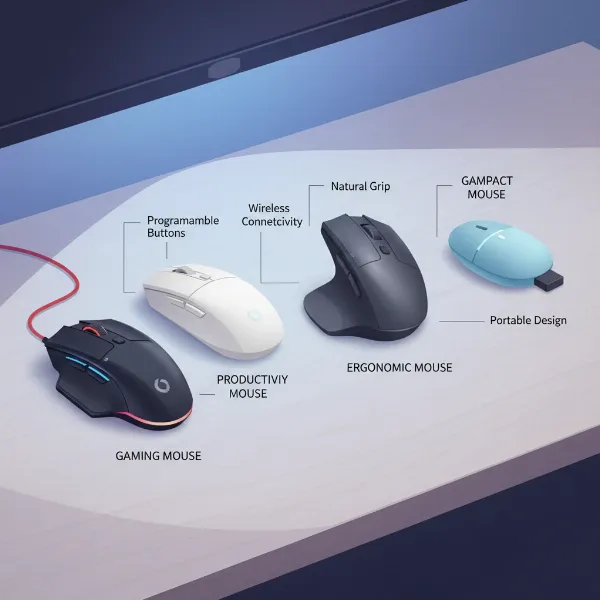 A comparison of different computer mouse types on a desk, highlighting wired, wireless, gaming, and ergonomic designs with their respective features and benefits.
Top Computer Mouse Models for Every Need
Finding the “best” mouse is subjective, but certain models consistently receive high praise across various categories for their performance, design, and feature sets. Here are some top recommendations broken down by use case.
For Productivity & Office Work, the Logitech MX Master 3S is a perennial favorite. Its sculpted design provides excellent comfort for long hours, and its MagSpeed electromagnetic scroll wheel offers incredibly precise or hyper-fast scrolling. With app-specific customizations and the ability to switch between three devices, it’s a powerhouse for professionals. Another strong contender is the Microsoft Ergonomic Mouse, which prioritizes comfort and wrist support at a more accessible price point.
Gamers often seek mice that combine speed, accuracy, and customizability. The Razer DeathAdder V3 Pro is a top-tier esports mouse, known for its ultra-lightweight design, incredibly precise sensor (Focus Pro 30K DPI), and minimal lag wireless connectivity. For those who prefer more buttons and versatility, the Logitech G502 X PLUS remains a popular choice, offering a vast array of programmable buttons, a high-performance sensor, and a comfortable, durable build suitable for various game genres.
For Creative Professionals and those with Ergonomic Needs, the Logitech MX Master 3S again excels due to its precision and customization. However, for users seeking to alleviate wrist strain, vertical mice like the Logitech MX Vertical offer a “handshake” grip that aligns the wrist in a more natural posture, reducing pronation. Trackball mice, such as the Logitech MX Ergo, are also excellent for preventing arm movement and maintaining a fixed wrist position, ideal for specific ergonomic requirements or limited desk space.
Tips for Using and Maintaining Your Computer Mouse
To ensure your computer mouse performs optimally and lasts for years, proper usage and regular maintenance are essential. These simple tips can significantly extend its lifespan and enhance your user experience.
Regular cleaning is crucial to prevent dust, grime, and oils from affecting tracking and button responsiveness. For optical or laser mice, periodically wipe the sensor lens with a soft, lint-free cloth or a cotton swab dampened with rubbing alcohol. Clean the mouse body and buttons with a lightly damp cloth, ensuring no moisture seeps into the interior. For scroll wheels, a gentle brush or compressed air can remove accumulated debris. For wired mice, inspect the cable for any fraying.
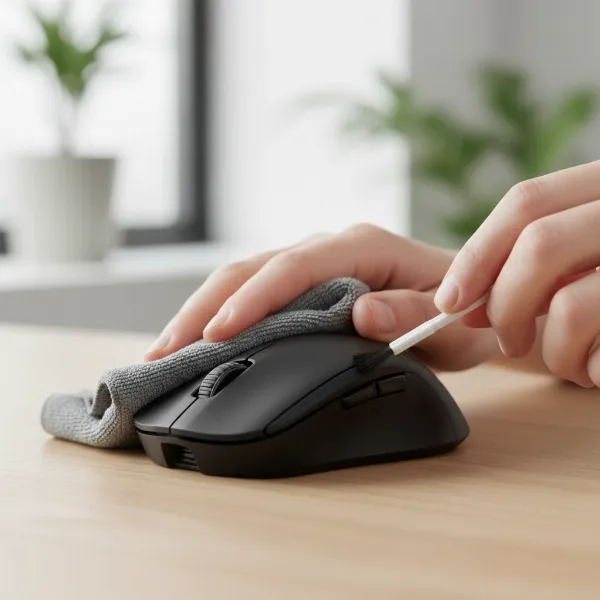 A person meticulously cleaning a computer mouse with a microfibre cloth and a small brush, focusing on the scroll wheel and sensor.
Adjusting DPI settings to match your current task or game is a common way to optimize performance. Many gaming and productivity mice have dedicated DPI buttons for quick adjustments. Additionally, customizing button assignments through the mouse’s software can streamline your workflow, assigning shortcuts for frequently used actions. For wireless mice, extending battery life involves switching the mouse off when not in use, especially for prolonged periods, and investing in high-quality rechargeable batteries. Replacing disposable batteries with fresh ones when performance begins to degrade can also prevent frustration.
Common issues like erratic cursor movement can often be resolved by cleaning the sensor or trying a different mouse pad. Connectivity problems with wireless mice might be fixed by re-pairing the device, checking battery levels, or ensuring the USB receiver is not obstructed. Software updates for your mouse driver are also important to address bugs and improve compatibility.
Detailed Comparison of Computer Mouse Types
Beyond the general categories, understanding the specific characteristics of different sensor technologies and ergonomic considerations can help refine your choice even further.
| Mouse Type | Key Advantages | Key Disadvantages | Ideal Applications |
|---|---|---|---|
| Optical Mouse | Affordable, reliable, good on many surfaces | Less precise on glass/shiny surfaces | General use, office, casual gaming |
| Laser Mouse | High DPI, tracks on glass/glossy surfaces | Can be overly sensitive, “acceleration” issues | High-precision tasks, design work, professional gaming |
| Trackball Mouse | Reduces wrist movement, good for limited space | Learning curve, less intuitive for some | Ergonomic needs, limited desk space, CAD |
| Gaming Mouse | High DPI, customizable buttons, fast polling | Often expensive, sometimes heavy, complex features | Competitive gaming, esports, demanding applications |
| Ergonomic Mouse | Reduces strain, promotes natural hand posture | Can be bulky, takes getting used to | Office workers, users with RSI, prolonged use |
| Vertical Mouse | Prevents wrist pronation, natural handshake grip | Unusual form factor, not for everyone | Preventing/alleviating wrist pain, ergonomic comfort |
Optical mice, using an LED light source, offer excellent value and consistent performance for most everyday tasks. Laser mice, employing a laser diode, generally provide higher DPI ranges and the ability to track on a wider variety of surfaces, including glass. However, some users report a sensation of “acceleration” with laser sensors, where cursor speed doesn’t perfectly match physical movement, which can be undesirable for precision tasks.
Trackball mice eliminate the need to move the entire device, which can be a significant ergonomic advantage for individuals with wrist or shoulder pain, or those with very limited desk space. Gaming mice are specifically engineered for speed and accuracy, boasting features like adjustable weights, advanced sensors, and high polling rates (how often the mouse reports its position to the computer) for minimal latency. Ergonomic mice, in general, focus on promoting a more natural hand and wrist posture, often coming in sculpted or vertical designs to reduce pronation and ulnar deviation.
Where to Purchase Your Computer Mouse
Acquiring a high-quality computer mouse from a reputable vendor ensures you receive an authentic product with proper warranty and support. Consider both online and physical retail options.
Major electronics retailers like Best Buy, Micro Center, or their regional equivalents often have a wide selection of computer mice. Shopping in person allows you to physically hold and test different models, which is invaluable for assessing ergonomics and comfort. This hands-on experience can prevent buyer’s remorse, especially for specialized mice like ergonomic or gaming models. Online retailers such as Amazon, Newegg, or the official brand websites (Logitech, Razer, Microsoft, Apple) typically offer competitive pricing, a broader selection, and detailed customer reviews. Be sure to check seller ratings and product authenticity when buying from third-party marketplaces.
When purchasing online, pay close attention to the return policy and warranty information. A good return policy allows you to exchange the mouse if it doesn’t meet your expectations for comfort or performance. Reputable brands usually offer at least a one-year warranty against manufacturing defects. Always keep your proof of purchase. Verifying the authenticity of the product upon arrival is also a good practice, checking serial numbers against the manufacturer’s website if possible.
Buying Guide: Overall Considerations for Your Computer Mouse
Before making your final decision, a holistic approach that considers your budget, brand reputation, and peer reviews will guide you to the perfect computer mouse.
Your budget is often the primary filter. While entry-level mice are inexpensive, they may lack advanced features or ergonomic comfort. Mid-range mice offer a good balance of features and value, while premium models, often from well-known brands, provide top-tier performance, durability, and extensive customization options. Investing a bit more in a mouse that perfectly fits your needs can significantly enhance your long-term comfort and productivity.
Brand reputation is a strong indicator of quality and reliability. Companies like Logitech, Razer, Microsoft, and Corsair have established track records for producing high-quality computer mice with excellent customer support. Researching different brands and their specific product lines can provide insights into their build quality, sensor performance, and software capabilities.
Finally, reading reviews from other users is an indispensable step. Look for reviews that discuss long-term comfort, button durability, sensor accuracy, and battery life (for wireless models). Pay attention to reviews from users with similar usage patterns or hand sizes to yours. This collective feedback can highlight potential flaws or unexpected benefits that product specifications alone might not reveal.
 A person thoughtfully examining different computer mice on a retail display, considering shape, size, and features before making a purchase decision.
Conclusion
The computer mouse, though seemingly simple, is a critical interface that can profoundly impact your digital interactions. From the ergonomic contours designed to prevent strain to the high-DPI sensors that ensure pinpoint accuracy, every feature plays a role in your overall experience. By carefully considering your specific needs—be it for office work, creative design, or competitive gaming—and understanding the technical specifications like DPI, connectivity, and sensor type, you can confidently navigate the vast array of options. Investing time in research and selecting a mouse that genuinely fits your hand and your workflow will lead to enhanced comfort, improved productivity, and a more enjoyable computing journey. Which feature do you consider most essential in your ideal computer mouse?
Frequently Asked Questions
What is DPI in a computer mouse and why does it matter?
DPI (Dots Per Inch) measures a mouse’s sensitivity. A higher DPI means the cursor moves further with less physical mouse movement. This matters for tasks requiring precision (e.g., graphic design) or for users with high-resolution monitors where more cursor travel is needed, affecting speed and accuracy.
Is a wired or wireless mouse better for gaming?
While modern wireless gaming mice have significantly reduced latency, many competitive gamers still prefer wired mice for their absolute reliability, lack of potential interference, and no need for battery management during critical moments. For casual gaming, wireless mice offer excellent performance and freedom.
How can I make my computer mouse more comfortable if I have wrist pain?
If you experience wrist pain, consider switching to an ergonomic mouse, such as a vertical mouse or a trackball mouse. These designs promote a more natural hand and wrist posture, reducing strain and pronation. Taking regular breaks and ensuring proper desk setup are also crucial.
How often should I clean my computer mouse?
It’s recommended to clean your computer mouse regularly, ideally once a week or every two weeks, depending on usage. This prevents dust and grime buildup on the sensor and buttons, which can affect tracking accuracy and overall performance. A quick wipe-down is usually sufficient.