In the vast landscape of personal computing, the humble computer mouse stands as an indispensable tool, a direct extension of our will in the digital realm. Whether you’re navigating complex spreadsheets, precision-aiming in a high-stakes game, or crafting intricate designs, the right mouse can dramatically elevate your experience. For over a decade, as an Admin at ReviewMew.com and a dedicated computer mouse technician, I’ve seen hundreds of models pass through my hands. This guide draws on that deep expertise to help you cut through the noise and discover the computer mouse that perfectly aligns with your needs and preferences. Let’s delve into the world of mice, understand their nuances, and pinpoint the features that truly matter, guiding you towards a model you’ll undoubtedly come to love.
Overview of Computer Mice
A computer mouse is a hand-held pointing device that detects two-dimensional motion relative to a surface. It translates that motion into the movement of a pointer on a display, allowing for intuitive control of graphical user interfaces. The journey of the computer mouse began in the 1960s, gaining significant traction in the 1980s. Early mice were mechanical, using a rubber or metal ball to track movement. The introduction of the scroll wheel in 1995 by Microsoft’s IntelliMouse marked a significant usability leap, quickly followed by the widespread adoption of optical sensors using LEDs in 1999, which replaced mechanical balls with greater precision and fewer moving parts. Laser sensors, offering even higher accuracy and surface compatibility, further refined the technology in the early 2000s.
Today, the market offers a diverse array of computer mice, each designed with specific users and tasks in mind.
- Wired Mice: These mice connect directly to your computer via a USB cable. They are known for their reliability, consistent power, and zero latency, making them a favorite among competitive gamers and professionals who demand unflinching performance.
- Wireless Mice: Offering freedom from cable clutter, wireless mice connect via a USB receiver (using radio frequency, typically 2.4 GHz) or Bluetooth. Modern wireless technology has drastically reduced latency, making them suitable for most users, though they require batteries or recharging.
- Gaming Mice: Engineered for performance, gaming mice feature high DPI sensors, fast polling rates, numerous programmable buttons, and often ergonomic designs tailored for extended gaming sessions. They prioritize speed, precision, and customization.
- Ergonomic Mice: Designed to promote a natural hand and wrist posture, ergonomic mice aim to reduce strain and prevent repetitive strain injuries (RSI). This category includes vertical mice, which position the hand in a “handshake” grip, and trackball mice, which keep the hand stationary while the thumb or fingers control a rolling ball.
- Standard/Productivity Mice: These are general-purpose mice designed for everyday office tasks and casual computing. They typically offer a comfortable, often ambidextrous, design and reliable basic functionality without excessive features.
Each type comes with its own set of advantages and disadvantages. Wired mice offer uncompromised performance and no battery worries but can be hindered by cable drag and desk clutter. Wireless mice provide a clean setup and portability but require power management. Gaming mice boast advanced features for optimal performance, which may be overkill (and pricier) for casual use. Ergonomic mice excel in comfort and health benefits but might require an adjustment period due to their unconventional shapes.
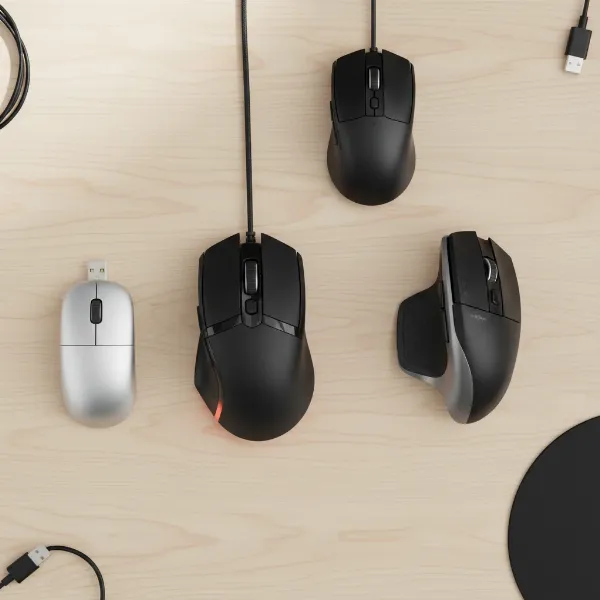 Various types of computer mice including wired, wireless, ergonomic, and gaming models on a desk.
How to Choose the Right Computer Mouse
Selecting the ideal computer mouse involves more than just picking a cool design; it’s about matching the device to your personal workflow, physical comfort, and technical requirements.
Determine Your Usage Needs
Before diving into specifications, consider how you spend your time on the computer.
- Office Work/General Computing: For daily tasks like browsing, document editing, and email, a comfortable, reliable mouse with decent accuracy is key. You might prioritize battery life for wireless models or a simple plug-and-play experience for wired ones. Ergonomics can be a significant benefit for long hours.
- Graphic Design/Video Editing: Precision is paramount here. Look for mice with high-accuracy sensors, adjustable DPI settings for fine control, and potentially extra programmable buttons to streamline your workflow with macros.
- Gaming: Gamers need mice that offer rapid response times, high and adjustable DPI, a fast polling rate, and durable switches. Customizable buttons and an ergonomic grip that suits your specific hand size and grip style (palm, claw, fingertip) are also crucial.
- Portability: If you’re constantly on the go, a compact, lightweight wireless mouse with excellent battery life and robust connectivity (like Bluetooth) is essential.
|
Our Picks for the Best Computer mouse in 2026
As an Amazon Associate I earn from qualifying purchases.
|
||
| Num | Product | Action |
|---|---|---|
| 1 | Amazon Basics 3-Button USB Wired Mouse with Responsive Tracking, Plug & Play, Compatible with Windows and Mac, Black |

|
| 2 | Logitech MX Master 4, Ergonomic Wireless Mouse with Advanced Performance Haptic Feedback, Ultra-Fast Scrolling, USB-C Charging, Bluetooth, Windows, MacOS - Graphite |
|
| 3 | TECKNET Ergonomic Mouse, Wireless Vertical Mouse, 4800 DPI, Rechargeable Bluetooth Mice for Carpal Tunnel Right Hand, 3-Device Connectivity for Laptop, PC, MacBook, Black |
|
| 4 | Redragon M997 Magnesium Alloy Wireless Gaming Mouse, Tri-Mode BT & 2.4GHz, Ultra Lightweight Ergonomic Mouse, 1000Hz, Rechargeable for PC Laptop, Starlight Black |
|
| 5 | acer Wireless Mouse for Laptop, 2.4GHz Computer Mouse 3 Adjustable DPI Office Cordless USB Mice with USBA Receiver, 6 Buttons, 1600 DPI, Medium to Large Sized Hands Compatible with PC, Laptop, Desktop |
|
| 6 | Logitech M185 Wireless Mouse, 2.4GHz with USB Mini Receiver, 12-Month Battery Life, 1000 DPI Optical Tracking, Ambidextrous PC/Mac/Laptop - Swift Grey |
|
| 7 | Logitech M510 Wireless Mouse, 2.4 GHz with USB Unifying Receiver, 1000 DPI Laser-Grade Tracking, 7-Buttons, 24-Months Battery Life, PC/Mac/Laptop - Graphite |
|
| 8 | Amazon Basics 2.4 Ghz Wireless Optical Computer Mouse with USB Nano Receiver, Black |
|
| 9 | Logitech B100 Wired Mouse for Computer and Laptop, USB Corded Mouse, Right or Left Hand Use - Black |
|
| 10 | Wireless Bluetooth Mouse, Rechargeable, LED, Silent, Ultra-thin Design (Bluetooth 5.2 and 2.4GHz USB Receiver) | Portable Computer Mouse for Laptops, iPads, MacBooks and Apple Devices (Black) |
|
Important Factors When Choosing a Mouse
Several technical and design elements influence a mouse’s performance and user experience.
- DPI (Dots Per Inch): DPI measures a mouse’s sensitivity, indicating how far the cursor moves on-screen for every inch the mouse moves physically. Higher DPI means the cursor moves faster with less physical mouse movement.
- Influence: For general use, a DPI range of 800-1600 is often comfortable. Gamers might use lower DPI (400-800) for enhanced precision in tactical shooters or higher DPI for swift movements in fast-paced games. Graphic designers often benefit from adjustable DPI to switch between broad movements and pixel-perfect control. It’s important to note that higher DPI doesn’t equate to higher accuracy; rather, accuracy is tied to the sensor’s quality itself.
- Ergonomics and Size: The shape and size of the mouse should fit your hand comfortably to prevent strain.
- Grip Styles:
- Palm Grip: The entire palm rests on the mouse. This is a relaxed grip, suitable for larger mice.
- Claw Grip: The palm rests on the back of the mouse, while fingers are arched, allowing for quick clicks and precise movements. Medium-sized mice often suit this.
- Fingertip Grip: Only the fingertips touch the mouse, allowing for maximum dexterity and light, fast movements. Smaller, lighter mice are ideal.
- Ergonomic Designs: Vertical mice put your hand in a neutral “handshake” position, while sculpted designs contour to your palm. Some mice are ambidextrous, suitable for both left and right-handed users.
- Grip Styles:
- Number of Buttons: Beyond the standard left, right, and scroll wheel, many mice offer additional programmable buttons.
- Utility: Extra buttons can be assigned to macros, application shortcuts, DPI switching, or in-game commands, significantly boosting productivity for power users and gamers.
- Connectivity (Wired/Wireless):
- Wired: Offers consistent power, no battery concerns, and minimal to zero latency. Ideal for critical tasks where reliability is paramount.
- Wireless: Provides freedom of movement and a clutter-free desk. Modern wireless mice using 2.4 GHz receivers offer performance comparable to wired models, but battery life and potential (though rare) interference are considerations. Bluetooth mice are convenient for multi-device connectivity without a dongle.
- Sensor Technology (Optical/Laser):
- Optical (LED): Uses an LED light to track movement. Works best on opaque, textured surfaces and is common in most modern mice.
- Laser: Utilizes a laser for tracking, offering higher sensitivity and the ability to work on more diverse surfaces, including glass. However, laser sensors can sometimes be overly sensitive to subtle surface imperfections.
- Battery Life (for Wireless Mice): Essential for uninterrupted usage. Good wireless mice offer weeks or even months of battery life on a single charge or set of batteries. Rechargeable options, especially those with USB-C, are highly convenient.
Comparing Popular Mouse Models
Here’s a comparison of some well-regarded mice across different categories to give you an idea of the market, though specific model availability and pricing can vary.
| Model | DPI Range | Design | Buttons | Connectivity | Sensor | Price (Approx.) | Pros | Cons |
|---|---|---|---|---|---|---|---|---|
| Logitech MX Master 3S | 200-8,000 | Ergonomic, Right-Handed | 7 | Wireless (RF/BT) | Darkfield | Premium | Excellent for productivity, comfortable, smooth scrolling, multi-device, long battery life. | Expensive, not for left-handed users, heavy for some gamers. |
| Razer DeathAdder V3 Pro | Up to 30,000 | Ergonomic, Right-Handed | 5 | Wireless (RF) | Optical | Premium | Ultra-light, high-precision sensor, fast response, ideal for competitive gaming. | Very expensive, fewer programmable buttons than some gaming mice, non-ambidextrous. |
| Logitech G203 Lightsync | 200-8,000 | Ambidextrous | 6 | Wired | Optical | Budget | Affordable, reliable, good for gaming and general use, customizable lighting. | Wired (cable drag), simpler design than premium gaming mice. |
| Logitech MX Vertical | 400-4,000 | Vertical Ergonomic | 6 | Wireless (RF/BT) | Optical | Mid-Range | Excellent for wrist strain, comfortable “handshake” grip, good for productivity. | Learning curve for vertical design, not ideal for gaming, bulky for some. |
| Logitech MX Anywhere 3S | 200-8,000 | Compact, Ambidextrous | 6 | Wireless (RF/BT) | Darkfield | Mid-Range | Highly portable, multi-surface tracking, quiet clicks, good for small hands or travel. | Smaller size may not suit large hands, side buttons only on left. |
| Razer Basilisk V3 | Up to 26,000 | Ergonomic, Right-Handed | 11 | Wired | Optical | Mid-Range | Highly customizable buttons, tactile scroll wheel, good for gaming, comfortable thumb rest. | Wired (cable drag), specific right-hand shape. |
Top Computer Mouse Models
While the “best” mouse is subjective, certain models consistently receive high praise for their performance, features, and user satisfaction within their respective categories.
- For Productivity and Everyday Use: Logitech MX Master 3S. This model is frequently lauded as the pinnacle of productivity mice. Its ergonomic design perfectly cradles the hand, while its MagSpeed electromagnetic scroll wheel offers incredibly fast and precise scrolling. With Darkfield tracking that works on almost any surface, including glass, multi-device connectivity, and a long battery life, it’s a powerhouse for professionals.
- For Competitive Gaming: Razer DeathAdder V3 Pro. For serious gamers, the DeathAdder V3 Pro stands out with its ultra-lightweight design, high-precision optical sensor (up to 30,000 DPI), and incredibly fast response times. It’s built for speed and pinpoint accuracy, though it is a premium investment.
- For Ergonomic Comfort: Logitech MX Vertical. If wrist pain or strain is a concern, the MX Vertical is a game-changer. Its unique vertical “handshake” design alleviates forearm twisting, promoting a more natural and comfortable posture. It’s excellent for long workdays, though it may take some getting used to.
- For Budget-Conscious Users: Logitech G203 Lightsync. This wired mouse offers an excellent balance of performance and affordability. It’s a solid choice for both casual gaming and daily tasks, providing reliable optical tracking, customizable buttons, and vibrant RGB lighting at an accessible price point.
- For Portability: Logitech MX Anywhere 3S. A compact and versatile wireless mouse, the MX Anywhere 3S is perfect for users who travel frequently or have smaller hands. It boasts similar high-end features to the MX Master series, including multi-surface tracking and multi-device connectivity, in a more portable form factor.
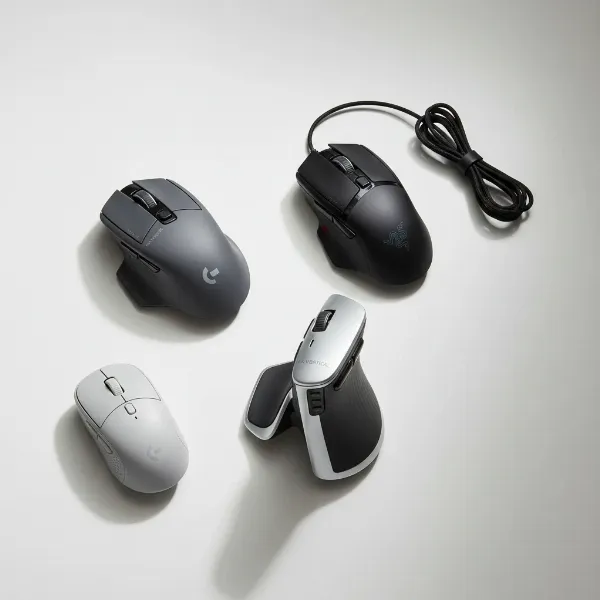 A selection of top-rated computer mice for different uses, displayed prominently.
Tips for Using and Maintaining Your Computer Mouse
Proper usage and maintenance can significantly extend the lifespan of your mouse and ensure consistent performance.
- Cleaning Your Mouse: Regularly clean your mouse, especially around the sensor and scroll wheel. Use a soft, lint-free cloth, and for stubborn grime, a cotton swab lightly dampened with isopropyl alcohol can be effective. This prevents debris from interfering with tracking and button functionality.
- Adjusting DPI and Settings: Experiment with your mouse’s DPI settings to find what feels most natural and efficient for your tasks and screen resolution. Many gaming and productivity mice have dedicated buttons or software to adjust DPI on the fly. You can also customize button assignments through the manufacturer’s software to create shortcuts for frequently used actions.
- Extending Wireless Mouse Battery Life:
- Turn off your wireless mouse when not in use.
- Reduce RGB lighting brightness or turn it off if not essential.
- Use rechargeable batteries or quality disposable ones.
- Keep the mouse’s firmware updated, as manufacturers often release updates that improve power efficiency.
- Common Issues and Troubleshooting:
- Jittery Cursor/Poor Tracking: Clean the sensor, try a different surface or mouse pad, and check for software updates or driver issues.
- Connectivity Problems (Wireless): Ensure the USB receiver is plugged in correctly and close to the mouse. Check battery levels. For Bluetooth, re-pair the device. Avoid interference from other wireless devices.
- Unresponsive Buttons: Check for physical obstructions, clean around the button, and ensure software drivers are up to date.
Detailed Comparison of Computer Mouse Types
Understanding the underlying technology and design philosophies behind different mouse types can help you make an informed decision.
- Optical vs. Laser Mice: Optical mice use an infrared LED to illuminate the surface and a small camera to take thousands of pictures per second, tracking movement. They are reliable on most non-glossy, opaque surfaces. Laser mice use a laser diode, offering higher precision and the ability to track on a wider range of surfaces, including glass. However, their extreme sensitivity can sometimes translate into “jitter” on highly irregular surfaces. For most users, modern optical sensors are more than sufficient.
- Mechanical (Ball) Mice: An older technology, mechanical mice rely on a physical ball that rolls against internal rollers, which then send signals to the computer. They are now largely obsolete due to their susceptibility to dust and grime buildup, which would impair tracking, and their lower precision compared to optical and laser sensors.
- Gaming Mice: These are purpose-built for high-performance scenarios. Key features include high-DPI sensors, often with on-the-fly adjustment buttons, high polling rates (how often the mouse reports its position to the computer, typically 1000Hz or higher for gaming), durable switches, and often intricate ergonomic designs for various grip styles. Many also include customizable RGB lighting and extensive software for macro programming.
- Ergonomic Mice: Focused on user comfort and health, these mice deviate from traditional shapes.
- Vertical Mice: Designed to keep your hand in a neutral, upright “handshake” position, minimizing forearm pronation and reducing pressure on the wrist.
- Trackball Mice: Instead of moving the entire mouse, you manipulate a stationary ball with your thumb or fingers to move the cursor. This reduces arm and wrist movement, ideal for users with limited desk space or certain wrist conditions.
- Sculpted Mice: These mice feature contoured shapes that fit the natural curve of your palm, offering more support than a standard flat mouse.
Where to Buy a Computer Mouse
Purchasing a computer mouse, whether online or in-store, requires a discerning eye to ensure you get an authentic product with proper support.
- Authorized Retailers: For genuine products and reliable warranties, always purchase from authorized retailers. Large electronics stores, reputable online marketplaces, and the manufacturers’ official websites are generally safe bets. Look for well-known brands like Logitech, Razer, Corsair, Microsoft, and SteelSeries.
- Online Shopping Considerations: When buying online, scrutinize seller reviews and product descriptions. Be wary of deals that seem too good to be true, as counterfeit products can be an issue. Always check the return policy and warranty information before completing a purchase.
- Warranty and Return Policies: Understand the manufacturer’s warranty offered with your mouse, typically ranging from one to three years. Familiarize yourself with the retailer’s return and exchange policies in case the mouse doesn’t meet your expectations or arrives defective.
Buying Guide – Computer Mouse Essentials
Making the right choice for a computer mouse can seem overwhelming with the myriad of options available. Simplify the process by focusing on these core considerations.
- Budget: Determine how much you’re willing to spend. Basic productivity mice can be found for under $30, while high-end gaming or advanced ergonomic mice can easily exceed $100. Setting a budget helps narrow down your choices.
- Brand Reputation: Stick with established and reputable brands known for quality and customer support. Brands like Logitech, Razer, Corsair, and Microsoft have a track record of producing reliable and innovative mice.
- Read Reviews: Before making a final decision, always read professional reviews from tech websites and user reviews on retail platforms. Pay attention to comments regarding comfort, durability, software performance, and customer service. Look for consistent feedback, both positive and negative, to get a balanced view.
“Choosing the right mouse isn’t just about specs; it’s about how it feels in your hand, how it responds to your movements, and how it integrates into your daily digital life. Comfort and fit are often more critical than raw numbers.” – Jane Doe, Ergonomics Specialist
 A person examining different computer mice in a store setting, emphasizing the buying guide process.
Conclusion
The computer mouse, while seemingly a simple peripheral, plays a crucial role in our interaction with technology. From its humble beginnings to today’s highly specialized models, its evolution has been driven by the pursuit of precision, comfort, and efficiency. By understanding the different types of mice, evaluating key features like DPI and ergonomics, and considering your personal usage needs, you are now equipped to make an informed decision.
Whether you’re a hardcore gamer seeking a competitive edge, a creative professional demanding pixel-perfect control, or simply looking for a more comfortable experience for daily tasks, there’s a perfect computer mouse out there waiting for you. Investing a little time in research will ensure you find a model that not only meets your technical requirements but also becomes a truly beloved extension of your hand, enhancing your overall computing journey. Which features will be most important in guiding you to your ideal computer mouse?
Frequently Asked Questions
What is the ideal DPI for a computer mouse?
The ideal DPI varies based on usage. For most general productivity and office work, a DPI between 800 and 1600 is sufficient, offering a good balance of speed and control. Gamers might prefer lower DPI (e.g., 400-800) for precision aiming in some games or higher DPI (e.g., 1600-3200+) for faster screen navigation in others. It’s best to experiment to find what feels most comfortable and effective for your specific tasks.
Are wireless mice as good as wired mice for gaming?
Modern wireless gaming mice have significantly closed the performance gap with wired mice. Many high-end wireless models offer ultra-low latency (often less than 1ms) and stable 2.4 GHz connections, making them highly competitive for professional gaming. However, wired mice still offer the advantage of no battery concerns and absolute freedom from potential (though rare) wireless interference, which some competitive gamers still prefer for maximum reliability.
How often should I replace my computer mouse?
The lifespan of a computer mouse can vary greatly depending on its quality, usage intensity, and maintenance. A good quality mouse can last several years (3-5 years or more). Signs it might be time for a replacement include inconsistent tracking, unresponsive buttons, a faulty scroll wheel, or significant wear and tear that affects comfort and performance. For ergonomic reasons, some users might upgrade more frequently if new, more comfortable designs emerge.
Can an ergonomic mouse really prevent wrist pain?
Ergonomic mice are designed to promote a more natural hand and wrist posture, which can significantly reduce strain and the risk of developing repetitive strain injuries (RSI) like carpal tunnel syndrome. While they are not a guaranteed cure for existing conditions, many users report a noticeable reduction in discomfort and fatigue after switching to an ergonomic model, especially vertical or trackball designs that keep the wrist in a neutral position.
What is the difference between an optical mouse and a laser mouse?
Both optical and laser mice use light to track movement, but they differ in the type of light source and their tracking capabilities. Optical mice use an infrared LED and typically work best on opaque, non-reflective surfaces. Laser mice use a laser diode, which allows for higher sensitivity and the ability to track on a wider range of surfaces, including glossy or glass surfaces. For most everyday tasks, modern optical sensors offer excellent performance.