Selecting the right computer mouse might seem like a minor detail, but for anyone spending significant time at their desk, it’s a crucial decision that impacts comfort, productivity, and even long-term health. Whether you’re a student, a remote worker, or simply navigating the web, your computer mouse is a constant companion. A well-suited mouse can transform your daily interactions, making tasks smoother and more enjoyable, while a poor choice can lead to discomfort, fatigue, and reduced efficiency. This comprehensive guide will walk you through everything you need to know to pick the ideal computer mouse for your home use, ensuring a comfortable and effective experience.
Understanding the Computer Mouse: Types and Evolution
The computer mouse has evolved dramatically since its invention, moving beyond simple pointing devices to specialized tools designed for various tasks and user preferences. Originally a bulky, wired device with a trackball, today’s mice leverage advanced sensors and wireless technologies, offering a wide array of choices.
Currently, common mouse types primarily differ in their form factor and connectivity:
- Traditional Mouse: The classic design, often symmetrical or slightly contoured, with two main buttons and a scroll wheel. Available in various sizes, both wired and wireless.
- Vertical Mouse: Engineered to position your hand in a “handshake” grip, these mice aim to reduce forearm twisting and wrist strain, promoting a more natural posture.
- Trackball Mouse: Instead of moving the mouse itself, you control the cursor by rolling a stationary ball with your thumb or fingers. This design minimizes wrist and arm movement, beneficial for small workspaces or users with mobility issues.
- Gaming Mouse: While often associated with specialized features for competitive play, many gaming mice offer high precision and customizable buttons that can also benefit productivity users.
- Ergonomic Mouse: A broad category encompassing designs, including vertical and contoured mice, specifically developed to promote comfort and prevent repetitive strain injuries (RSIs).
Connectivity also defines modern mice:
- Wired Mice: Connect directly to your computer via a USB cable. They offer a stable, lag-free connection and never require battery changes.
- Wireless Mice: Provide freedom from cables, connecting via a USB receiver (2.4GHz RF) or Bluetooth. They offer greater portability and a clutter-free desk but require batteries or recharging.
Key Considerations When Selecting Your Computer Mouse
Choosing the right computer mouse involves more than just picking one that “looks good.” It’s about aligning the device with your personal needs, physical comfort, and daily tasks. Several critical factors come into play, from how you intend to use it to the specific features that can enhance your experience.
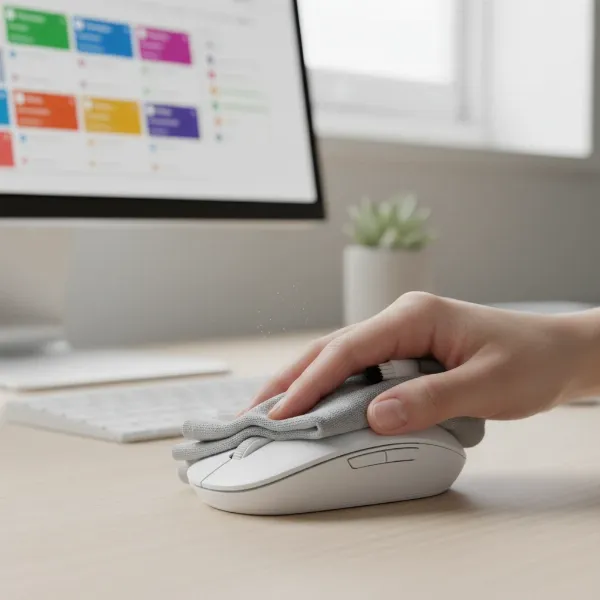
 A person's hand resting comfortably on a computer mouse on a home office desk, with a keyboard and monitor in the background. Close-up, soft natural light, realistic style.
Identify Your Primary Use Case
Your daily activities should heavily influence your choice. Are you primarily:
- Casual Browsing/Basic Office Work? For simple tasks like email, web browsing, and document editing, a standard, comfortable mouse with basic functionality is usually sufficient. Reliability and ease of use are key.
- Creative Design/Detailed Work? If you’re involved in graphic design, video editing, or CAD, precision is paramount. You might benefit from a mouse with higher DPI sensitivity and potentially programmable buttons for shortcuts.
- Light Gaming? Even casual gamers appreciate responsiveness. A wireless mouse with low latency or a reliable wired option, along with adjustable DPI, can enhance your experience without needing a full-blown gaming mouse.
- A Mix of Everything? Many home users have varied needs. Consider a versatile mouse with adjustable DPI and extra programmable buttons to adapt to different tasks.
|
Our Picks for the Best Computer mouse in 2026
As an Amazon Associate I earn from qualifying purchases.
|
||
| Num | Product | Action |
|---|---|---|
| 1 | Logitech M185 Wireless Mouse, 2.4GHz with USB Mini Receiver, 12-Month Battery Life, 1000 DPI Optical Tracking, Ambidextrous PC/Mac/Laptop - Swift Grey |

|
| 2 | Amazon Basics 2.4 Ghz Wireless Optical Computer Mouse with USB Nano Receiver, Black |
|
| 3 | Redragon M997 Magnesium Alloy Wireless Gaming Mouse, Tri-Mode BT & 2.4GHz, Ultra Lightweight Ergonomic Mouse, 1000Hz, Rechargeable for PC Laptop, Starlight Black |
|
| 4 | Wireless Bluetooth Mouse, Rechargeable, LED, Silent, Ultra-thin Design (Bluetooth 5.2 and 2.4GHz USB Receiver) | Portable Computer Mouse for Laptops, iPads, MacBooks and Apple Devices (Black) |
|
| 5 | acer Wireless Mouse for Laptop, 2.4GHz Computer Mouse 3 Adjustable DPI Office Cordless USB Mice with USBA Receiver, 6 Buttons, 1600 DPI, Medium to Large Sized Hands Compatible with PC, Laptop, Desktop |
|
| 6 | Logitech MX Master 4, Ergonomic Wireless Mouse with Advanced Performance Haptic Feedback, Ultra-Fast Scrolling, USB-C Charging, Bluetooth, Windows, MacOS - Graphite |
|
| 7 | Logitech B100 Wired Mouse for Computer and Laptop, USB Corded Mouse, Right or Left Hand Use - Black |
|
| 8 | TECKNET Ergonomic Mouse, Wireless Vertical Mouse, 4800 DPI, Rechargeable Bluetooth Mice for Carpal Tunnel Right Hand, 3-Device Connectivity for Laptop, PC, MacBook, Black |
|
| 9 | Amazon Basics 3-Button USB Wired Mouse with Responsive Tracking, Plug & Play, Compatible with Windows and Mac, Black |
|
| 10 | Logitech M510 Wireless Mouse, 2.4 GHz with USB Unifying Receiver, 1000 DPI Laser-Grade Tracking, 7-Buttons, 24-Months Battery Life, PC/Mac/Laptop - Graphite |
|
Budget also plays a role. While high-end mice offer premium features, excellent options are available across all price points. Determine your comfortable spending limit and seek the best value within that range.
Ergonomics and Comfort: A Perfect Fit
One of the most crucial aspects of mouse selection is ergonomics, as a poorly fitting mouse can lead to discomfort, hand fatigue, or even repetitive strain injuries (RSIs) like carpal tunnel syndrome. A good mouse should keep your hand, wrist, and arm in a natural, relaxed position.
- Hand Size and Grip Style: Mice come in various sizes. Test by resting your wrist on the desk and laying your hand over the mouse; your fingers should comfortably reach the buttons, and your palm should rest naturally on the mouse’s back. Avoid stretching or a tense “claw” grip. Common grip styles include:
- Palm Grip: The entire palm rests on the mouse. Requires a larger, contoured mouse.
- Claw Grip: Fingers are arched, and only the fingertips and the base of the palm touch the mouse. Suits medium-sized mice.
- Fingertip Grip: Only the fingertips touch the mouse, allowing for maximum maneuverability. Often preferred with smaller, lighter mice.
- Mouse Shape:
- Symmetrical/Ambidextrous: Can be used by both left and right-handed users. May lack specialized ergonomic contours.
- Contoured: Shaped to fit the natural curve of the dominant hand, providing palm support.
- Vertical: Designed to keep the wrist in a neutral “handshake” position, reducing forearm pronation.
- Trackball: Offers ergonomic benefits by eliminating overall mouse movement, reducing wrist and arm strain.
Ergonomic mice are designed to reduce strain and minimize awkward movements, potentially easing existing discomfort and preventing future issues.
Connectivity Options: Wired vs. Wireless
The choice between a wired and wireless computer mouse depends on your priorities regarding freedom, reliability, and maintenance.
-
Wired Mice
- Pros:
- Low Latency: Direct connection means minimal delay, crucial for precision tasks and gaming.
- Reliability: Stable connection without interference issues; no battery concerns.
- No Batteries: Powered directly by the computer via USB.
- Often More Affordable: Simpler hardware requirements generally lead to lower costs.
- Cons:
- Limited Range: Restricted by cable length, can be inconvenient if you sit far from your computer.
- Cable Drag/Clutter: The cable can create resistance, tangle, or clutter your workspace.
- Less Portable: Not ideal for frequent travel due to the cable.
- Pros:
-
Wireless Mice
- Pros:
- Freedom of Movement: No cable means you can use the mouse from a distance, ideal for presentations or controlling a media PC.
- Portability: Easy to carry and use with laptops without cable hassle.
- Clean Aesthetics: Contributes to a clutter-free desk setup.
- Modern Features: Many offer multi-device switching (Bluetooth), programmable buttons, and ergonomic designs.
- Cons:
- Battery Dependency: Requires replaceable batteries or recharging, which can interrupt workflow if not managed.
- Higher Cost: Often more expensive due to advanced technology (transmitters, rechargeable batteries).
- Potential for Interference: Other wireless devices can occasionally cause signal issues, though modern tech has largely mitigated this.
- Weight: Batteries can add weight, which might be a factor for users preferring lighter mice.
- Pros:
Modern wireless mice using 2.4GHz technology (with a USB receiver) often boast speeds and low latency comparable to wired counterparts. Bluetooth mice are more versatile for multi-device connectivity but can sometimes have slightly higher latency depending on the model and device.
Understanding DPI and Sensor Technology
DPI, or Dots Per Inch, measures a mouse’s sensitivity. It indicates how many pixels your cursor moves on screen for every inch the mouse moves physically on your desk.
- What DPI Means: A higher DPI means the cursor travels further with less physical mouse movement, making it feel more responsive. A lower DPI provides slower, more controlled cursor movement, which is beneficial for precision tasks.
- DPI vs. Accuracy: A common misconception is that higher DPI equals higher accuracy. In reality, DPI primarily affects speed. Accuracy is determined by the quality of the mouse’s sensor and its ability to track movement cleanly. Very high DPI settings (e.g., 16,000+) can sometimes lead to a jittery or unstable cursor, especially with lower-quality sensors.
- Sensor Technology: Most modern mice use optical or laser sensors. Optical sensors are excellent for tracking on various surfaces, while laser sensors can track on nearly any surface, including glass, but may sometimes pick up microscopic imperfections. For home use, either is generally sufficient, but sensor quality is key for consistent tracking across DPI levels.
- Recommended DPI Ranges for Home Use:
- General Office/Productivity: 1200-1600 DPI offers a comfortable balance of speed and control.
- Graphic Design/Editing: 800-1200 DPI for better micro-adjustments and precision.
- High-Resolution Displays (e.g., 4K): 1600-3200 DPI to reduce excessive hand movement across the large screen.
Buttons and Programmability
Beyond the standard left and right click and scroll wheel, many mice offer additional buttons that can significantly enhance productivity.
- Standard Buttons: All mice feature left and right-click buttons. The scroll wheel often doubles as a middle click and provides vertical scrolling.
- Programmable Buttons: Many mice, especially productivity and gaming models, include extra buttons (e.e., side buttons, tilt scroll wheel) that can be customized. These can be assigned to common functions like copy/paste, undo, launching applications, or specific in-app shortcuts. This can save time and reduce reliance on keyboard shortcuts.
- Tilt Scroll Wheel: Some mice feature scroll wheels that can be tilted left or right, adding horizontal scrolling or extra programmable functions.
Battery Life for Wireless Mice
For wireless mice, battery life is a key consideration. You’ll typically find two main types:
- Replaceable Batteries: Usually AA or AAA batteries. These can last for months or even years, depending on the mouse and usage. The downside is needing to keep spare batteries on hand.
- Rechargeable Batteries: Built-in batteries that are charged via a USB cable (often USB-C). These are more convenient as you don’t need to buy new batteries, but the mouse will need to be plugged in periodically. Some advanced models allow charging while in use.
Consider your usage patterns. If you use your mouse for long hours daily, a mouse with excellent battery life or easy recharging is essential to avoid interruptions.
Popular Computer Mouse Categories for Home Users
The market offers a diverse range of computer mice, each designed to cater to specific user preferences and tasks. Understanding these categories can help narrow down your choices for home use.
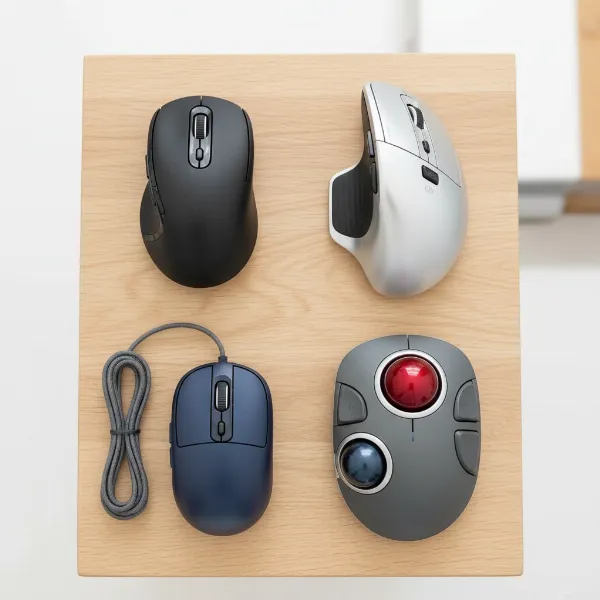 A diverse collection of computer mice (traditional, vertical, trackball, wireless, wired) arranged on a modern desk, showcasing different designs and functionalities. Overhead shot, bright, clean aesthetic, product photography style.
Traditional Mice
These are the most common and recognizable mice. They come in various sizes and can be wired or wireless, often symmetrical or gently contoured.
- Pros: Familiar feel, generally affordable, wide availability, suitable for basic tasks.
- Cons: May not offer specialized ergonomic support for prolonged use.
- Best For: Everyday tasks, casual users, those seeking simplicity and affordability.
Ergonomic Mice
Designed with user comfort and health in mind, ergonomic mice aim to reduce strain on the hand, wrist, and forearm.
- Vertical Mice: Promote a natural “handshake” posture.
- Pros: Significantly reduces wrist pronation, alleviates discomfort from RSIs.
- Cons: Can take time to get used to, may feel less precise for some tasks initially.
- Contoured Mice: Shaped to fit the natural curves of the hand.
- Pros: Provides good palm support, more comfortable than standard flat mice.
- Cons: Often right-hand specific, may still require some wrist rotation.
- Best For: Users experiencing hand/wrist discomfort, those who spend long hours at the computer, anyone looking to prevent RSIs.
Trackball Mice
These mice remain stationary, with a ball that users manipulate to control the cursor.
- Pros: Requires minimal hand/arm movement, ideal for small desks, can be precise once mastered.
- Cons: Learning curve, may not be suitable for fast, sweeping movements in gaming, cleaning the trackball is necessary for smooth operation.
- Best For: Users with limited desk space, individuals with arm/shoulder pain, precision work.
Productivity Mice
Often wireless, these mice blend ergonomic design with advanced features like multiple programmable buttons, multi-device connectivity, and advanced scroll wheels.
- Pros: Highly customizable, boosts workflow efficiency, comfortable for extended use, often good battery life.
- Cons: Can be more expensive, features might be overkill for casual users.
- Best For: Remote workers, power users, creative professionals, those juggling multiple devices.
Top Computer Mice Recommendations for Various Home Needs
Based on expert reviews and user feedback, several computer mice consistently stand out for their performance, comfort, and features suitable for home use.
- Best Overall Productivity Mouse: Logitech MX Master 3S (or MX Master 4)
- Renowned for its comfortable, sculpted right-handed design, the MX Master series offers exceptional productivity features. Key highlights include an electromagnetic scroll wheel that toggles between smooth and notched scrolling, a secondary thumb wheel for horizontal scrolling, and highly customizable buttons via Logi Options+ software. It connects via Bluetooth or Logi Bolt USB receiver and supports up to three devices simultaneously, with Logi Flow for seamless switching. The 3S features an 8,000 DPI sensor for excellent tracking.
- Best Ergonomic Vertical Mouse for Small to Medium Hands: Logitech Lift
- Designed for comfort, the Logitech Lift features a vertical 57-degree “handshake angle” to reduce forearm twisting. It’s particularly well-suited for users with small to medium hands and is available in both right and left-handed versions. It offers quiet clicks and advanced productivity features, connecting via USB dongle or Bluetooth LE.
- Best Trackball Mouse: Logitech Ergo M575
- For those prioritizing minimal wrist movement, the Ergo M575 is an excellent choice. It features a comfortable, sculpted shape with a thumb-operated trackball, eliminating the need to move the mouse itself. It connects via 2.4 GHz or Bluetooth Low Energy and offers customizable buttons through Logitech Options software, making it ideal for users with wrist strain or limited desk space.
- Best Budget-Friendly Mouse: Logitech M510
- A reliable and affordable option, the Logitech M510 is a basic 2.4GHz wireless mouse with a comfortable, ambidextrous shape. It includes two side buttons and a scroll wheel, all customizable via Logi Options+. With a long battery life (up to 24 months), it’s a no-frills device perfect for everyday tasks and users on a tight budget.
- Best for Multi-Device Connectivity: Logitech M720 Triathlon
- This mouse excels at seamless multi-device use, allowing you to pair with up to three computers and switch between them with an easy side button or through Logitech Flow software. It combines 2.4 GHz and Bluetooth Low Energy connectivity, offers an optional smooth scroll wheel, and has heavily customizable buttons, making it a boon for users working across multiple systems.
- Best for Portability/Travel: Microsoft Modern Mobile Mouse
- Extremely thin and lightweight, this Bluetooth mouse is designed for users who prioritize portability and a minimalist aesthetic. While basic in functionality (two buttons, clickable scroll wheel), its compact design and range of colors make it ideal for travel and casual use with laptops or tablets.
Maximizing Your Mouse Experience: Usage and Maintenance Tips
Beyond choosing the right computer mouse, how you use and care for it significantly impacts your comfort, productivity, and the device’s lifespan. Implementing good habits and simple maintenance can make a world of difference.
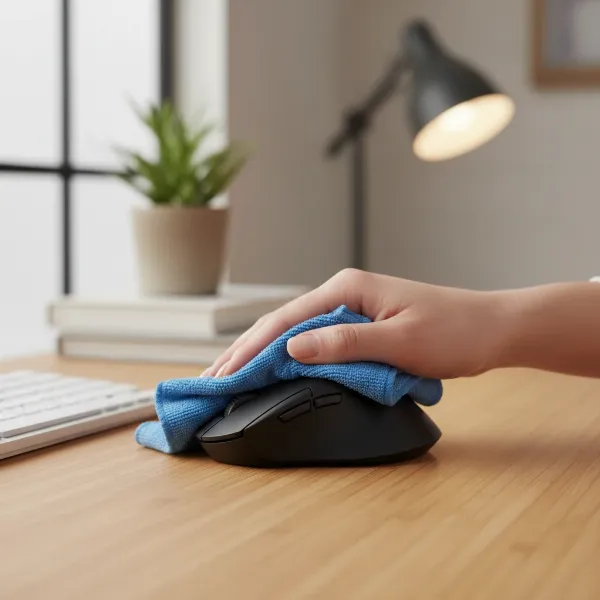 A person gently cleaning a computer mouse with a microfiber cloth on an ergonomic desk setup, with a focus on hygiene and proper workstation arrangement. Close-up, well-lit, clean background, realistic style.
Proper Workstation Setup
Even the most ergonomic mouse won’t help if your overall workstation is poorly arranged.
- Position: Place your mouse as close to your keyboard as possible to avoid overreaching, which can lead to shoulder fatigue.
- Height: Your mousing surface should be at elbow height, with your upper arm relaxed against your body. This maintains a neutral wrist posture.
- Movement: For large cursor movements (e.g., across multiple screens), use your forearm. For medium movements, use your wrist, and for precise control, use your fingers.
- Alternate Hands: If possible, occasionally switch the hand you use for your mouse to distribute the workload and reduce strain.
- Light Grip: Avoid gripping your mouse too tightly; a relaxed grip is sufficient for control and prevents unnecessary muscle tension.
Cleaning Your Computer Mouse
Regular cleaning is essential for hygiene and optimal performance, especially for optical/laser sensors.
- Exterior: Use a soft, lint-free cloth dampened with a mild cleaning solution (or isopropyl alcohol) to wipe down the mouse body. Avoid spraying liquid directly onto the mouse.
- Sensor: Gently clean the sensor lens on the underside of the mouse with a cotton swab dampened with alcohol. Dust or debris can impair tracking accuracy.
- Scroll Wheel/Buttons: Use a can of compressed air to dislodge any dust or crumbs accumulated around the scroll wheel and button crevices.
Adjusting DPI and Other Settings
Customizing your mouse settings can greatly improve your experience.
- DPI Adjustment: Many mice, particularly gaming or productivity models, have dedicated DPI buttons. Experiment with different settings to find what feels most comfortable and efficient for your tasks and screen resolution.
- Pointer Speed (Windows/macOS): Your operating system’s pointer speed settings also influence cursor movement. Adjust this in conjunction with DPI for fine-tuning. Disable “Enhance Pointer Precision” (mouse acceleration) for more consistent and predictable cursor movement, especially for precision tasks.
- Programmable Buttons: Utilize any companion software (e.g., Logitech Options+, Razer Synapse) to customize extra buttons for shortcuts or macros that streamline your workflow.
Extending Battery Life for Wireless Mice
- Turn Off When Not In Use: If your mouse has a power switch, turn it off during long breaks or overnight.
- Monitor Battery Levels: Keep an eye on battery indicators, especially for rechargeable models, to charge before it dies unexpectedly.
- Optimal Settings: Some mice offer power-saving modes or allow you to reduce polling rates via software, which can extend battery life.
- Quality Batteries: For replaceable battery models, using high-quality alkaline or rechargeable batteries can provide longer life.
Troubleshooting Common Issues
- Lag/Disconnection (Wireless): Ensure the USB receiver is close to the mouse. Check for interference from other devices. Update drivers. Replace batteries.
- Jittery Cursor: Clean the sensor. Try a different mousepad or surface. Adjust DPI (lower it if too high).
- Buttons Not Registering: Check for physical obstructions. Update drivers. Test on another computer if possible.
By maintaining proper posture, regularly cleaning your device, and personalizing its settings, you can ensure your computer mouse remains a reliable and comfortable tool for years.
Understanding Different Mouse Sensor Technologies
While often overlooked, the sensor technology inside your computer mouse plays a fundamental role in its tracking performance and accuracy. The two primary types of sensors are optical and laser, each with distinct characteristics.
Optical Sensors
- How They Work: Optical mice use an LED light (typically red) and a small camera to take thousands of images per second of the surface beneath them. A Digital Signal Processor (DSP) analyzes these images to detect changes in pattern, translating them into cursor movement.
- Pros: Generally reliable and consistent on most opaque, non-glossy surfaces like mousepads, wood, or matte plastic. Less prone to “acceleration” issues compared to early laser mice, offering more predictable tracking. Often more affordable.
- Cons: May struggle to track accurately on glossy, transparent (like glass), or uneven surfaces.
- Best For: Everyday use, office work, and most gaming scenarios where a good quality mousepad is used.
Laser Sensors
- How They Work: Laser mice operate on a similar principle to optical mice but use an infrared laser diode instead of an LED. The laser provides a more focused illumination of the surface, allowing the sensor to detect finer details.
- Pros: Can track on a wider variety of surfaces, including shiny or glass surfaces (though specialized “Darkfield” laser sensors perform best on glass). Often offers higher maximum DPI settings.
- Cons: Historically, some laser sensors exhibited slight “jitter” or “inconsistent tracking” on certain surfaces due to over-sensitivity to micro-level details. Generally more expensive than optical mice.
- Best For: Users who need a mouse that tracks on almost any surface, including glass desks, or those requiring extremely high DPI settings for multi-monitor 4K setups.
Sensor Quality and DPI
It’s important to remember that the quality of the sensor matters more than the sensor type alone or just a high DPI number. A high-quality optical sensor can outperform a low-quality laser sensor. Furthermore, while DPI affects cursor speed, sensor quality determines how accurately that movement is translated to the screen without skipping or jittering. Many modern mice, regardless of optical or laser, offer excellent tracking for home use.
Where to Purchase Your Next Computer Mouse
Once you’ve determined the ideal computer mouse for your home setup, the next step is finding a reputable place to buy it. Whether you prefer shopping online or in a physical store, there are several considerations to ensure a smooth purchasing experience.
Online Retailers
Major online retailers offer a vast selection, competitive pricing, and convenience.
- Pros:
- Wide Selection: Access to a huge range of brands, models, and price points.
- Competitive Pricing: Frequent sales and discounts.
- User Reviews: Abundance of customer reviews and ratings to guide your decision.
- Convenience: Shop from home, with delivery directly to your door.
- Cons:
- Cannot Test Ergonomics: You can’t physically hold the mouse before buying, which is crucial for comfort.
- Shipping Times: May involve waiting for delivery.
- Tips:
- Reputable Sellers: Stick to well-known online stores (e.g., Amazon, Best Buy, Newegg, specific brand websites like Logitech, Razer, Microsoft).
- Read Reviews: Pay attention to detailed reviews, especially those commenting on comfort, durability, and specific features you value.
- Check Return Policies: Ensure the retailer has a clear and easy return policy in case the mouse doesn’t meet your expectations.
Physical Stores
Visiting electronics stores allows you to get a hands-on feel for different mice.
- Pros:
- Try Before You Buy: Crucial for evaluating comfort, size, shape, and button placement. This is especially important for ergonomic or vertical mice where feel is subjective.
- Immediate Purchase: No waiting for shipping.
- Expert Advice: Sales associates might offer advice, though their knowledge can vary.
- Cons:
- Limited Selection: Stores typically stock fewer models than online retailers.
- Potentially Higher Prices: Brick-and-mortar stores may have higher overheads, leading to less competitive pricing.
- Tips:
- Go Prepared: Have a few models in mind to test.
- Replicate Your Grip: Try holding the mouse as you would during regular use (palm, claw, fingertip).
- Check Warranty: Ask about the warranty and in-store return/exchange policy.
General Buying Advice
- Warranty and Support: Always check the manufacturer’s warranty. Reputable brands offer at least a 1-2 year warranty.
- Authenticity: Purchase from authorized dealers to avoid counterfeit products and ensure warranty validity.
- Bundle Deals: Sometimes, mice are bundled with keyboards or other peripherals, offering better value.
“A good mouse is an investment in your daily comfort and efficiency. Take your time to research and, if possible, physically try out different models.” – ReviewMew.com Admin, Computer Mouse Specialist
Your Ultimate Computer Mouse Buying Guide Summary
Choosing the ideal computer mouse for your home environment doesn’t have to be overwhelming. By focusing on your personal needs and understanding the key features, you can make an informed decision that enhances your comfort and productivity.
- Define Your Budget: Determine how much you’re willing to spend. Excellent mice are available across all price ranges, but setting a budget helps narrow options.
- Prioritize Your Use Case: Are you doing casual browsing, intensive work, or light gaming? Your primary tasks dictate the importance of features like precision (DPI), programmability, and ergonomics.
- Embrace Ergonomics: For prolonged use, comfort is non-negotiable. Consider your hand size and grip style, and explore contoured, vertical, or trackball mice to prevent strain.
- Wired or Wireless? Weigh the benefits of a clutter-free, portable wireless experience against the lag-free reliability of a wired connection. For home use, wireless often provides greater flexibility.
- Understand DPI: Don’t chase the highest numbers. Find a DPI range that offers comfortable speed and precise control for your screen resolution and tasks.
- Don’t Forget Buttons and Battery Life: Extra programmable buttons can streamline workflow, while long battery life (or reliable recharging) is crucial for wireless models.
- Research Brands and Read Reviews: Stick to reputable brands known for quality and reliability (Logitech, Razer, Microsoft, etc.). User reviews provide invaluable real-world insights into a mouse’s performance and durability.
By considering these points, you’ll be well-equipped to select a computer mouse that perfectly complements your home setup, ensuring a more efficient and comfortable computing experience.
Frequently Asked Questions
What is the ideal DPI for home use?
For most home users, a DPI range of 800-1600 provides a comfortable balance between speed and control for everyday tasks, web browsing, and general office work. Users with high-resolution monitors (like 4K) may prefer slightly higher DPI, around 1600-3200, to reduce excessive hand movement.
Are ergonomic mice truly beneficial for casual users?
Yes, ergonomic mice can be beneficial even for casual users. While primarily designed to prevent and alleviate repetitive strain injuries for heavy users, they promote a more natural hand and wrist posture, which can enhance comfort and reduce fatigue for anyone spending a few hours a day on the computer.
How often do wireless mice need their batteries replaced or recharged?
Battery life varies significantly by model and usage. Wireless mice using replaceable AA/AAA batteries can last from several months to a couple of years. Rechargeable models typically last from a few weeks to several months on a single charge. Checking manufacturer specifications and user reviews can give a good indication.
Can I use a gaming mouse for regular home office work?
Absolutely. Gaming mice often feature high-precision sensors, adjustable DPI, and numerous programmable buttons, which can be highly advantageous for productivity tasks and creative work. Their robust build quality and low latency are also beneficial for a smooth user experience, though their design might be more aggressive than traditional office mice.
Is it worth investing in a more expensive computer mouse for home use?
The value of a more expensive mouse depends on your usage and priorities. If you spend many hours daily at your computer, value advanced ergonomic support, precise tracking, customizable features, and multi-device connectivity,