Selecting the ideal computer mouse can transform your daily computing experience, elevating everything from productivity to gaming performance. Many often overlook this crucial peripheral, yet an ill-suited mouse can lead to discomfort, strain, and even repetitive stress injuries over time. Whether you’re a seasoned professional, a passionate gamer, or simply navigating daily tasks, understanding the nuances of mouse technology is key to making an informed decision. This comprehensive guide will equip you with the knowledge needed to choose a computer mouse that perfectly aligns with your specific needs, ensuring comfort, precision, and longevity.
A Comprehensive Look at Computer Mice
A computer mouse is more than just a pointing device; it’s an extension of your hand, translating physical movements into digital commands. Since its inception in the 1960s by Douglas Engelbart, the mouse has evolved from a simple wooden block with wheels to a sophisticated tool packed with advanced features. Today, the market offers a dizzying array of options, each designed to cater to different user requirements and preferences.
Common types of computer mice include:
- Wired Mice: These connect directly to your computer, typically via a USB cable.
- Pros: Offer reliable, low-latency performance crucial for competitive gaming and precision tasks. They never need batteries. Generally more affordable.
- Cons: Restrict movement due to cable length, can contribute to desk clutter.
- Wireless Mice: Utilizing Bluetooth, RF, or Wi-Fi, these mice offer freedom from cables.
- Pros: Portable, provide a clutter-free desk, excellent for laptop users and travel.
- Cons: Require batteries or charging, can experience slight input delay (though modern wireless gaming mice have significantly reduced this), sometimes pricier.
- Optical Mice: The most common and affordable type, using an LED light and sensor to track movement on surfaces.
- Pros: Good precision, work on most non-reflective surfaces.
- Cons: May struggle on glass or highly reflective surfaces.
- Laser Mice: Similar to optical but use a laser diode, offering higher precision and tracking on a wider range of surfaces, including glass.
- Pros: Superior accuracy, works on virtually any surface.
- Cons: Can be overly sensitive on some surfaces, often more expensive.
- Gaming Mice: Specifically engineered for gamers, featuring advanced sensors, high DPI, customizable buttons, and often ergonomic designs and RGB lighting.
- Pros: High precision, fast response times, extensive customization for macros and in-game commands.
- Cons: Can be expensive, often feature designs that are less subtle for office environments.
- Ergonomic Mice: Designed to minimize hand strain and promote a natural hand and wrist posture.
- Pros: Reduces fatigue and the risk of repetitive strain injuries (RSIs) like carpal tunnel syndrome, ideal for long working sessions.
- Cons: May take some getting used to, can be more expensive, and sometimes less portable.
- Trackball Mice: Instead of moving the entire mouse, you move a stationary ball with your thumb or fingers to control the cursor.
- Pros: Excellent for limited desk space, reduces wrist and arm movement, good for precision tasks.
- Cons: Can be less intuitive for some users, may require more thumb/finger dexterity, not ideal for fast-paced gaming.
- Vertical Mice: A type of ergonomic mouse that positions your hand in a “handshake” posture, reducing forearm pronation.
- Pros: Significantly reduces wrist and forearm strain, promotes a more natural arm position.
- Cons: Can feel unusual initially, might be larger than traditional mice.
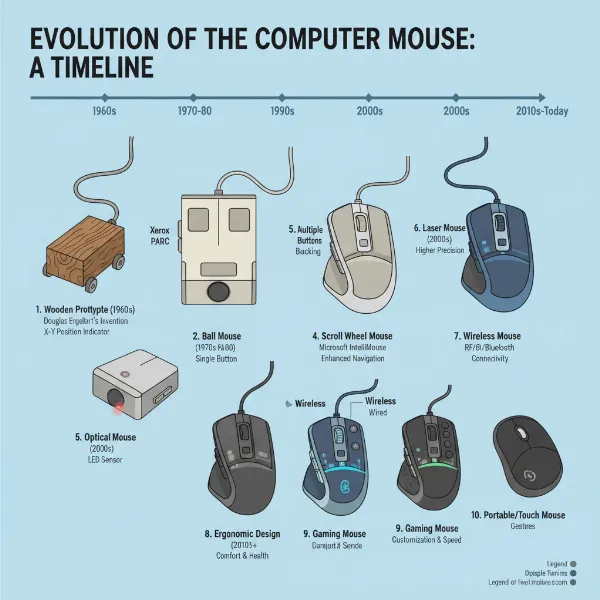 The evolution of computer mice, showing various types from past to present, highlighting their diversity and technological advancements.
Navigating Your Purchase: Choosing the Right Computer Mouse
Making the right choice involves more than just picking a cool-looking device; it requires a thoughtful assessment of your personal needs and preferences. By breaking down the selection process into key considerations, you can ensure your next computer mouse is a perfect fit.
Defining Your Usage Needs
Before diving into specifications, ask yourself how you primarily use your mouse. This initial assessment will guide your priorities.
- What is your primary work? For office work or general browsing, comfort, reliability, and basic functionality are paramount. Graphic designers or CAD users will prioritize precision and programmable buttons. Gamers require high sensitivity, fast response times, and often additional customizable buttons.
- How long do you use the mouse daily? Extended daily use (multiple hours) makes ergonomics a critical factor to prevent discomfort and injury. Casual users may not need the most advanced ergonomic features.
- What is your budget? Mouse prices vary widely. Basic wired mice are very affordable, while high-end gaming or ergonomic models with advanced features can be significantly more expensive. Setting a budget helps narrow down options.
|
Our Picks for the Best Computer mouse in 2026
As an Amazon Associate I earn from qualifying purchases.
|
||
| Num | Product | Action |
|---|---|---|
| 1 | Logitech M510 Wireless Mouse, 2.4 GHz with USB Unifying Receiver, 1000 DPI Laser-Grade Tracking, 7-Buttons, 24-Months Battery Life, PC/Mac/Laptop - Graphite |

|
| 2 | TECKNET Ergonomic Mouse, Wireless Vertical Mouse, 4800 DPI, Rechargeable Bluetooth Mice for Carpal Tunnel Right Hand, 3-Device Connectivity for Laptop, PC, MacBook, Black |
|
| 3 | Logitech B100 Wired Mouse for Computer and Laptop, USB Corded Mouse, Right or Left Hand Use - Black |
|
| 4 | Logitech M185 Wireless Mouse, 2.4GHz with USB Mini Receiver, 12-Month Battery Life, 1000 DPI Optical Tracking, Ambidextrous PC/Mac/Laptop - Swift Grey |
|
| 5 | Amazon Basics 3-Button USB Wired Mouse with Responsive Tracking, Plug & Play, Compatible with Windows and Mac, Black |
|
| 6 | Logitech MX Master 4, Ergonomic Wireless Mouse with Advanced Performance Haptic Feedback, Ultra-Fast Scrolling, USB-C Charging, Bluetooth, Windows, MacOS - Graphite |
|
| 7 | acer Wireless Mouse for Laptop, 2.4GHz Computer Mouse 3 Adjustable DPI Office Cordless USB Mice with USBA Receiver, 6 Buttons, 1600 DPI, Medium to Large Sized Hands Compatible with PC, Laptop, Desktop |
|
| 8 | Amazon Basics 2.4 Ghz Wireless Optical Computer Mouse with USB Nano Receiver, Black |
|
| 9 | Redragon M997 Magnesium Alloy Wireless Gaming Mouse, Tri-Mode BT & 2.4GHz, Ultra Lightweight Ergonomic Mouse, 1000Hz, Rechargeable for PC Laptop, Starlight Black |
|
| 10 | Wireless Bluetooth Mouse, Rechargeable, LED, Silent, Ultra-thin Design (Bluetooth 5.2 and 2.4GHz USB Receiver) | Portable Computer Mouse for Laptops, iPads, MacBooks and Apple Devices (Black) |
|
Key Factors for Mouse Selection
Once you understand your usage patterns, delve into the technical specifications and physical attributes that contribute to an optimal mouse experience.
- DPI (Dots Per Inch): DPI measures a mouse’s sensitivity, indicating how many pixels the cursor moves on-screen for every inch the mouse moves physically. A higher DPI means the cursor travels farther with less hand movement, making the mouse feel more responsive. While often confused with accuracy, DPI primarily affects speed. For general use, a moderate DPI (800-1600) is usually sufficient. Gamers or graphic designers might prefer mice with adjustable DPI settings to switch between precise movements and rapid tracking. “A common misconception is that a higher DPI automatically means a ‘better’ or ‘more accurate’ mouse. In reality, DPI simply changes speed or sensitivity, while accuracy is determined by the quality of the sensor and how well it tracks movement.”
- Form Factor and Size: The physical shape and size of your mouse are paramount for comfort and preventing strain. A mouse should fit the natural curve of your hand, allowing your fingers to rest comfortably on the buttons without stretching or curling. Consider your grip style:
- Palm Grip: The entire palm rests on the mouse, with fingers extended. Larger, contoured mice are generally preferred.
- Claw Grip: The palm partially rests on the mouse, with fingers arched in a claw-like position. Smaller, more contoured designs often suit this style.
- Fingertip Grip: Only the fingertips touch the mouse, allowing for precise, minute movements. Smaller, lightweight mice are usually favored.
It’s highly recommended to try different models to see what feels most natural.
- Button Count: Standard mice typically have two primary buttons and a scroll wheel. Many modern mice, especially gaming and productivity models, offer additional programmable buttons. These can be incredibly useful for shortcuts, macros, or in-game commands, significantly boosting efficiency. Evaluate how many extra buttons you realistically need.
- Connectivity (Wired/Wireless): The choice between wired and wireless often comes down to balancing responsiveness with freedom. Wired mice offer zero latency and consistent power, ideal for competitive gaming or critical tasks. Wireless mice provide a clean, cable-free setup and portability, perfect for everyday use or mobile workstations.
- Sensor Technology: The two main types are optical and laser. Optical sensors use an LED light, working well on most opaque surfaces. Laser sensors use a laser diode, offering higher precision and tracking on glossy or even glass surfaces. For most users, either technology is perfectly adequate, but laser offers more versatility.
- Battery Life (for Wireless Mice): If you opt for a wireless mouse, battery life is an important consideration. Models with long battery life (several months on a single charge or set of batteries) reduce the hassle of frequent recharging or replacement. Rechargeable options are eco-friendlier and more convenient in the long run.
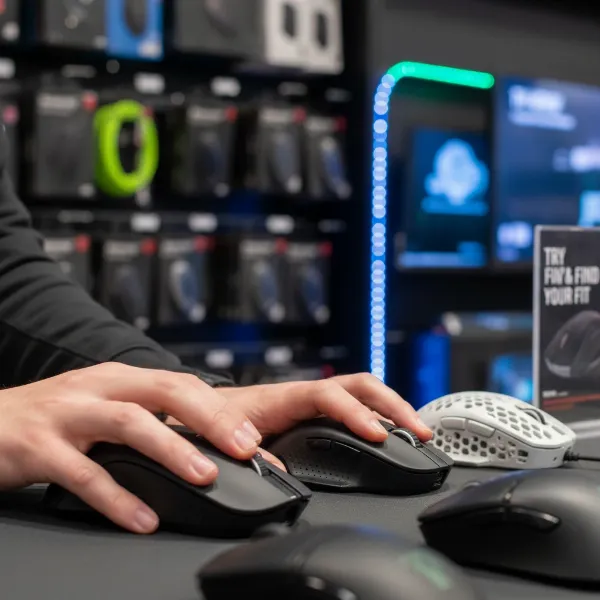 A person carefully selecting a computer mouse, considering hand size and grip style for ergonomic comfort.
Comparing Popular Mouse Models
To illustrate these factors, let’s briefly compare a few popular mouse types. Note that specific models and their features can vary greatly, but this table provides a general overview:
| Feature | Office/General Use Mouse (e.g., Logitech M170) | Gaming Mouse (e.g., Razer DeathAdder V3 Pro) | Ergonomic Mouse (e.g., Logitech MX Vertical) |
|---|---|---|---|
| DPI Range | 1000 DPI (fixed) | Up to 30,000+ DPI (adjustable) | Up to 4000 DPI (adjustable) |
| Form Factor | Ambidextrous, compact | Right-handed, contoured, lightweight | Right-handed, vertical “handshake” grip |
| Buttons | 3 (L/R click, scroll wheel) | 5-8+ (programmable, side buttons) | 5-6+ (programmable, gesture button) |
| Connectivity | Wireless (RF receiver) | Wired or Wireless (low-latency RF) | Wireless (Bluetooth, RF receiver) |
| Sensor | Optical | Optical (high-precision sensor) | Optical (Darkfield for multi-surface) |
| Battery Life | ~12 months (AA battery) | Up to 90 hours (rechargeable) | Up to 4 months (rechargeable) |
| Price Range | Affordable | Premium | Mid-to-High Tier |
| Pros | Simple, reliable, portable | Ultra-responsive, customizable, precise | Reduces strain, comfortable for long use |
| Cons | Basic features, less precise | Expensive, often complex software | Learning curve, less portable |
Top-Rated Computer Mice for Every User
Based on extensive testing and user feedback, certain models consistently stand out for their performance, comfort, and feature sets across various categories.
- Best Overall Productivity Mouse: The Logitech MX Master 3S is a perennial favorite for professionals. Its ergonomic design cradles the hand, while the MagSpeed electromagnetic scrolling wheel offers incredible precision and hyper-fast scrolling. With an 8000 DPI Darkfield sensor, it tracks on virtually any surface, including glass, and its customizable buttons enhance workflow dramatically.
- Best Budget-Friendly Option: The Logitech M720 Triathlon offers excellent value. It’s a comfortable, durable wireless mouse with multi-device connectivity, allowing you to switch between three devices seamlessly. While not as feature-rich as premium models, it delivers solid performance for everyday tasks and budget-conscious users.
- Best for Competitive Gaming: The Razer DeathAdder V4 Pro Wireless combines an iconic ergonomic shape with a lightning-fast sensor and incredibly low latency wireless connectivity. Designed for esports, it offers extreme precision and a lightweight build, giving competitive gamers a distinct edge.
- Best for Ergonomics and Pain Relief: The Logitech MX Vertical is specifically engineered to reduce wrist and forearm strain. Its unique vertical design promotes a natural “handshake” posture, which can significantly alleviate discomfort during long computing sessions. It’s a game-changer for anyone experiencing or wanting to prevent RSIs.
- Best Portable Mouse: The Logitech MX Anywhere 3S is a compact powerhouse, perfect for those on the go. It boasts the same MagSpeed scrolling as its larger sibling and can track on nearly any surface. Its small size and robust features make it an ideal companion for laptops and travel.
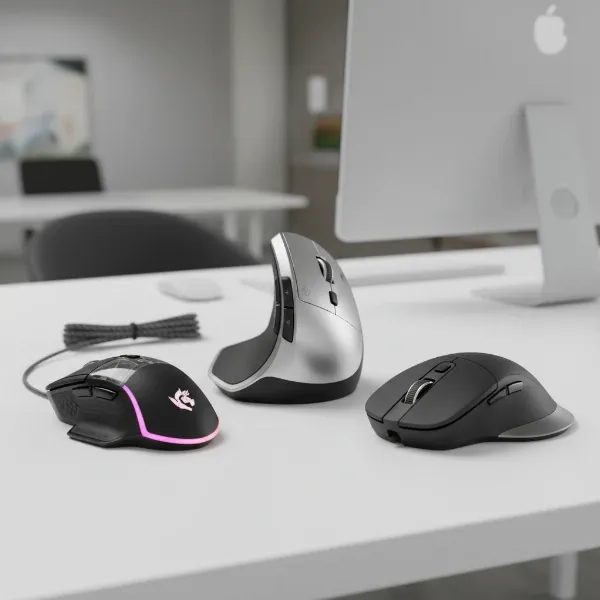 A collection of diverse, top-rated computer mice displayed together, representing categories like gaming, ergonomic, and productivity.
Essential Tips for Mouse Use and Maintenance
Even with the perfect mouse, proper usage and regular maintenance are crucial for maximizing its lifespan and your comfort.
How to Keep Your Mouse Pristine
Regular cleaning not only maintains hygiene but also ensures consistent performance.
- Disconnect First: Always unplug a wired mouse or power off a wireless mouse and remove batteries before cleaning.
- Surface Cleaning: Dampen a lint-free cloth with a mild soap and water solution or a 70% isopropyl alcohol (IPA) solution. Gently wipe the entire outer surface, paying attention to areas where your hand rests. Avoid direct liquid application to the mouse.
- Crevices and Buttons: Use a cotton swab dampened with IPA to clean around buttons, the scroll wheel, and seams where dirt and oils accumulate. A toothpick can carefully dislodge stubborn debris from tight spots.
- Sensor Care: Gently wipe the optical or laser sensor on the bottom of the mouse with a dry cotton swab or a clean, dry microfiber cloth. Avoid using alcohol directly on the sensor, as it can leave residue.
- Compressed Air: Use short bursts of compressed air around the scroll wheel and button crevices to remove dust and crumbs. Hold the can upright to prevent propellant discharge.
- Drying: Allow the mouse to air dry completely for a few minutes before reconnecting or powering it on.
Optimizing Your Settings and Usage
Adjusting your mouse settings can significantly improve your experience.
- Adjust DPI: Experiment with DPI settings (often via a dedicated button on the mouse or software) to find a sensitivity that feels natural for your tasks. Lower DPI for precision, higher for rapid movements.
- Pointer Speed: In your operating system settings, adjust the pointer speed to fine-tune cursor movement. This works in conjunction with your mouse’s DPI.
- Customize Buttons: If your mouse has programmable buttons, utilize the manufacturer’s software to assign shortcuts or macros relevant to your workflow.
- Ergonomic Posture: Maintain a light grip on the mouse. Avoid resting your wrist heavily on the desk; instead, move the mouse primarily with your arm, engaging larger muscle groups to reduce strain on your wrist. Ensure your keyboard and mouse are positioned close enough to avoid overstretching. Take frequent short breaks to rest your hand and wrist.
 A person cleaning a computer mouse with a microfiber cloth and a cotton swab, emphasizing proper maintenance for longevity.
In-Depth Comparison of Mouse Technologies
Beyond the basic types, understanding the core technologies beneath the surface helps clarify their best applications.
- Optical vs. Laser Mice: Both are types of sensory mice that detect movement.
- Optical mice use an infrared LED to illuminate the surface and a small camera to capture images, tracking changes to determine movement. They perform best on opaque, non-glossy surfaces and are generally sufficient for everyday tasks.
- Laser mice use a laser diode, allowing them to detect finer surface details. This translates to higher DPI capabilities and better tracking on challenging surfaces like glass or highly polished desks. For tasks requiring extreme precision, such as high-level graphic design or competitive gaming, laser mice often offer an advantage.
- Trackball Mice: These differ fundamentally from sensory mice as the mouse itself remains stationary. Movement is controlled by rolling a ball embedded in the device. This design is excellent for users with limited desk space or those who experience wrist pain from traditional mouse movements, as it minimizes arm and wrist movement. However, they can have a learning curve and might feel less agile for fast-paced actions.
- Gaming Mice: These are not defined by a single sensor type but rather by a combination of features optimized for gaming. They typically boast very high and adjustable DPI ranges (often 10,000+), advanced optical or laser sensors for flawless tracking, low-latency wired or wireless connections, and multiple programmable buttons. Many also include ergonomic designs to support long gaming sessions and customizable RGB lighting.
- Ergonomic Mice (Vertical/Contoured): Designed to promote a neutral posture. Vertical mice orient the hand in a “handshake” position, reducing pronation of the forearm and wrist. Contoured ergonomic mice shape themselves to the natural curve of the hand, providing full palm support. These are crucial for preventing musculoskeletal disorders and enhancing comfort for users spending hours at their computer.
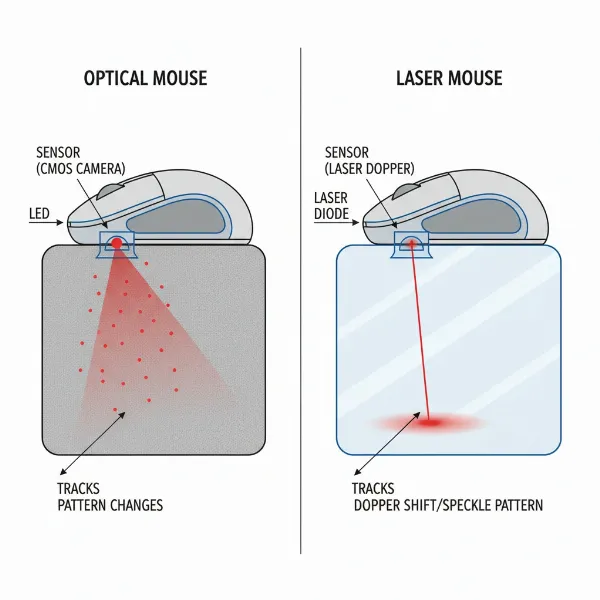 An illustration comparing optical and laser mouse sensors, showing how they detect movement on different surfaces.
Where to Buy Your Next Computer Mouse
Finding the right computer mouse also involves knowing where to purchase it, whether you prefer the tactile experience of shopping in person or the convenience of online retail.
- Physical Retailers: Large electronics stores like Best Buy, Staples, and specialized computer shops offer the advantage of letting you physically try out different mice. This is invaluable for assessing form factor, grip comfort, and button feel before making a purchase, especially for ergonomic models. You can also get immediate assistance from sales associates.
- Online Stores: E-commerce giants like Amazon, as well as brand-specific stores like Logitech and Razer, provide a vast selection, competitive pricing, and user reviews that can offer insights into real-world performance. Websites like Target and Walgreens also carry various models. When buying online, pay close attention to product specifications, customer reviews, and the retailer’s return policy. Ensure you buy from reputable sellers to guarantee authenticity and warranty coverage.
- Specialty Stores: For niche needs, such as high-end gaming mice or highly specialized ergonomic devices, consider stores that focus exclusively on those product categories. They often have knowledgeable staff and a wider selection of premium or unique models.
When purchasing a computer mouse online, always verify the product’s warranty and the retailer’s exchange or return policy. Many online listings will feature extensive user reviews; these can be an invaluable resource to understand the pros and cons of a particular model from the perspective of other users.
 A digital display showing various computer mice on an e-commerce website, illustrating online shopping options.
The Ultimate Buying Guide for Computer Mice
To streamline your decision-making process and ensure you choose a computer mouse without errors, consider these final points as a comprehensive checklist.
- Determine Your Budget: Clearly define how much you’re willing to spend. This will immediately help filter out unsuitable options and allow you to focus on the best mice within your price range. Affordable options provide reliable functionality, while mid-range and premium mice offer enhanced ergonomics, advanced features, and superior precision.
- Research Reputable Brands: Stick to well-known and respected brands in the peripheral market. Companies like Logitech, Razer, Microsoft, and SteelSeries have a proven track record of quality, innovation, and customer support. Their products often come with better build quality and more reliable software.
- Read Reviews and Seek Recommendations: Before finalizing your choice, consult multiple reviews from both expert tech sites and everyday users. Pay attention to feedback regarding comfort, durability, software performance, and suitability for specific tasks. User experiences can highlight subtle pros and cons not always evident in product descriptions.
“Choosing a computer mouse is a personal journey. The ‘best’ mouse isn’t a single product, but rather the one that perfectly marries your unique hand shape, grip style, and daily computing demands with its features and ergonomics.” – Admin, ReviewMew.com, Technician with 10+ years of expertise in computer mice.
 A person researching computer mouse reviews and specifications on a tablet, making an informed purchasing decision.
Conclusion
Choosing the right computer mouse is a crucial decision that significantly impacts your comfort, productivity, and overall computing experience. By carefully considering your usage needs, understanding key factors like DPI and ergonomics, and exploring top-rated models, you can navigate the vast market with confidence. Remember to prioritize a mouse that fits your hand comfortably, offers suitable features for your tasks, and is built to last. A well-chosen computer mouse is an investment in your daily efficiency and long-term well-being.
What aspects of your mouse experience do you find most challenging, and how might a new mouse alleviate those issues?
Frequently Asked Questions
What is the most comfortable computer mouse?
The most comfortable computer mouse largely depends on individual hand size, grip style (palm, claw, fingertip), and usage duration. Ergonomic mice, particularly vertical designs like the Logitech MX Vertical, are often cited for their comfort as they promote a natural handshake position, reducing wrist and forearm strain during extended use.
Is a high DPI better for a computer mouse?
Not necessarily. While a higher DPI (Dots Per Inch) means the cursor moves faster across the screen with less physical mouse movement, it doesn’t equate to better accuracy. Extremely high DPI can make the cursor feel jittery and harder to control for everyday tasks. The ideal DPI is subjective and should be adjusted to match your preference and task requirements.
Wired vs. wireless computer mouse for gaming?
For competitive gaming, wired mice traditionally offer lower latency and consistent reliability, making them a preferred choice for many professionals. However, modern wireless gaming mice have significantly reduced latency, often rivaling wired performance, while offering the convenience of a clutter-free setup. Both can be excellent, with wireless offering more flexibility.
How often should I clean my computer mouse?
It is recommended to clean your computer mouse at least once a month, or more frequently if it sees heavy use or is shared. Regular cleaning prevents the buildup of dirt, oils, and germs, which can affect tracking performance, button responsiveness, and overall hygiene. Disconnect the mouse and use mild cleaning solutions for best results.
What is an ergonomic computer mouse?
An ergonomic computer mouse is specifically designed to promote a natural hand, wrist, and forearm posture, thereby minimizing physical strain and reducing the risk of repetitive stress injuries (RSIs). These mice often feature contoured shapes, vertical designs, or unique layouts that support the hand’s natural resting position, improving comfort during prolonged computer use.